 BambooForge Labs

- Access by named role, not by ticking groups one user at a time"Warehouse operator" is a role: its groups, applied to any number of users, with a preview per user of what they gain and lose.
- The rule that blocked someone, in wordsPick a user, a model, an operation and a record: the verdict names the access record or rule that decides it. The answer Odoo's Access Error never gives.
- Hide what a role should not see, with no codeMenus, fields, buttons, tabs, Action and Print entries per role, group or user, picked from the view. Export, import and duplicate are refused on the server too.
bambooforge_access_manager94 automated checks run before every release of this app, the same suite on every series it ships for. The complete list is in the source you receive; run it yourself with --test-enable.
For the people who decide
What your managers see
Access Manager > Reporting is for whoever answers for access - the IT manager, the security officer, the auditor. Each analysis opens on a chart, with the pivot one click away, and the pivot downloads to Excel from its toolbar.
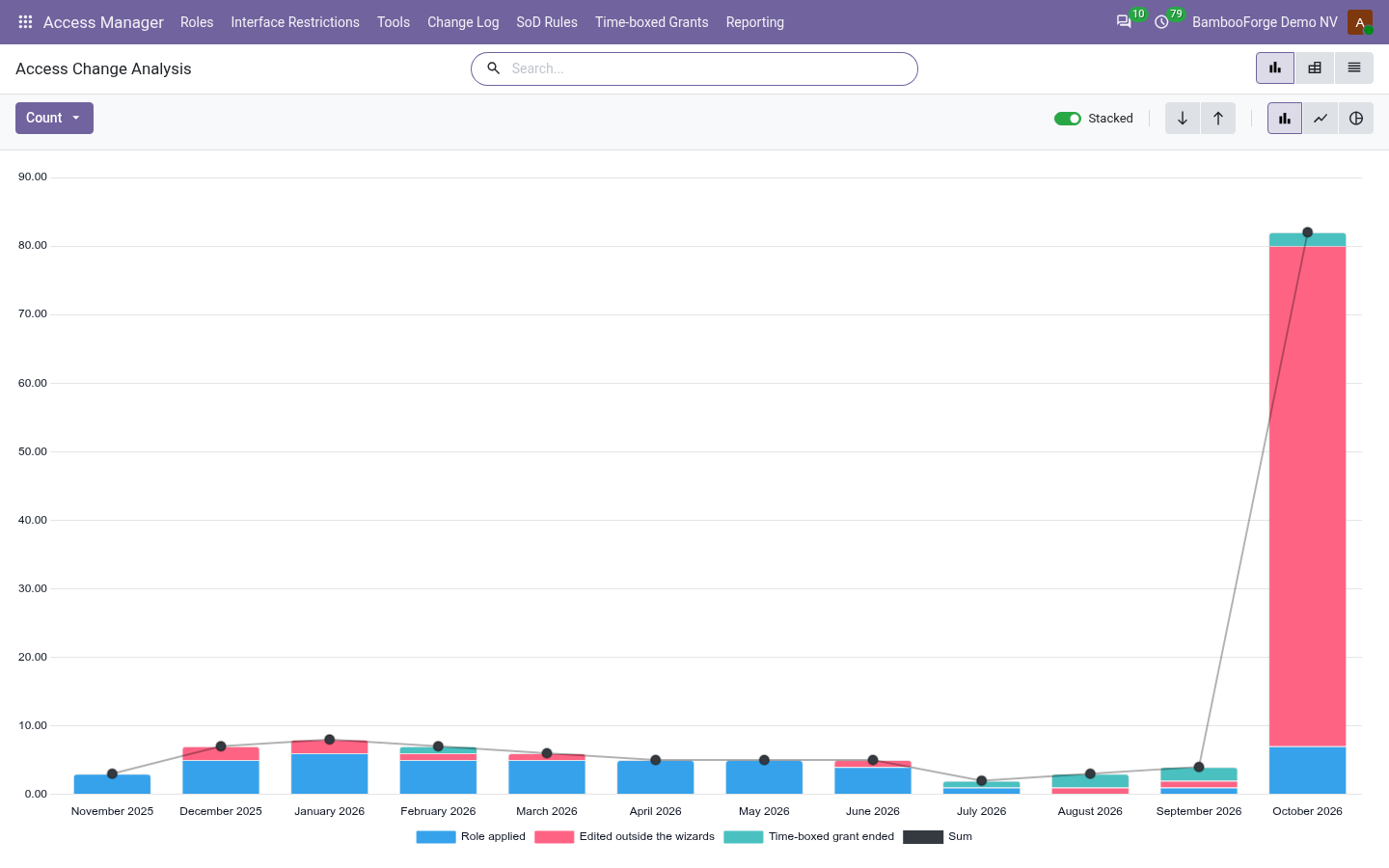
Access Changes
how much access moved, by month, by who moved it and how; the edits made outside the wizards are one filter away.
The IT manager sees who grants rights, and which changes no role explains.
Temporary Access
time-boxed grants by group, user and expiry month, with the ones that end in the next 30 days.
Shows how much access is only lent, and what comes back this month.
Segregation of Duties
the conflicts on record - found by a scan, or let through by a warning rule when the access was granted - by rule and severity.
The security officer decides which conflict to break first.
Two documents for the auditor:
- Access Matrix (Excel): every internal user against every group they hold, implied groups included; a second sheet lists each group's members and a third the changes of the last 90 days. The spreadsheet an auditor asks for first.
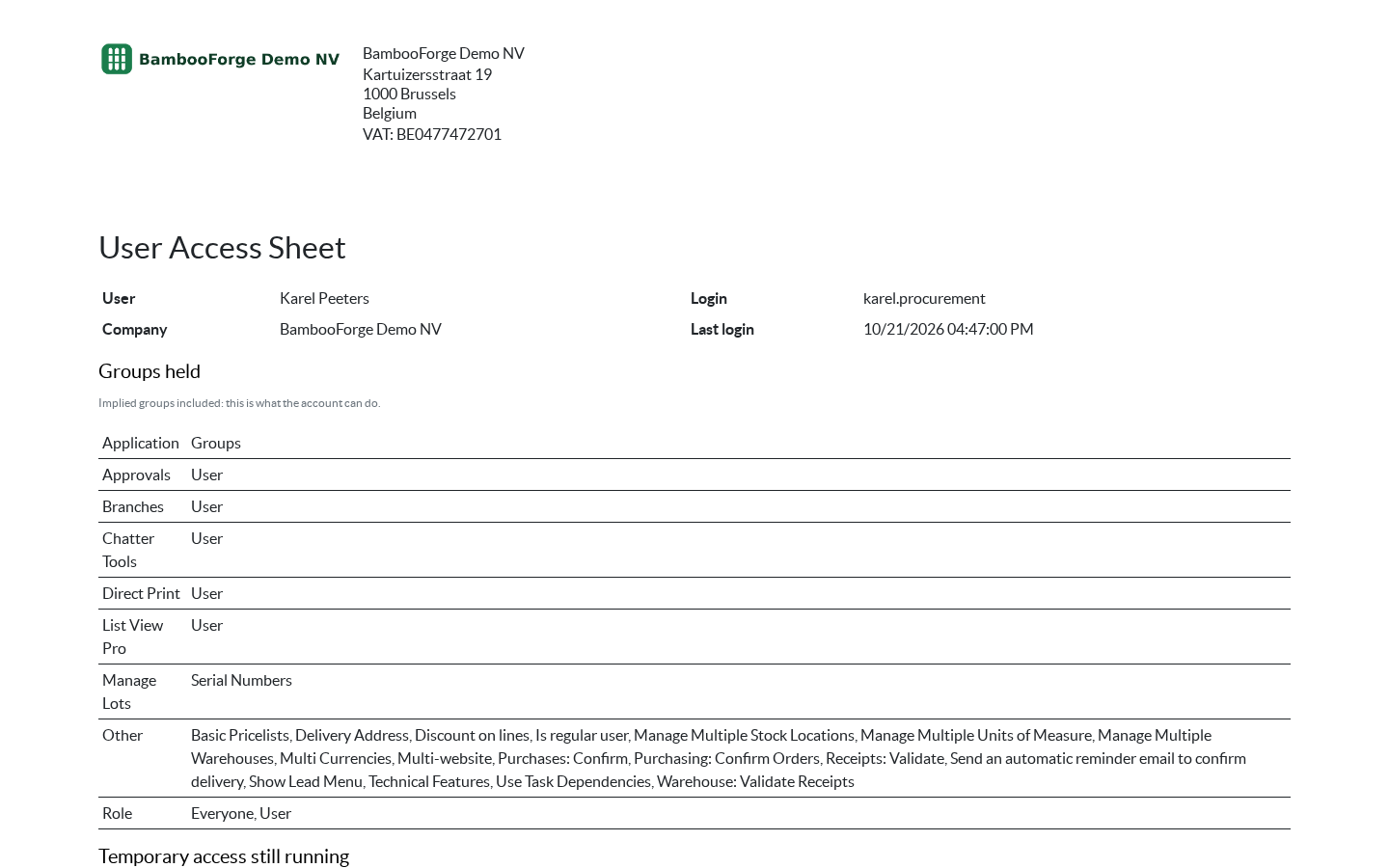
- User Access Sheet: one user's groups, running temporary access, conflicts and last changes on a page, with a line for the reviewer to sign. Print on the user's form, for access managers.
How you use it
Seven screens, in the order you will use them
Roles: the groups a job needs, named once
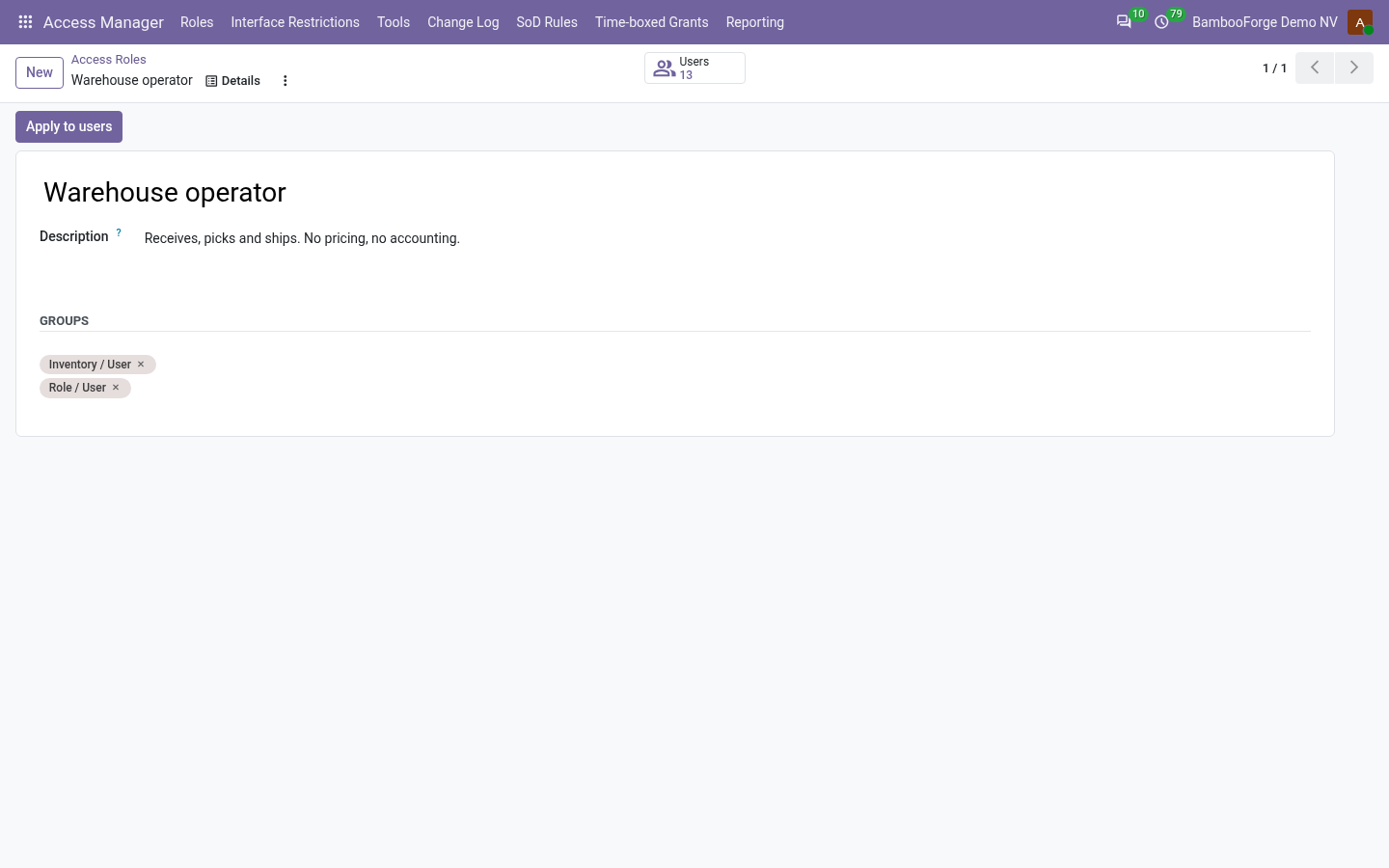
"Warehouse operator" is a role, not a checklist somebody remembers. The role form counts the users who hold every group of it, and one click lists them.
- Access Manager > Roles > New: name the role in the words the person doing the hiring uses.
- Put the groups in. The form shows how many users hold every one of them, and Users opens that list.
- Apply to users opens the preview.
Nothing is written before you have read it
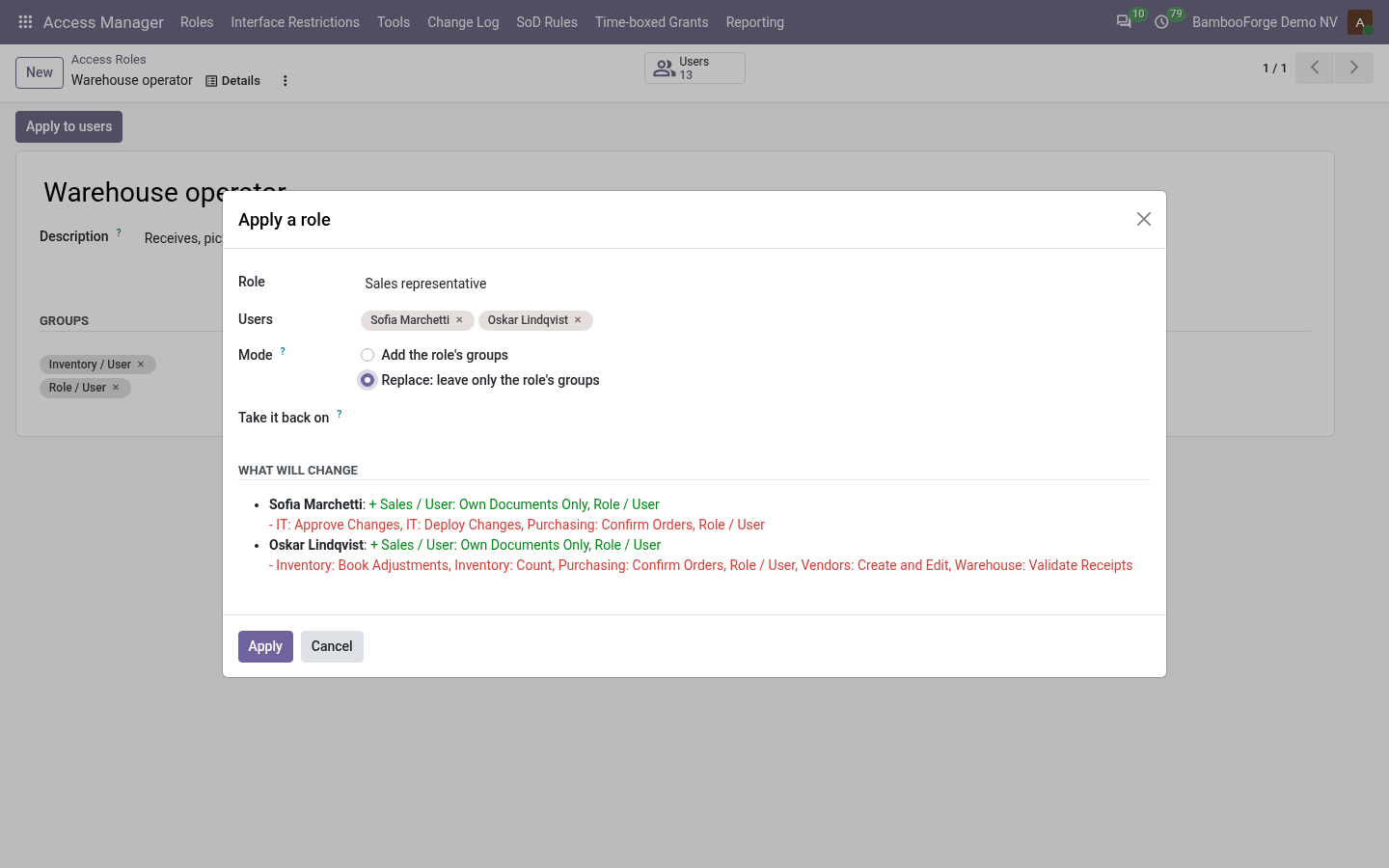
Applying a role, copying a user's access or editing in bulk all show the same preview: per user, the groups gained in green and the groups lost in red. Replace mode shows exactly what it would take away, before it takes it.
- Pick the targets: the users for a role, a source user for Copy access, or a selection on the Users list (Action > Bulk access edit).
- Choose Add, which leaves the other groups alone, or Replace, which strips everything the role does not contain.
- Read the preview: per user, the groups gained in green and lost in red, or the plain statement that nothing changes.
- Apply. Every user it changes gets a line in the change log.
"Why can't they see it?", answered
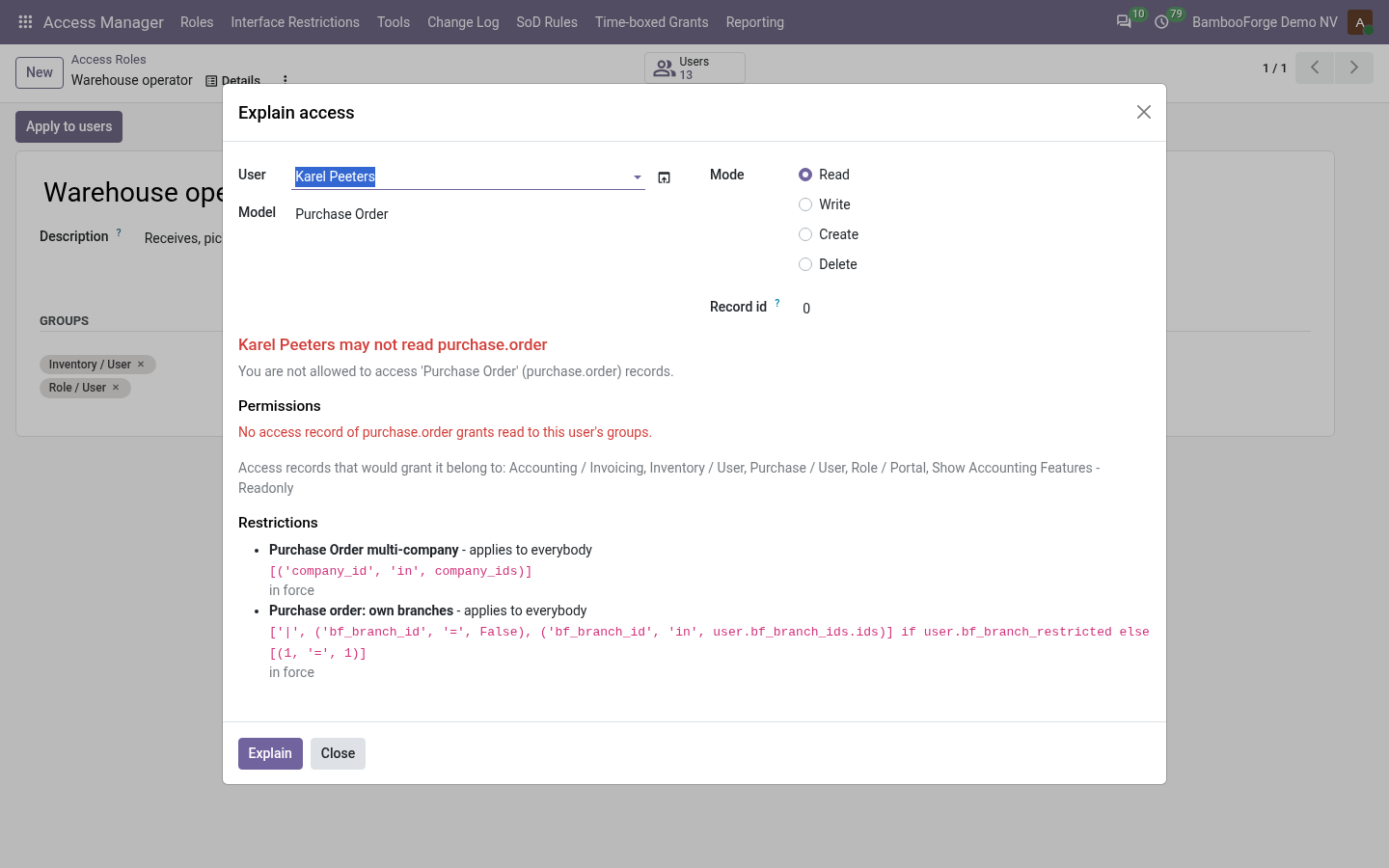
Pick a user, a model, an operation and optionally one record. The verdict names the access records that grant the operation to the user's groups, every restriction on the model with its domain, and, with a record id, which one excludes that exact record.
- Access Manager > Tools > Explain access: pick the user, the model and the operation (read, write, create or delete).
- Add the record id when the problem is "everything works except this one".
- Read the verdict. Permissions names the access records that grant it, or the groups whose records would. Restrictions lists every rule with its domain; the one that excludes the record is in red.
Segregation of duties, enforced rather than documented
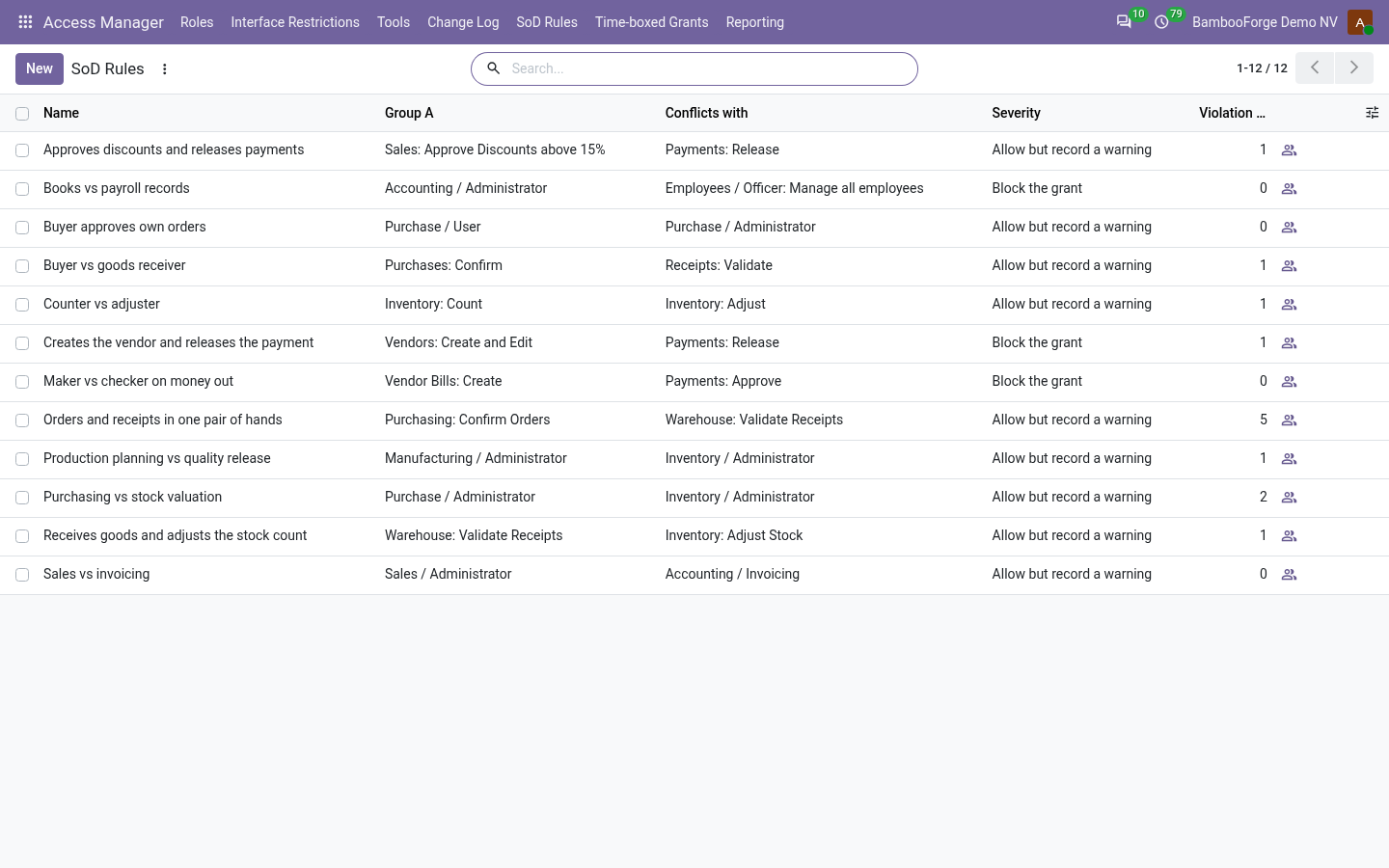
Name the pairs of powers one person must never hold together. Blocking rules refuse the grant whatever road it takes; warning rules let it through but keep the person on the violation list. One click scans everybody already in conflict.
- Access Manager > Segregation of Duties: name the two groups one person must never hold together, and choose Block or Warn.
- A blocking rule refuses the grant from a wizard, the Users form, RPC, another module, a user created with both groups, or a user added on the group's own form.
- A warning rule lets it through and lists the person as a violation; the scan finds everybody already in conflict.
Hide what a role should not see, with no code
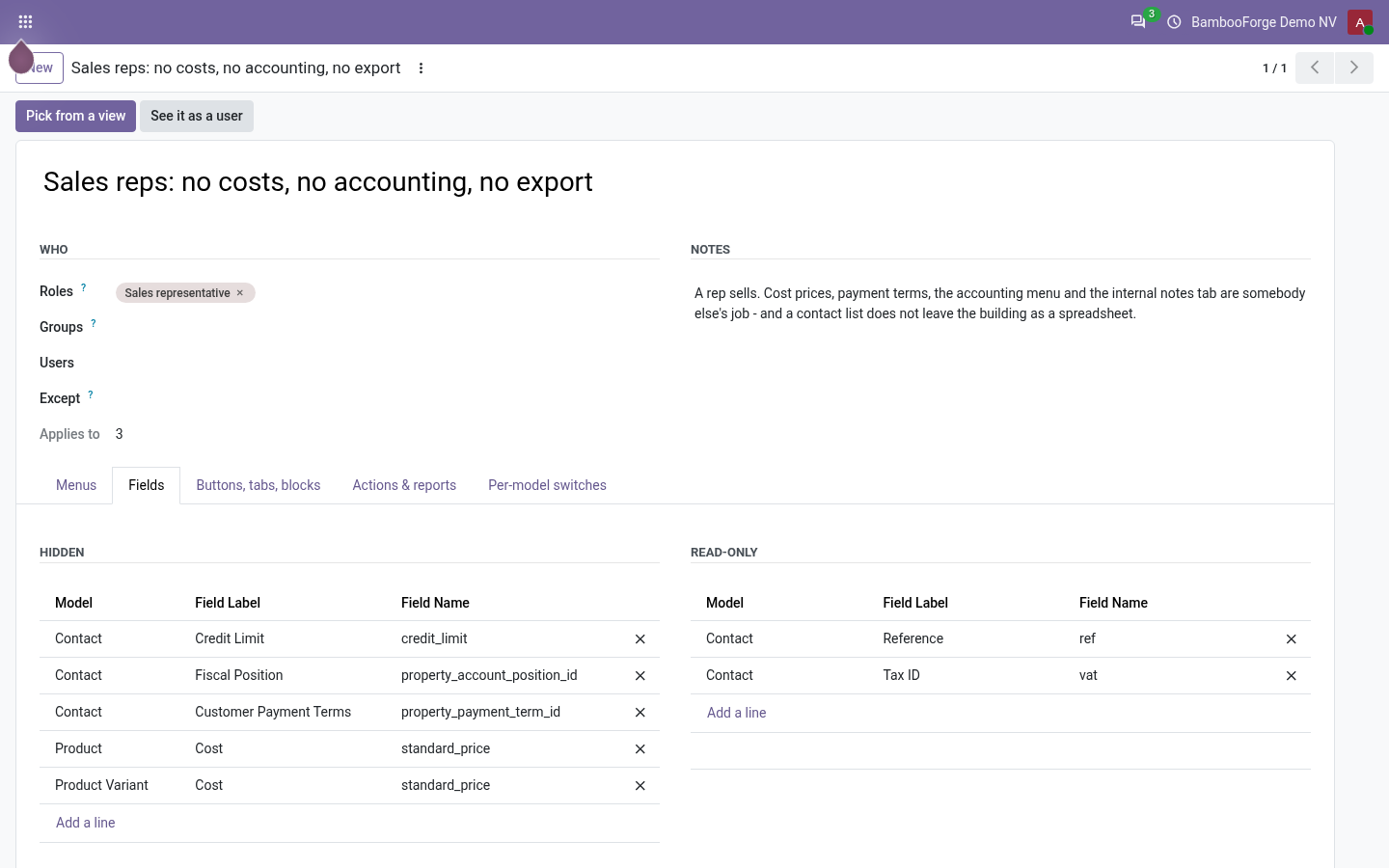
Groups decide what a user may do; an interface restriction decides what they see. Per role, group or user: menus, fields hidden or read-only, buttons, tabs, blocks and the chatter, Action and Print entries, and per-model switches. Export, import and duplicate are refused on the server as well, because they are the roads a screen cannot close.
- Access Manager > Interface Restrictions > New: say who. Roles, groups, named users, and the users the rule never touches.
- One tab for each kind of what: menus, fields (hidden or read-only), buttons, tabs and blocks, actions and reports, per-model switches.
- Press Pick from a view, choose the model and the view, tick the buttons and tabs to hide. No XML to read.
- Save. The rule holds from the next screen the user opens, without a restart.
See it as this user
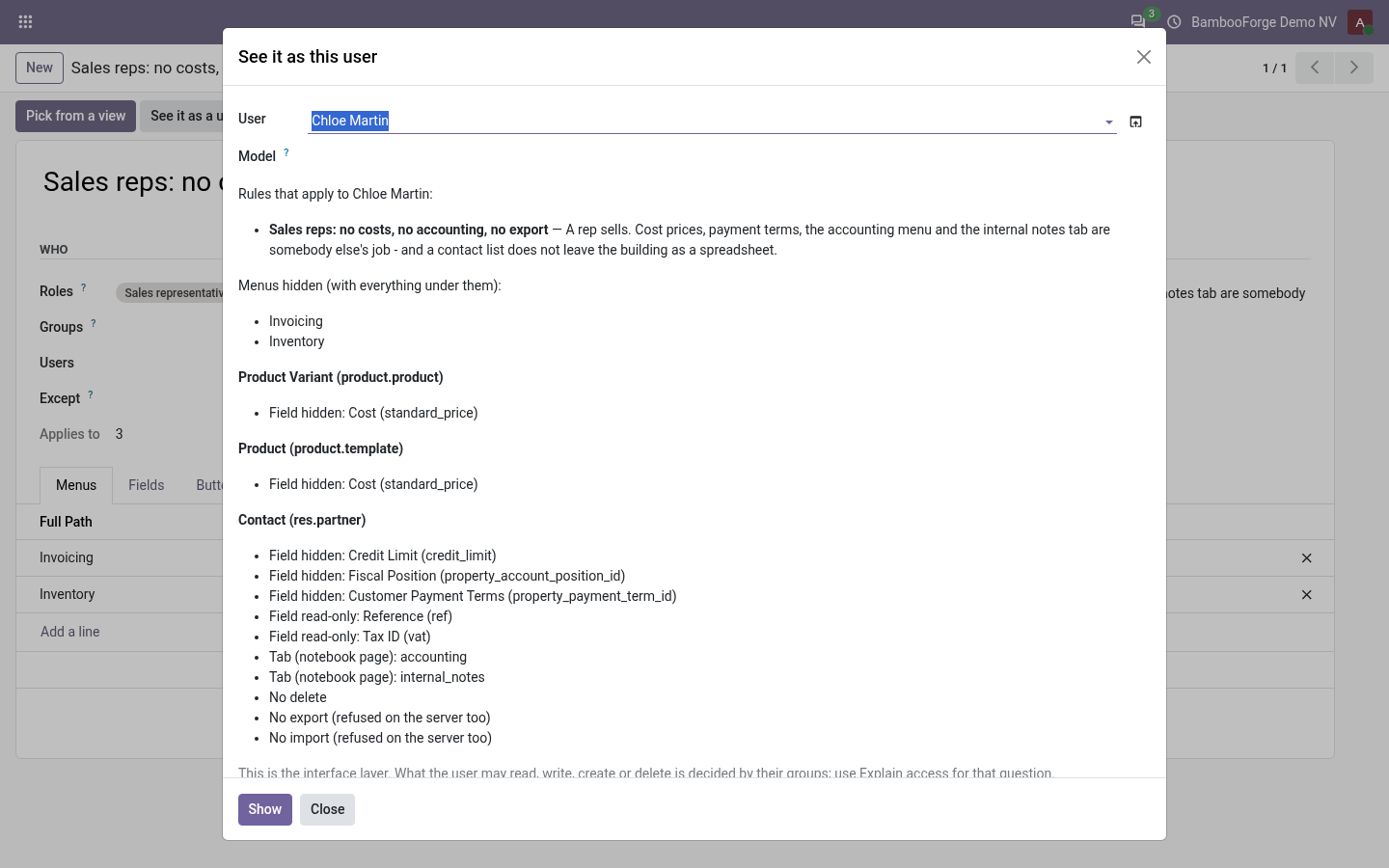
The question every administrator asks after saving a rule, answered in words: the rules that reach this person, the menus gone, and per model the fields, buttons and switches in force.
- Tools > See it as a user, or the button on the rule: pick the user and, if you like, one model.
- Read what reaches them: the rules, the menus gone, and per model the fields, elements and switches in force.
Who changed whose access, written down
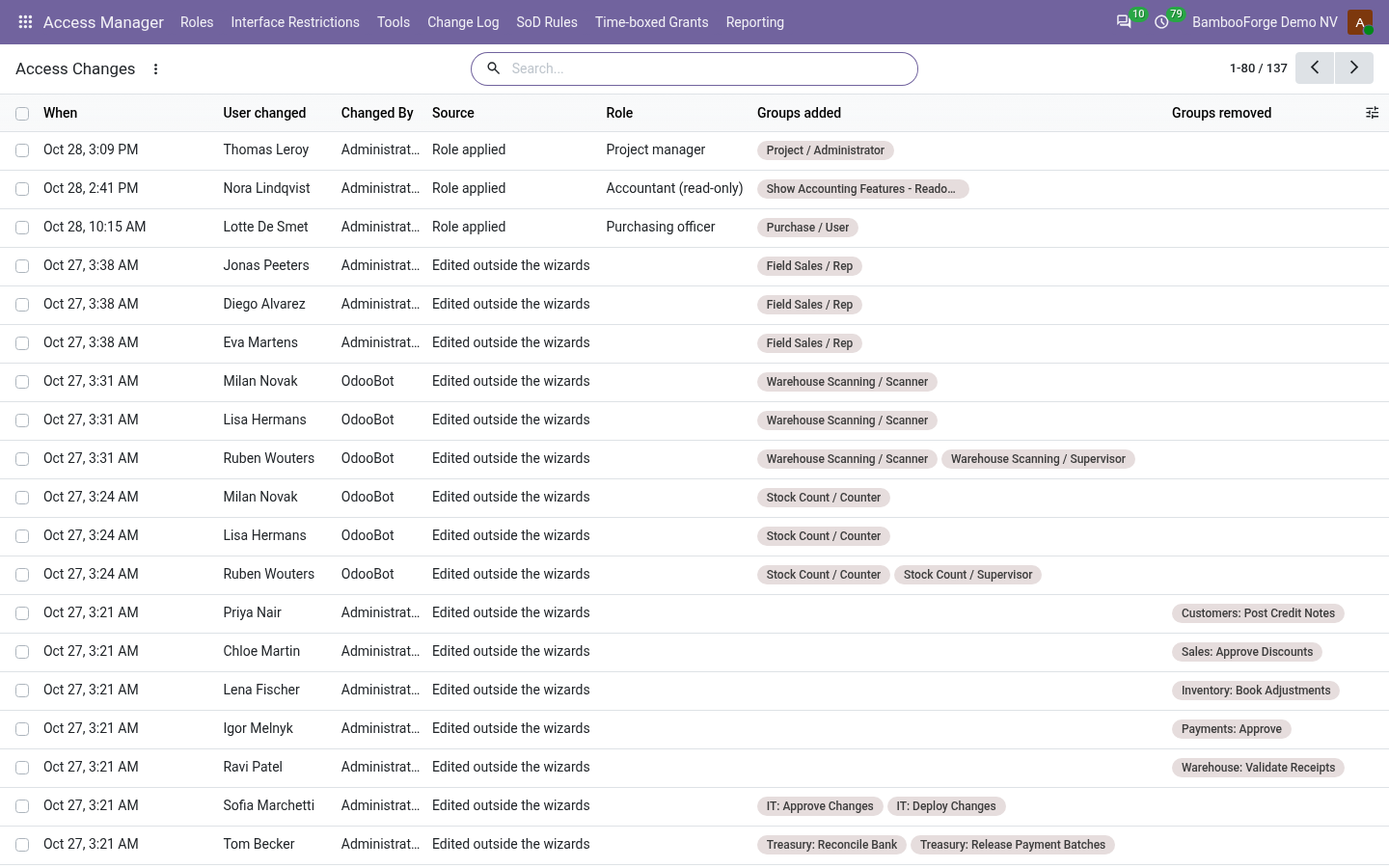
Who, when, how, and the groups added and removed, so "who gave them that?" has an answer, and so does "put it back". A change made outside the wizards, on the Users form, over RPC or by another module, is logged too, as a direct edit. Nobody can edit or delete a line.
Price and where to buy
229 EUR, one payment per Odoo series, on the Odoo Apps Store. Pick your series:
Twelve months of support by the people who wrote the code; bug fixes and improvements within the series free for as long as it is published. Report a bug within two months of purchase and, if it is not resolved within fifteen days, you get a full refund. Full source under OPL-1, no licence key, no phone-home. The whole promise.