 BambooForge Labs

- A deposit, not the whole priceA percentage of the price or a fixed amount, per service. Booking Pro's Pay now link asks for it, and the booking shows what is left for the day.
- The terms before they bookAbove the calendar, the booking page prints the deposit, each refund tier, and that a no-show loses the deposit when that is your rule.
- Every refund and fee on one listA refund due and a fee due are records on the booking. Money Owed lists them until a person marks them refunded, collected or waived.
bambooforge_booking_deposit44 automated checks run before every release of this app, the same suite on every series it ships for. The complete list is in the source you receive; run it yourself with --test-enable.
How you use it
From the policy to the register
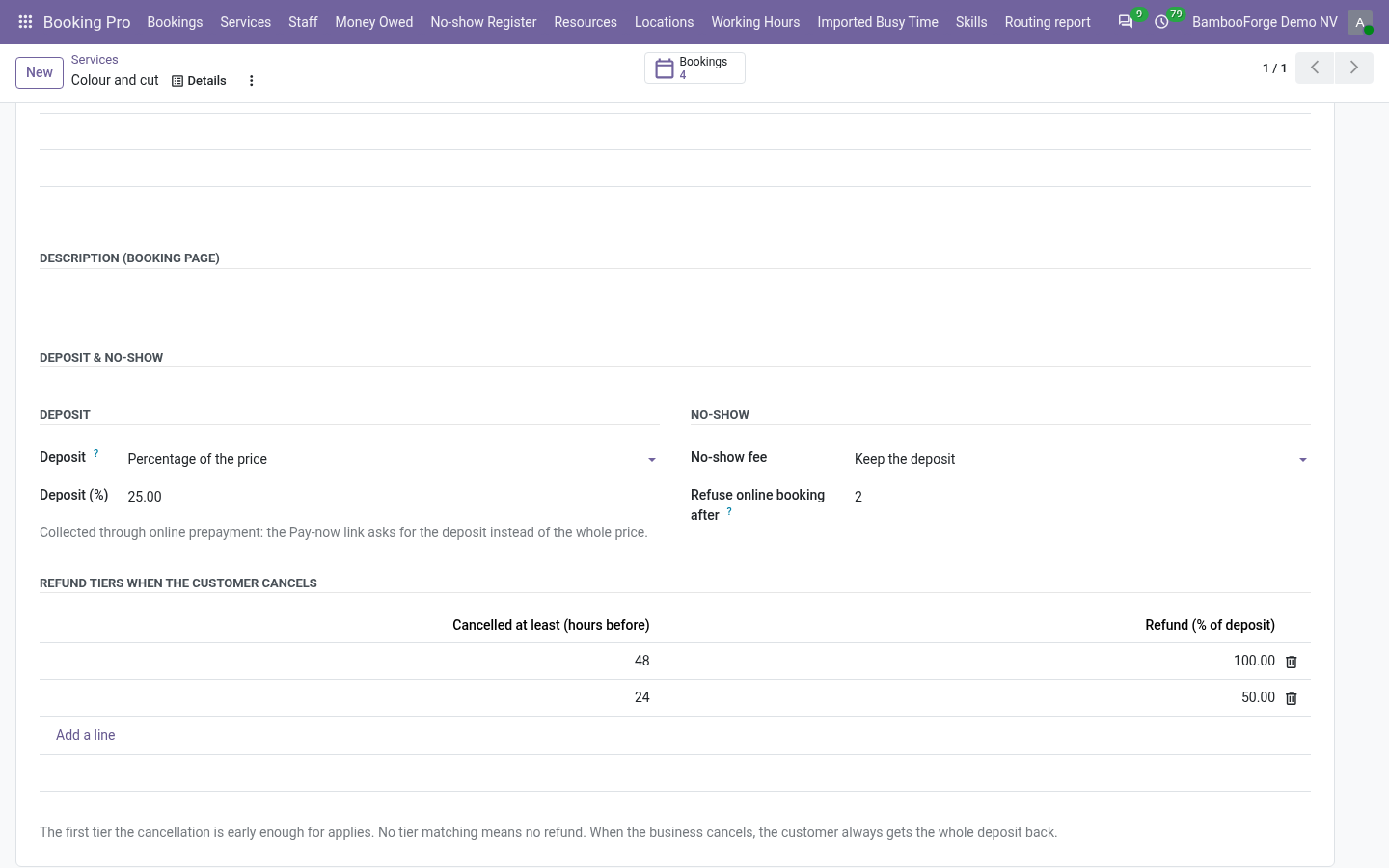
Set the policy on a service
In the back office, by a Booking manager. A service without a deposit stays as it is.
- Booking Pro > Services, on the form: under Deposit & no-show, choose Percentage of the price or Fixed amount. Require online prepayment is ticked for you.
- Add refund tiers: cancelled at least 48 hours before, 100 percent back; at least 24 hours, 50.
- Choose the no-show fee: the deposit, a percentage of the price, a fixed amount, or none.
- If you want, refuse online booking after a number of no-shows in the last twelve months.
The customer books and pays
Through Odoo's Payment app and the provider you already use.
- The booking page shows the deposit, what is left for the day and the refund tiers.
- After booking, the customer's page says Pending confirmation, with the deposit and Booking Pro's payment button. The button names the deposit.
- A successful payment confirms the booking within about ten minutes and ticks Deposit Paid.
- A deposit taken in cash or by phone is recorded with Deposit received.
A cancellation, a no-show
The add-on works the amount out. A person moves the money and says so.
- The customer cancels on their page: the tier that fits gives the refund, kept as Refund due.
- You cancel from the back office: the whole paid deposit is due back.
- No-show on the booking: the fee is Collected when the paid deposit covers it, Fee due when it does not.
- A manager presses Refunded or Waive the fee. The note keeps the name and the date.
Who did not come
- Booking Pro > No-show Register lists every no-show, grouped by the customer's e-mail address.
- The contact form shows the count of the last twelve months.
- A service refuses a website booking from an address at its limit. The desk can still book them.
Price and where to buy
228 EUR, one payment per Odoo series, on the Odoo Apps Store. Pick your series:
Twelve months of support by the people who wrote the code; bug fixes and improvements within the series free for as long as it is published. Report a bug within two months of purchase and, if it is not resolved within fifteen days, you get a full refund. Full source under OPL-1, no licence key, no phone-home. The whole promise.