 BambooForge Labs

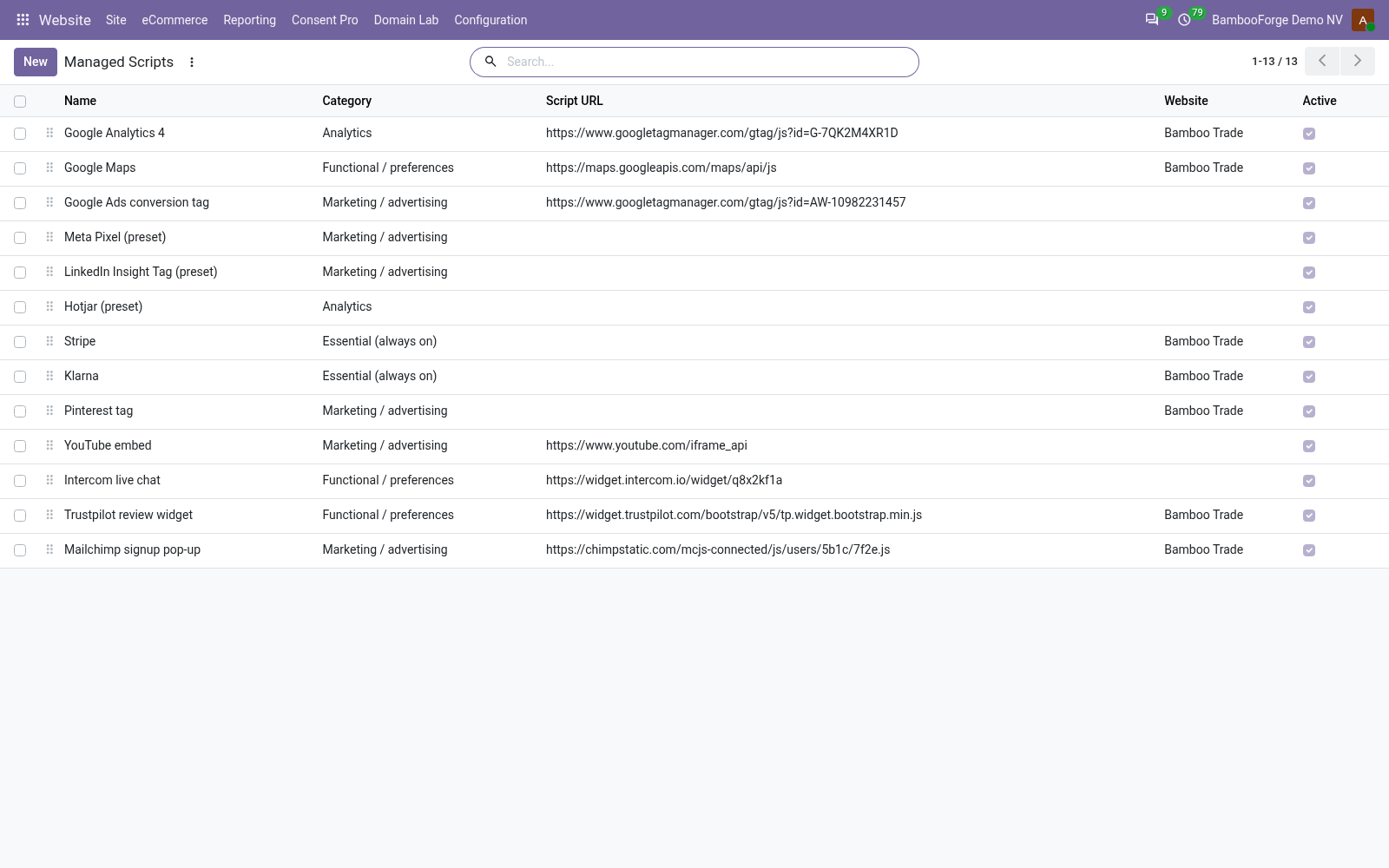
- Trackers wait for their categoryRegister a tracker with its category, or switch on a preset. It runs once the visitor grants it: at once after the choice, and drawn into the page after that.
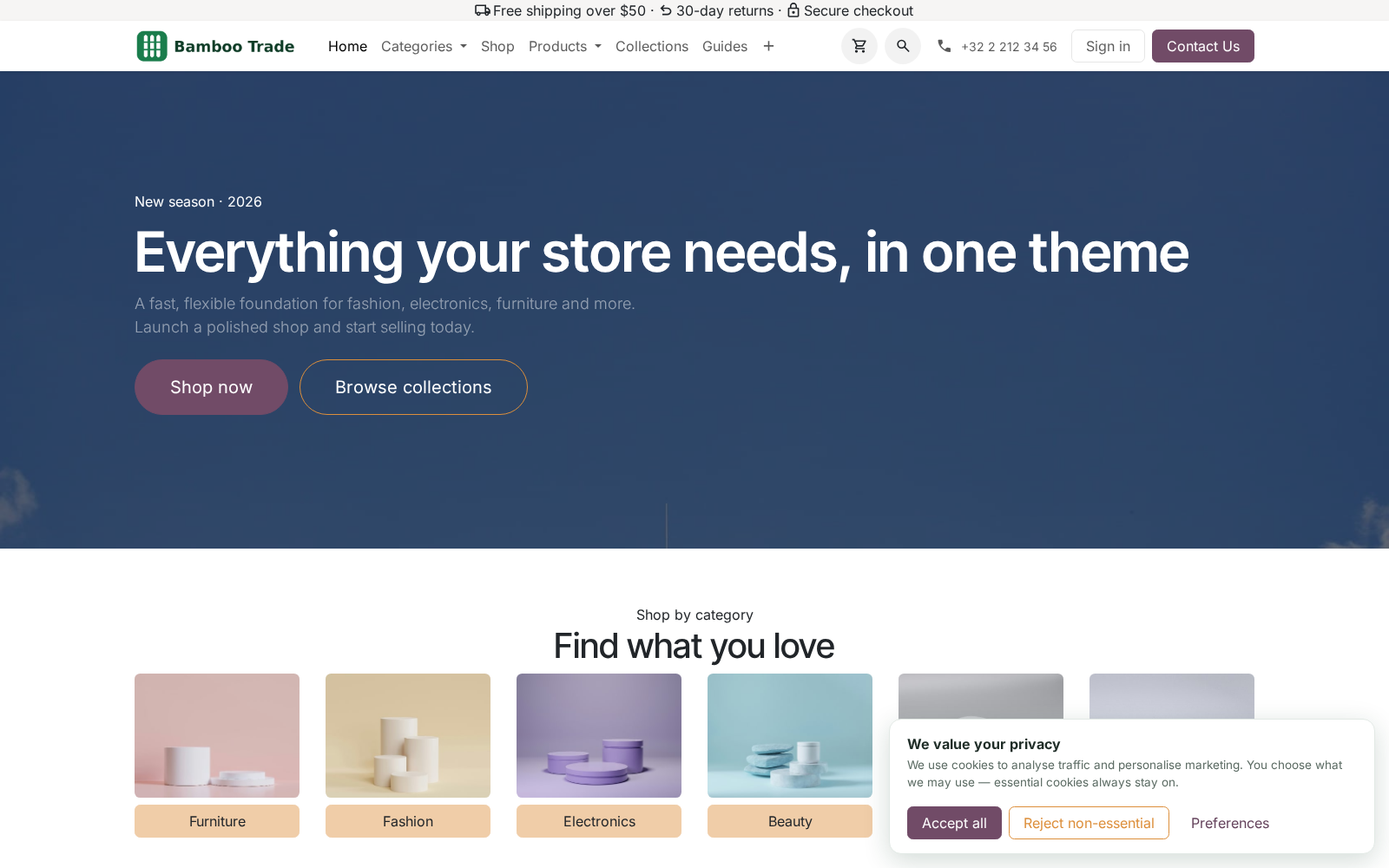
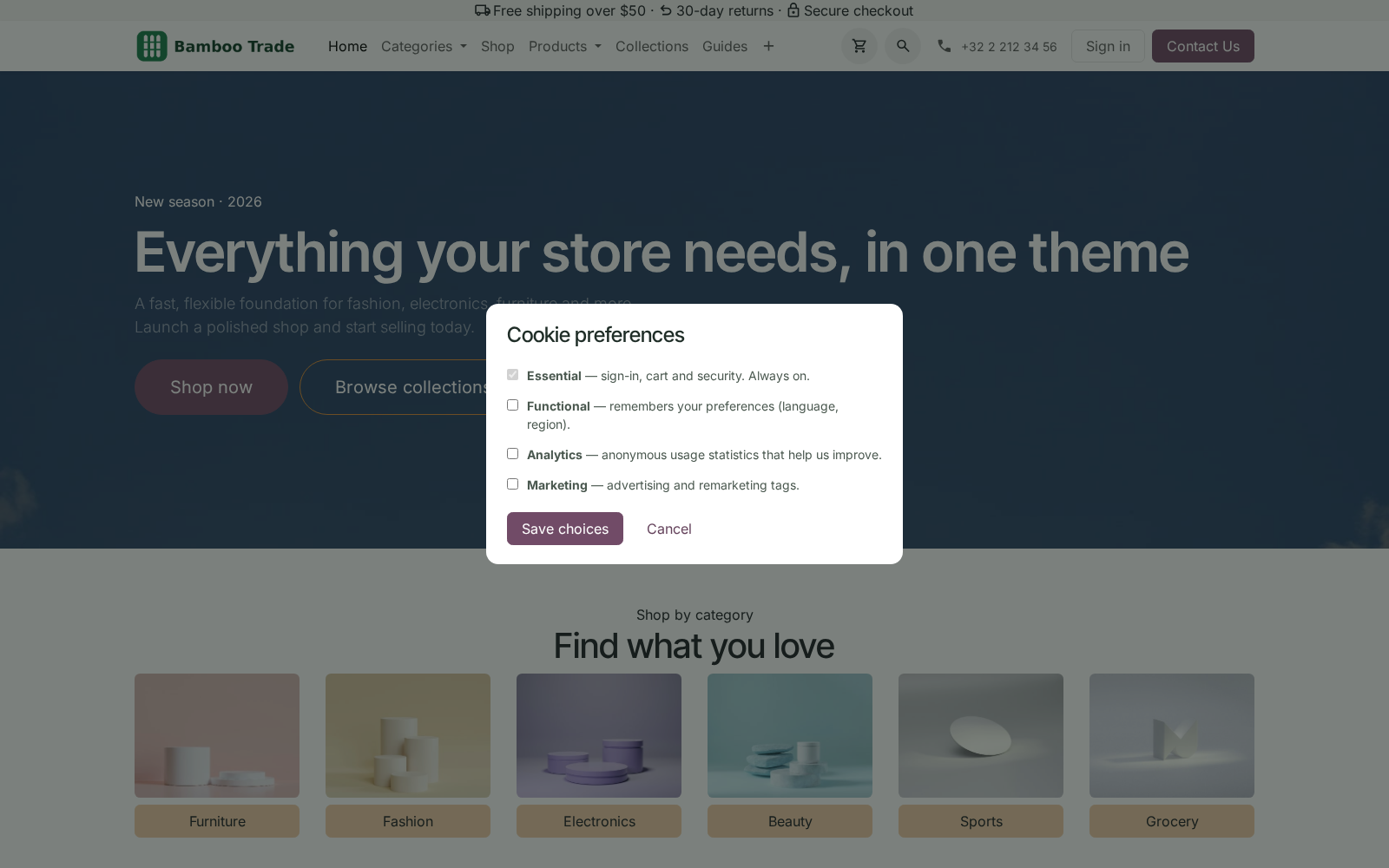
- Reject drawn like AcceptAccept all and Reject non-essential look the same, Preferences has a box per category, and a round button opens them again at any time.
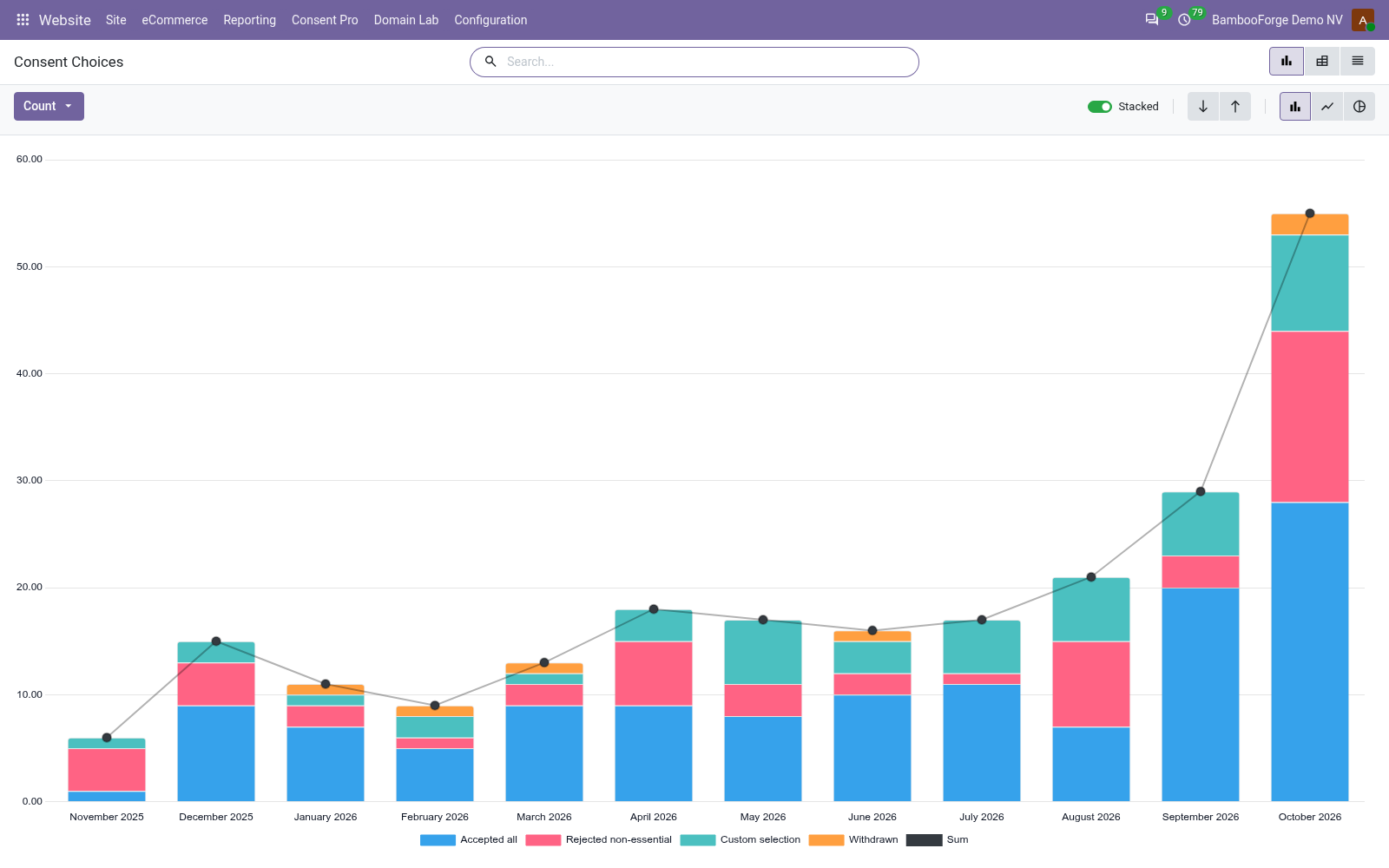
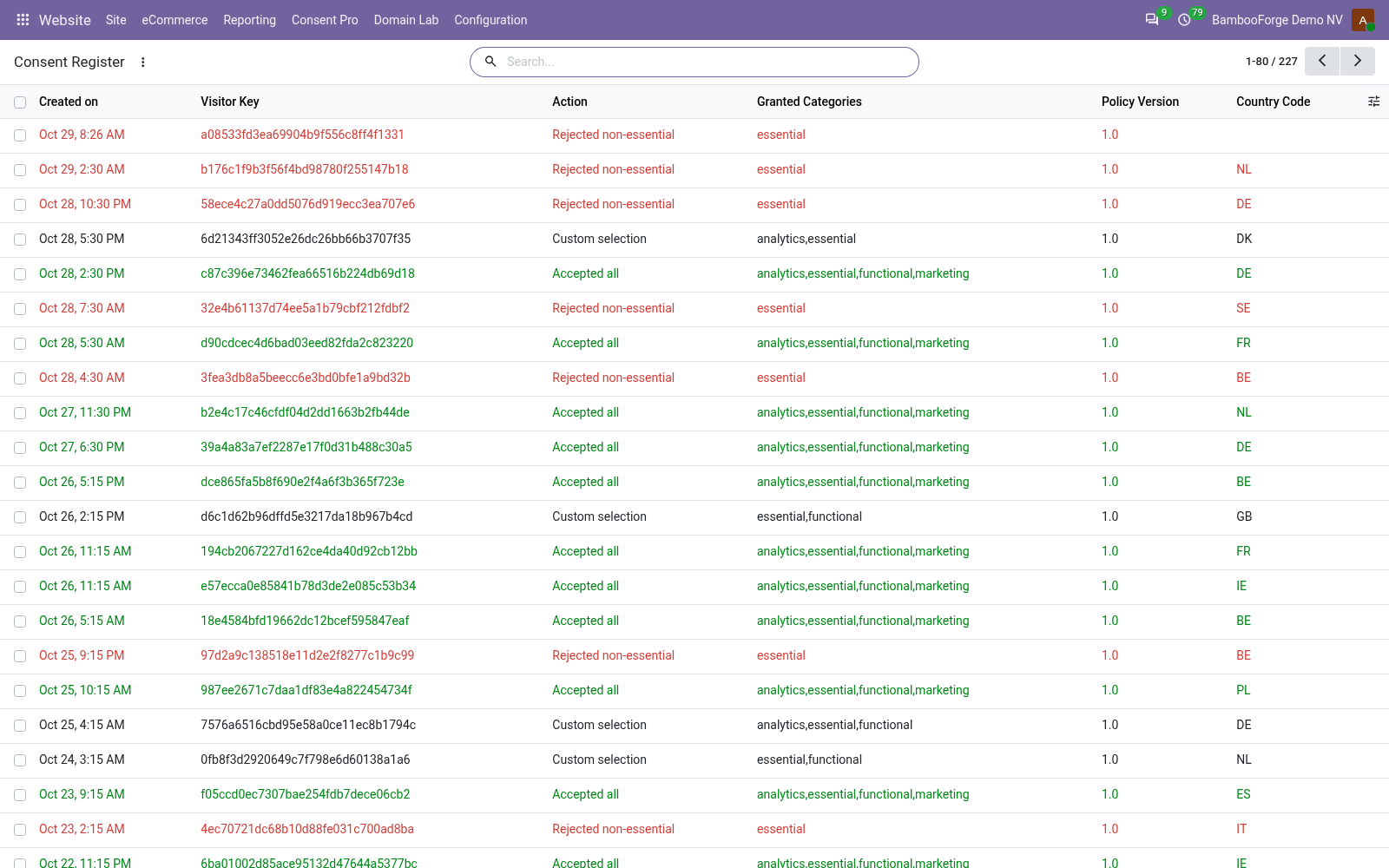
- Every choice on recordThe button pressed, the categories, the policy version and the country, under a salted key, with a chart, a pivot and a printable extract.
bambooforge_consent_pro42 automated checks run before every release of this app, the same suite on every series it ships for. The complete list is in the source you receive; run it yourself with --test-enable.
For the people who decide
What your managers see
The register answers two people: the marketing lead, who needs to know how much of the traffic the analytics really measures, and whoever answers for privacy, who needs the choices in time order when a regulator or a visitor asks.
Consent Choices
the choices by month as a chart, by button, country, website and policy version as a pivot, with how many allowed functional, analytics and marketing scripts.
The marketing lead sees the share of choices that allow analytics; the privacy lead sees whether a new banner or policy version changed the answers.
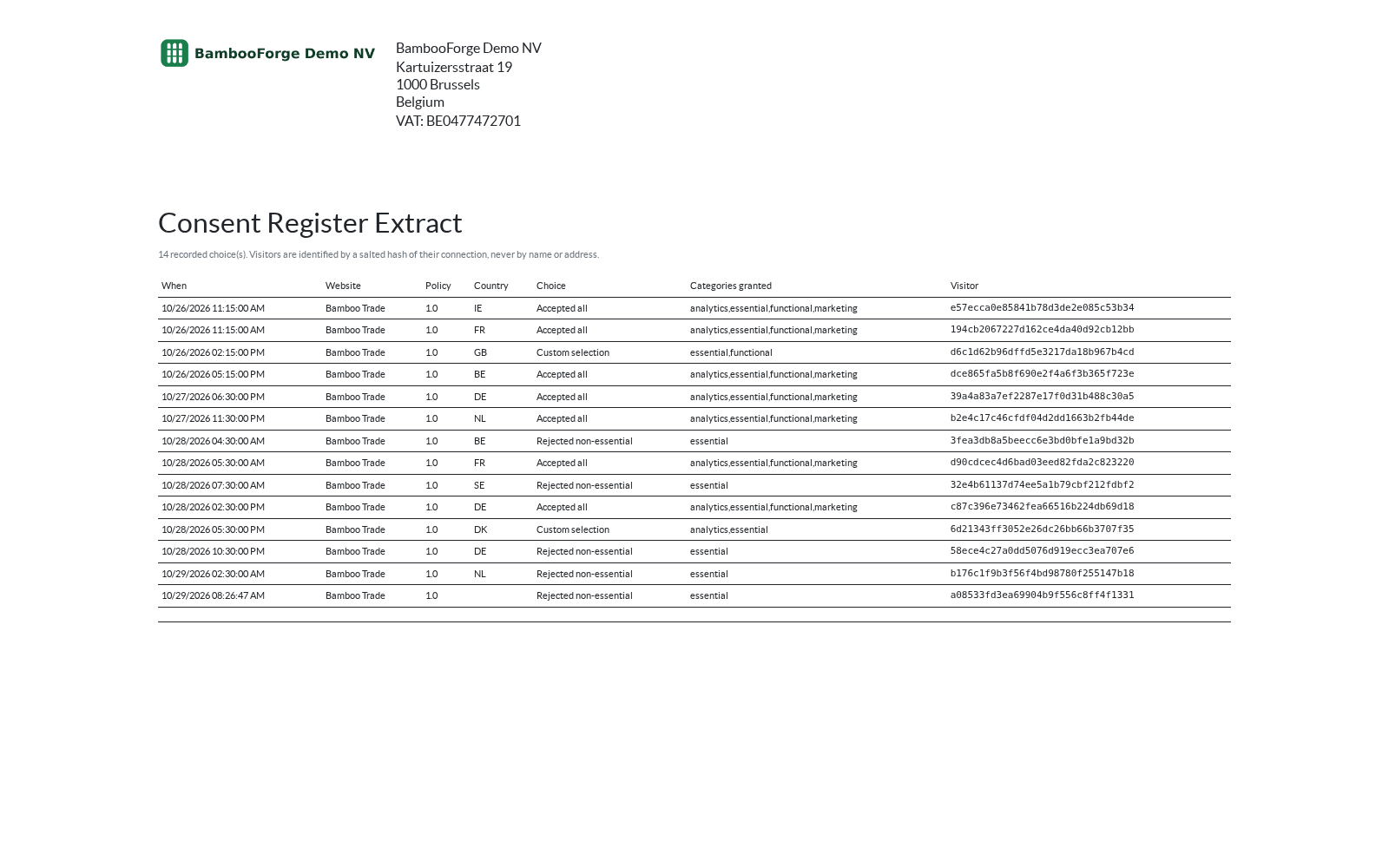
The register prints, from Website > Consent Pro > Consent Register: select lines, then Print.
- Consent Register Extract: the selected lines in time order: when, website, policy version, country, button, categories granted, and the visitor key. For a regulator's request or a visitor's complaint.
How you use it
Four things you do with it
Set up the banner
For an administrator, per website.
- Open Website > Configuration > Settings and find the Consent Pro block.
- Choose the Audience: every visitor, or only visitors from the EU, the EEA, the UK and Switzerland.
- Write the banner title and message, translated per language.
- Save: the banner shows on the website's pages.
Hold back a tracker
For a website designer.
- Open Website > Consent Pro > Managed Scripts and press New.
- Give it a name, a category, and a script address, inline JavaScript or both.
- Or open the filter Presets, replace the placeholder ID of Meta, TikTok, LinkedIn, Hotjar or Clarity, and tick Active.
- Save: the script waits for its category.
What a visitor does
On the first page, and after.
- The banner offers Accept all, Reject non-essential and Preferences.
- Preferences has one box per category; Essential is always on.
- The choice is saved in a cookie for 365 days, and the scripts granted run at once.
- The round button opens the preferences again; taking a category back reloads the page without its scripts.
Read the choices
For the marketing and privacy leads.
- Open Website > Consent Pro > Consent Register: when, what was pressed, the categories, the policy version and the country.
- Open Consent Choices for the chart and the pivot.
- Select lines in the register and press Print for the Consent Register Extract.
Price and where to buy
89 EUR, one payment per Odoo series, on the Odoo Apps Store. Pick your series:
Twelve months of support by the people who wrote the code; bug fixes and improvements within the series free for as long as it is published. Report a bug within two months of purchase and, if it is not resolved within fifteen days, you get a full refund. Full source under OPL-1, no licence key, no phone-home. The whole promise.