 BambooForge Labs

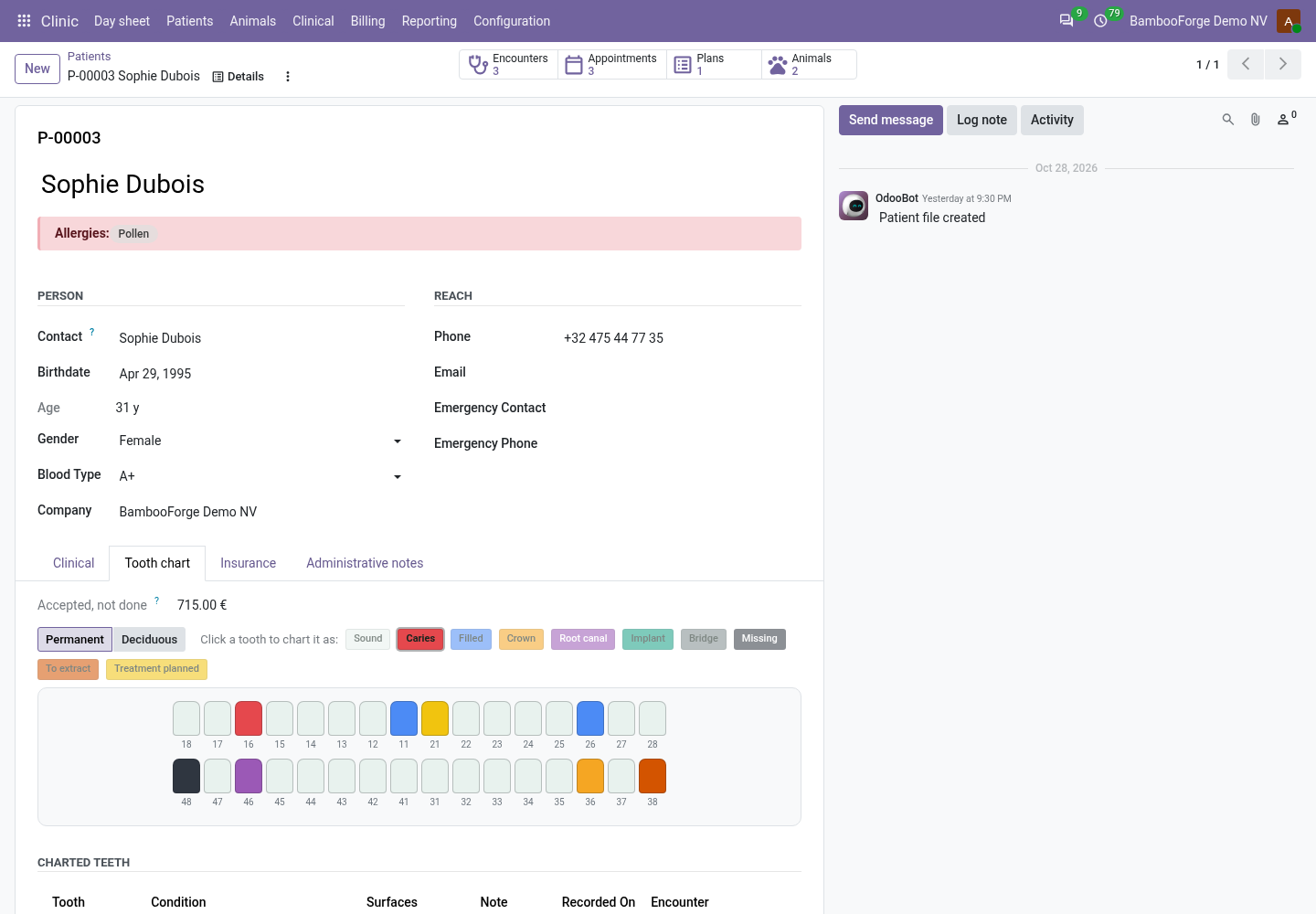
- Chart by clickingPick a condition, click a tooth. Ten conditions, permanent and deciduous teeth, drawn as the mouth is seen from the chair, and every change keeps what the tooth was before.
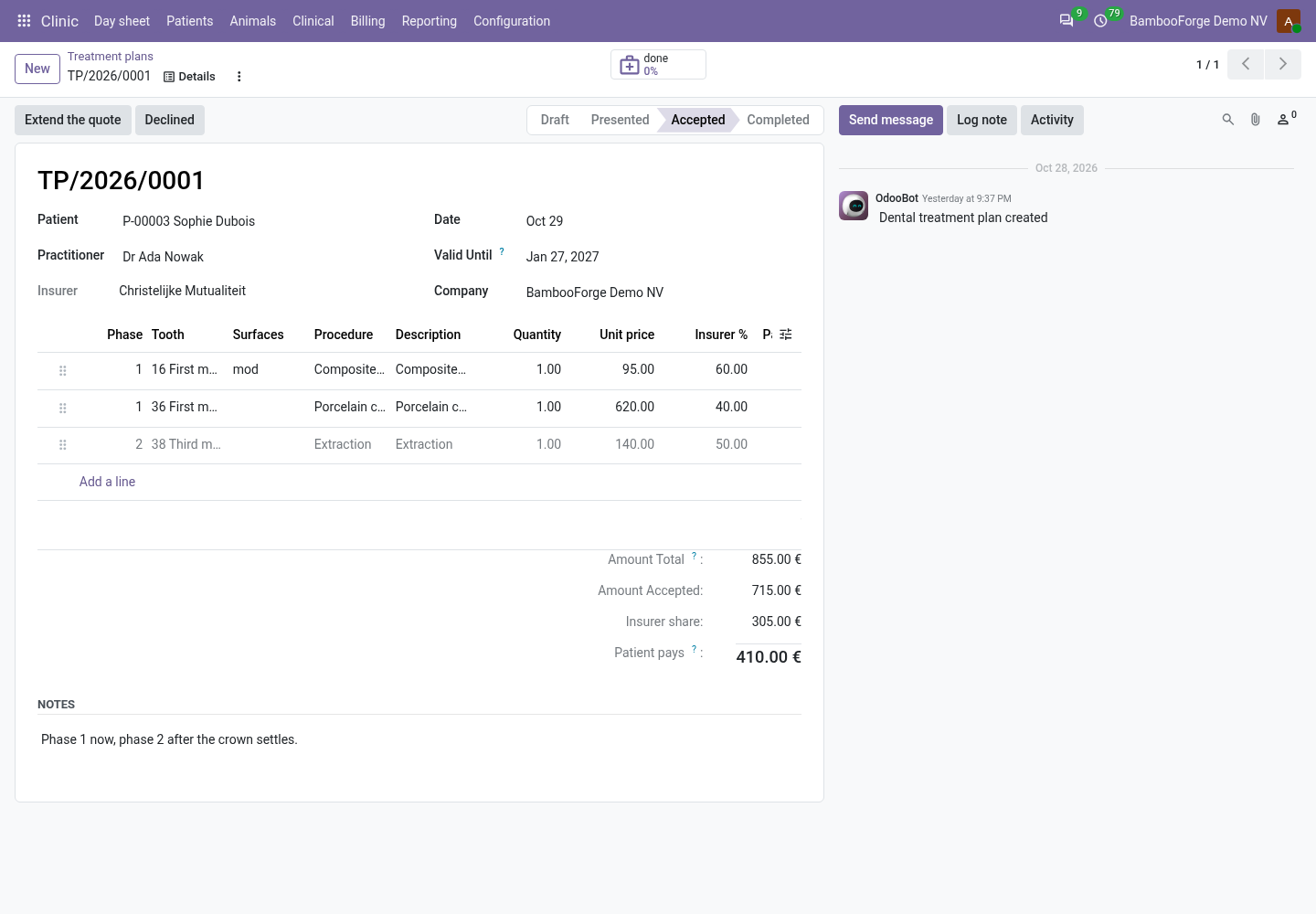
- A quote per toothEach line carries its tooth, its price and the insurer's expected share. The patient accepts line by line, and an accepted price is locked until it is re-quoted.
- Accepted work reaches the billDo it today puts the procedure on the open consultation at the quoted price, marks the line done and charts the tooth.
bambooforge_dental101 automated checks run before every release of this app, the same suite on every series it ships for. The complete list is in the source you receive; run it yourself with --test-enable.
For the people who decide
What your managers see
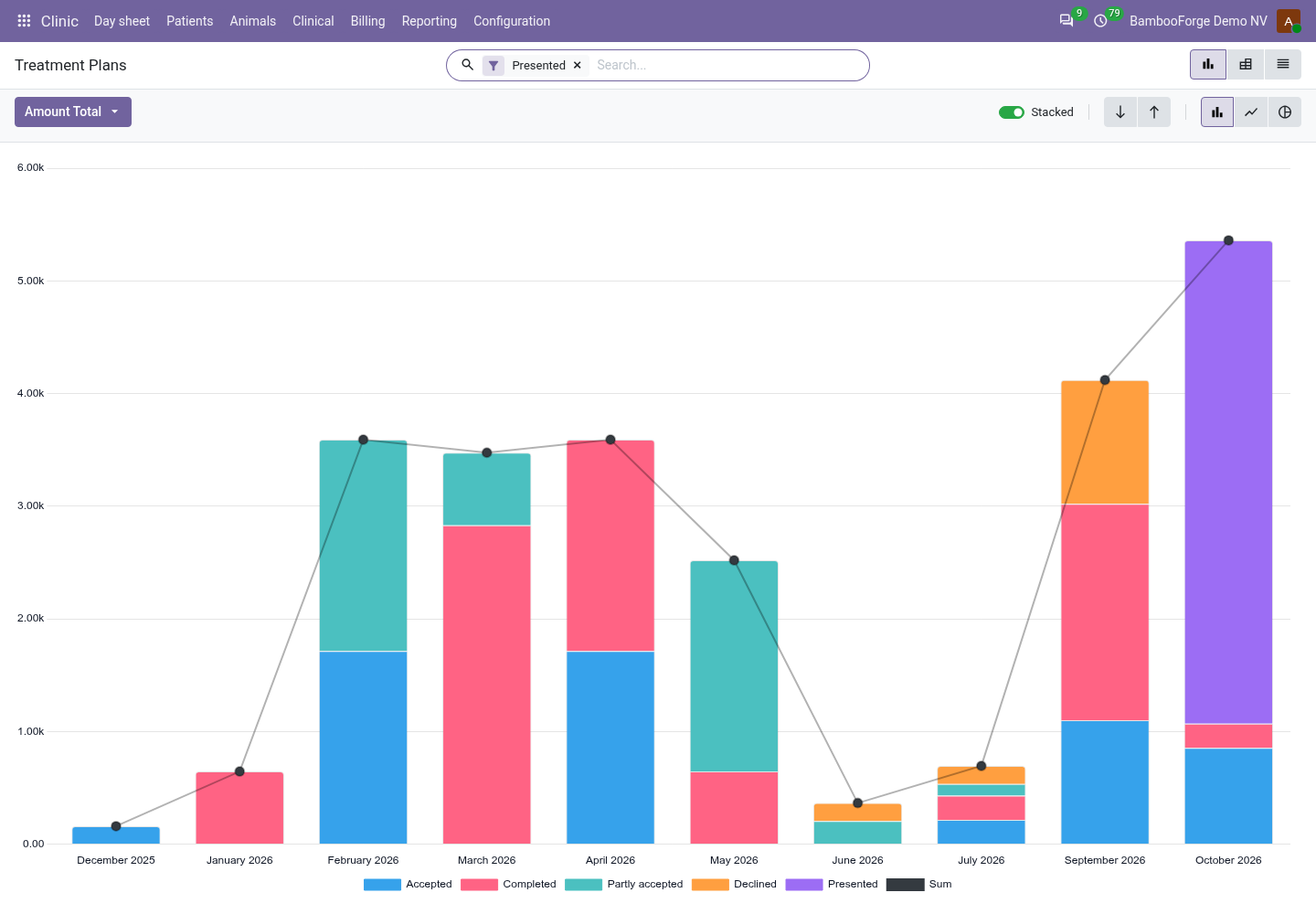
Two analyses join Clinic > Reporting, the clinic manager's menu. Each opens on a chart, with the pivot one click away, and the pivot downloads to Excel from its toolbar. Their amounts carry no tax.
Treatment Plans
the presented plans by month and status, and by dentist: what was proposed, what was accepted, and what the patients and the insurers are expected to pay.
The practice owner sees each dentist's case acceptance, and which plans still wait for an answer.
Procedures
plan lines by procedure, dentist, status and month: done, declined, and accepted but still to do.
The owner sees what the chairs produce, and the accepted work to book before the diary looks empty.
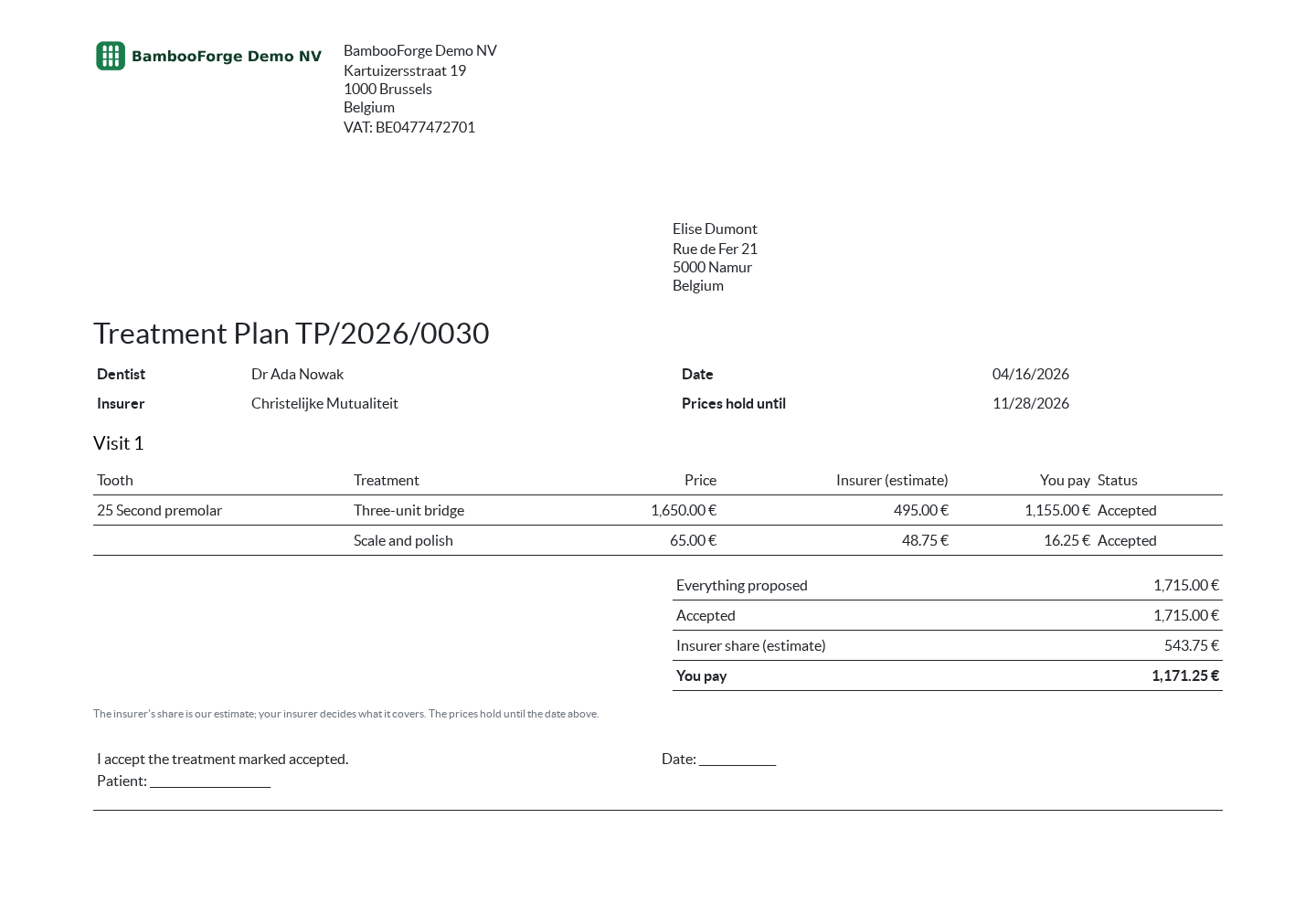
One document prints from the plan, from Print in the gear menu of its form:
- Treatment Plan: the patient's copy to take home and sign: the treatment visit by visit and tooth by tooth, the price of each, the insurer's share labelled as an estimate, what the patient pays, the totals and the date the prices hold until.
How you use it
From the chart to the invoice
Chart a mouth
On the patient file, for practitioners and managers.
- Open the tab Tooth chart and choose Permanent or Deciduous.
- Pick a condition in the row of coloured buttons, then click each tooth that has it. The tooth is charted at once, with today's date.
- To correct a tooth, pick the right condition and click it again. What it was before stays in the chart history.
- Chart history, at the top of the file, lists what each tooth was before every change.
Quote, accept, carry out
Clinic > Clinical > Treatment plans.
- New: the patient and the dentist, then one line per procedure with its tooth, its price and Insurer %. The plan shows what the insurer is expected to pay and what the patient pays.
- Present to patient, and print the plan for the patient to sign. Prices hold until Valid Until, 90 days later unless you change it.
- Accept line by line, or Accept everything. The plan follows: Presented, Partly accepted, Accepted.
- With the patient's consultation open, Do it today on an accepted line adds it to the visit as a billable line, marks it Done and charts the tooth.
- Sign off and invoice the visit in the Clinic app. Cancel the visit and the lines are back to Accepted.
Price and where to buy
268 EUR, one payment per Odoo series, on the Odoo Apps Store. Pick your series:
Twelve months of support by the people who wrote the code; bug fixes and improvements within the series free for as long as it is published. Report a bug within two months of purchase and, if it is not resolved within fifteen days, you get a full refund. Full source under OPL-1, no licence key, no phone-home. The whole promise.