 BambooForge Labs

- The Print menu printsA report set to Send to the printer goes out when someone picks it from the Print menu. No download, no browser dialog, no wrong printer, forty times a day at a packing bench.
- Printed before anyone reaches the deskAn auto-print rule sends the delivery slip when a transfer is validated, the invoice when it is posted, a label when a product is created. Nobody presses anything.
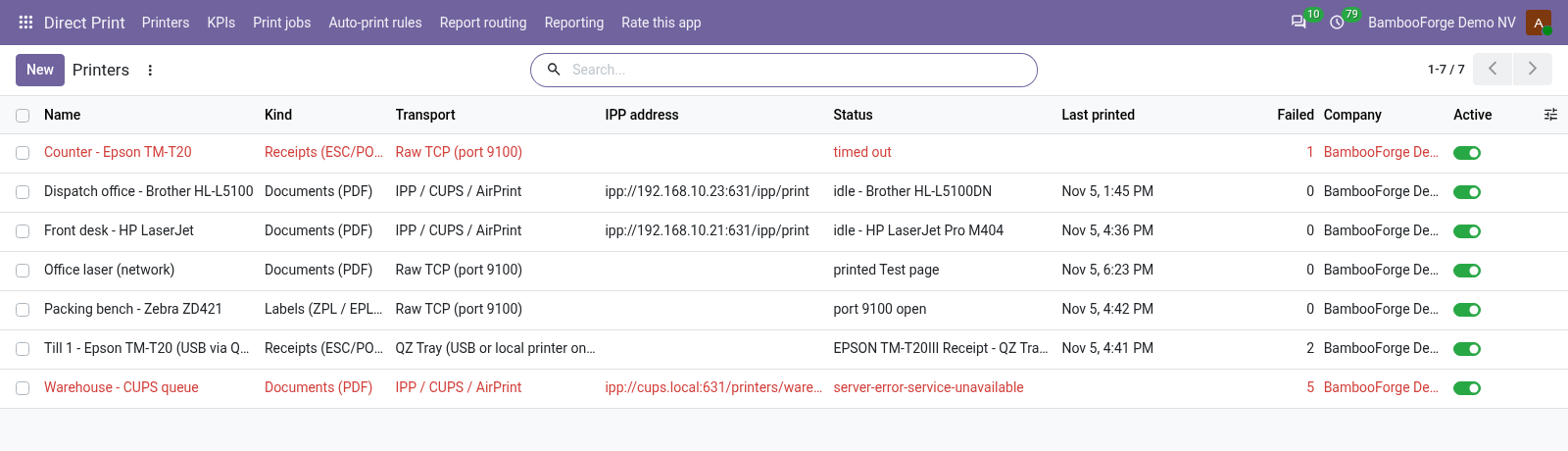
- Nothing goes missingA job the printer refuses stays in the queue with the printer's answer and is tried again after 1, 5, 15 and 60 minutes. A red line says which printer is not answering.
bambooforge_direct_print68 automated checks run before every release of this app, the same suite on every series it ships for. The complete list is in the source you receive; run it yourself with --test-enable.
For the people who decide
What your managers see
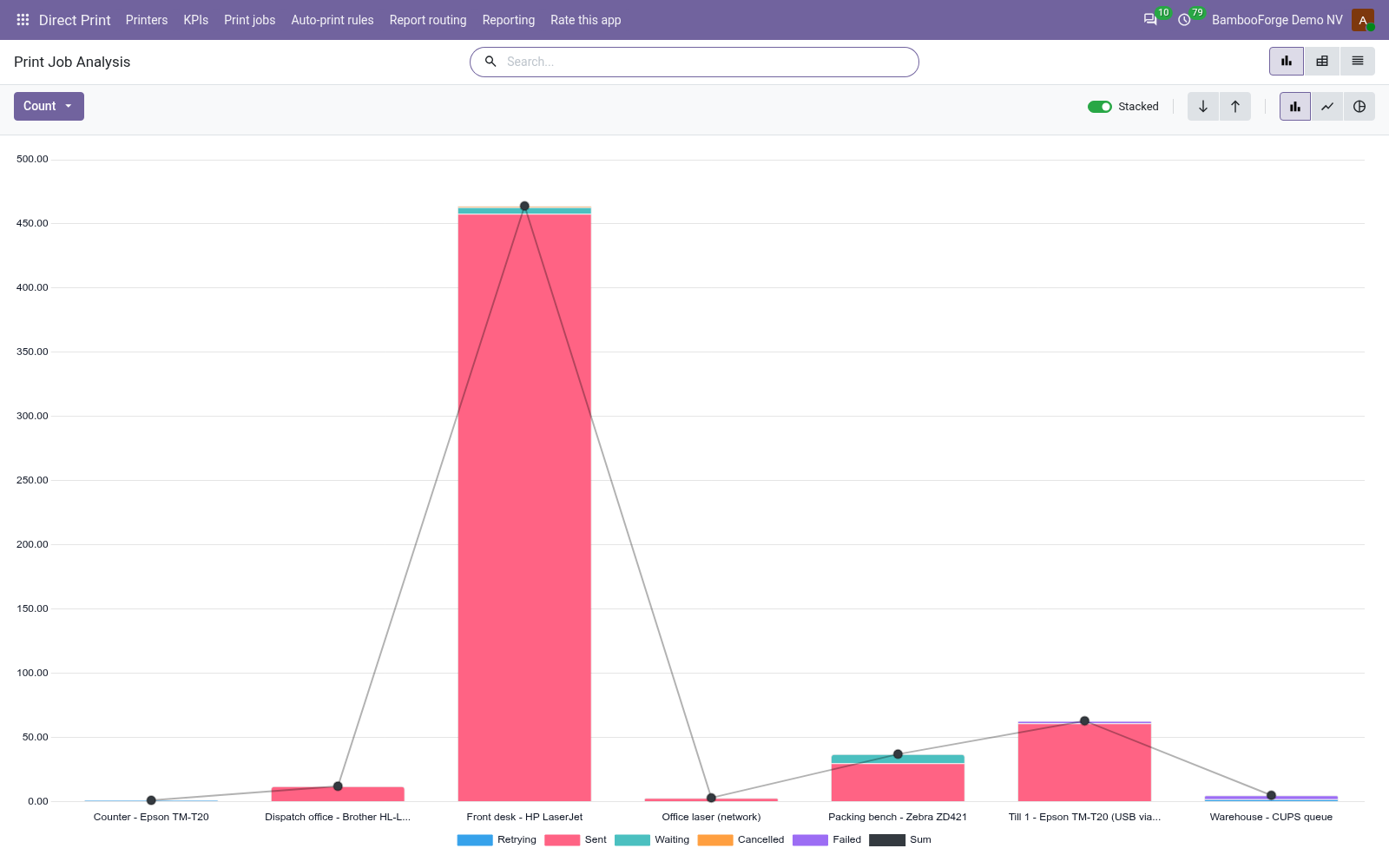
Direct Print > KPIs and Direct Print > Reporting are the print manager's menus. The analysis opens on a chart, with the pivot one click away, and the pivot downloads to Excel from its toolbar.
KPIs
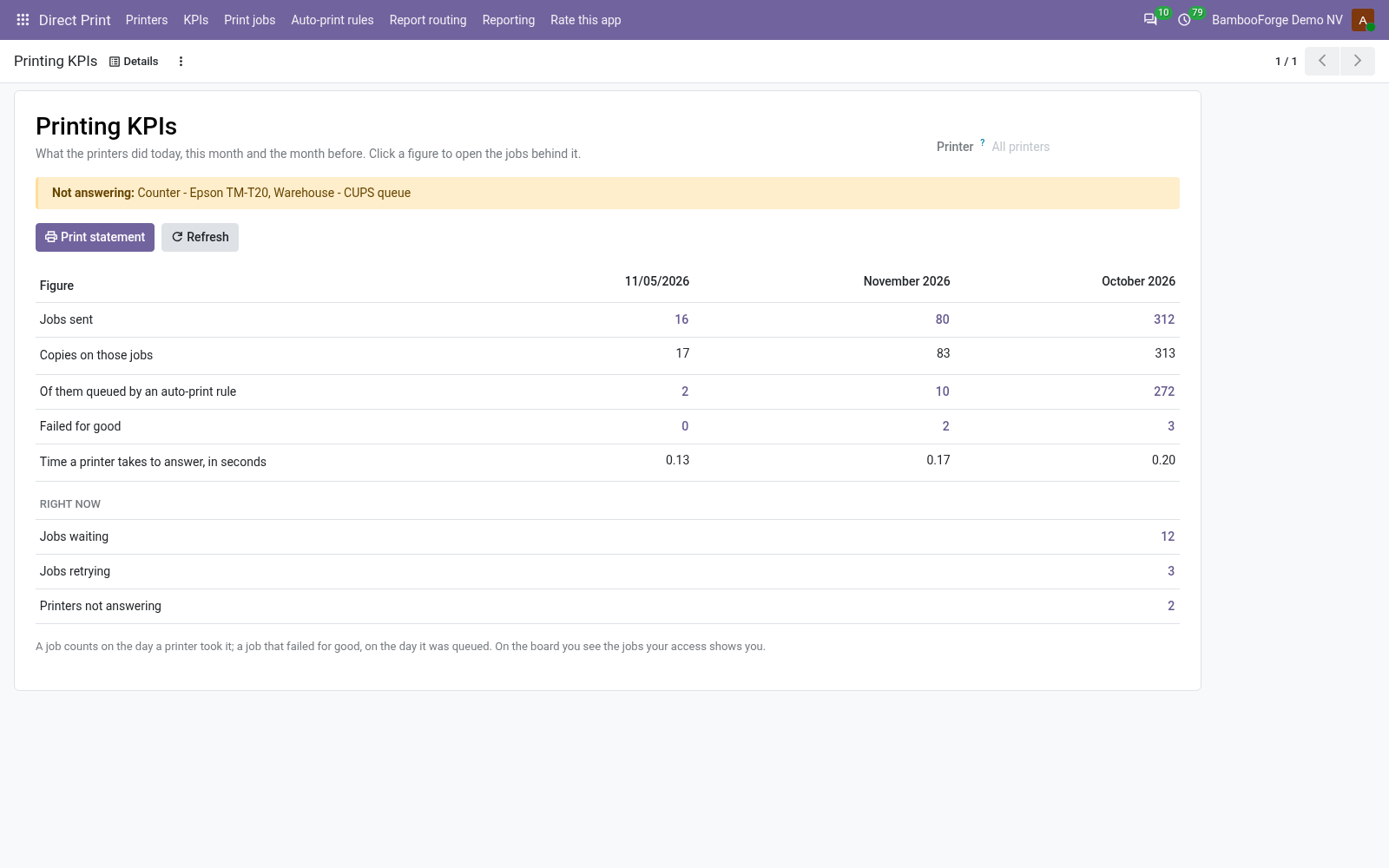
one page for today, this month and the month before, for one printer or all of them: jobs sent, the copies on them, how many an auto-print rule queued, how many failed for good and the time a printer takes to answer; and right now, jobs waiting, jobs retrying and printers not answering. Click a figure to open its jobs.
The manager sees in one look whether printing is healthy, and which printer is not.
Print Jobs
jobs and copies by printer, user, report, auto-print rule and day, the failed and retrying ones one filter away, and the time a printer takes to answer, averaged.
The IT or warehouse manager sees which printer fails, which one is overloaded, and who prints the most.
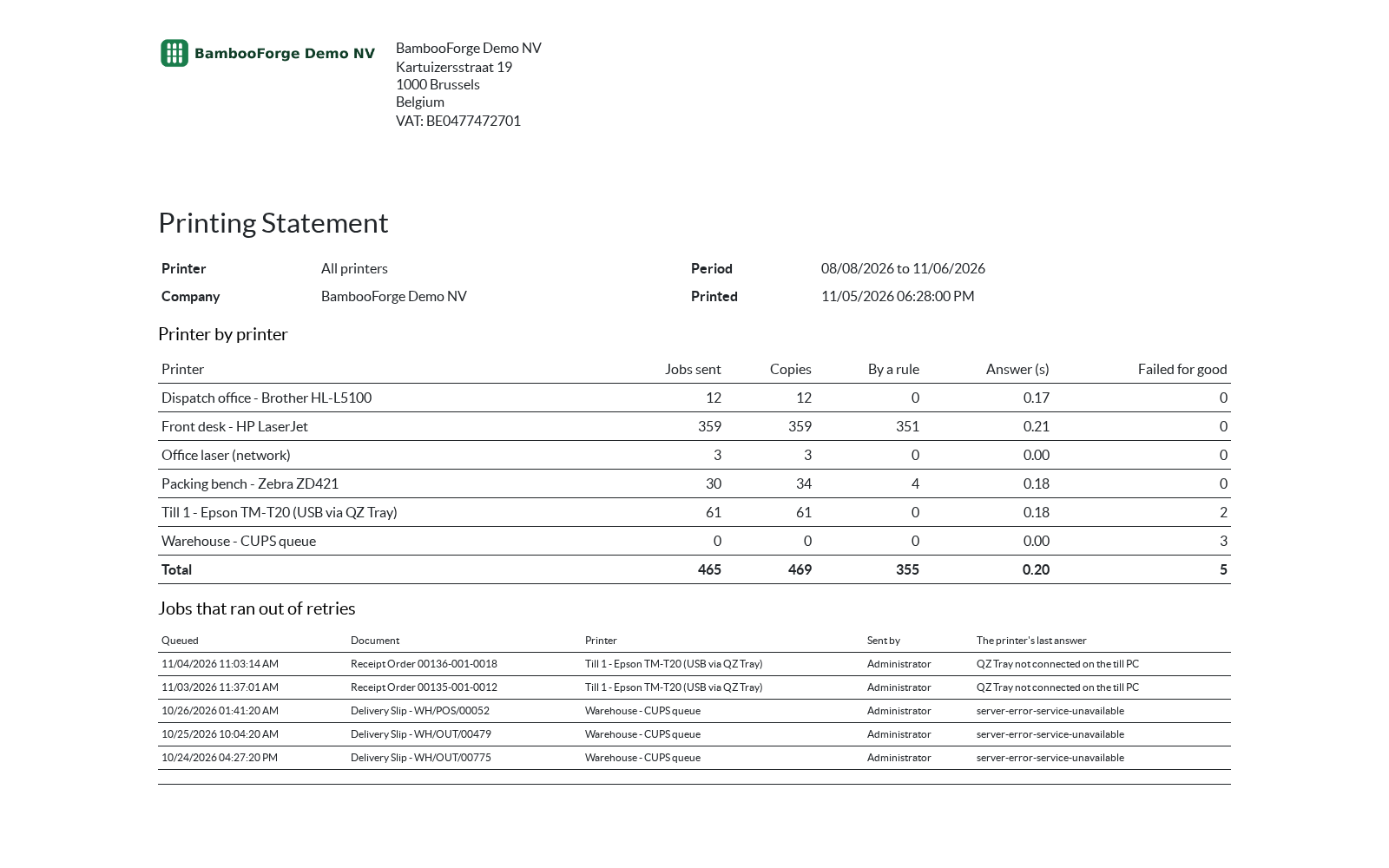
One document prints from Direct Print > Reporting > Printing Statement (PDF), or from Print statement on the board:
- Printing Statement: a period on paper: printer by printer the jobs, copies, jobs by a rule, answer time and failures, then every job that ran out of retries with the printer's last answer. It goes with the month's file, or to the supplier of the printer that keeps failing.
How you use it
From the first test page to the month's figures
Add a printer and print a test page
The Odoo server talks to the printer itself, so the first test tells you whether the network is right.
- Direct Print > Printers > New. Say what it prints (documents, labels or receipts) and how Odoo reaches it: IPP for a network printer or a CUPS queue, raw TCP for a printer on port 9100, QZ Tray for one plugged into a PC.
- Give the IPP address, or the host and port. A printer or a CUPS server that asks for a user and password takes them here.
- Press Test connection. An IPP printer answers with its state and its model, a raw printer with an open port; one that does not answer gets a red message and a Not answering ribbon.
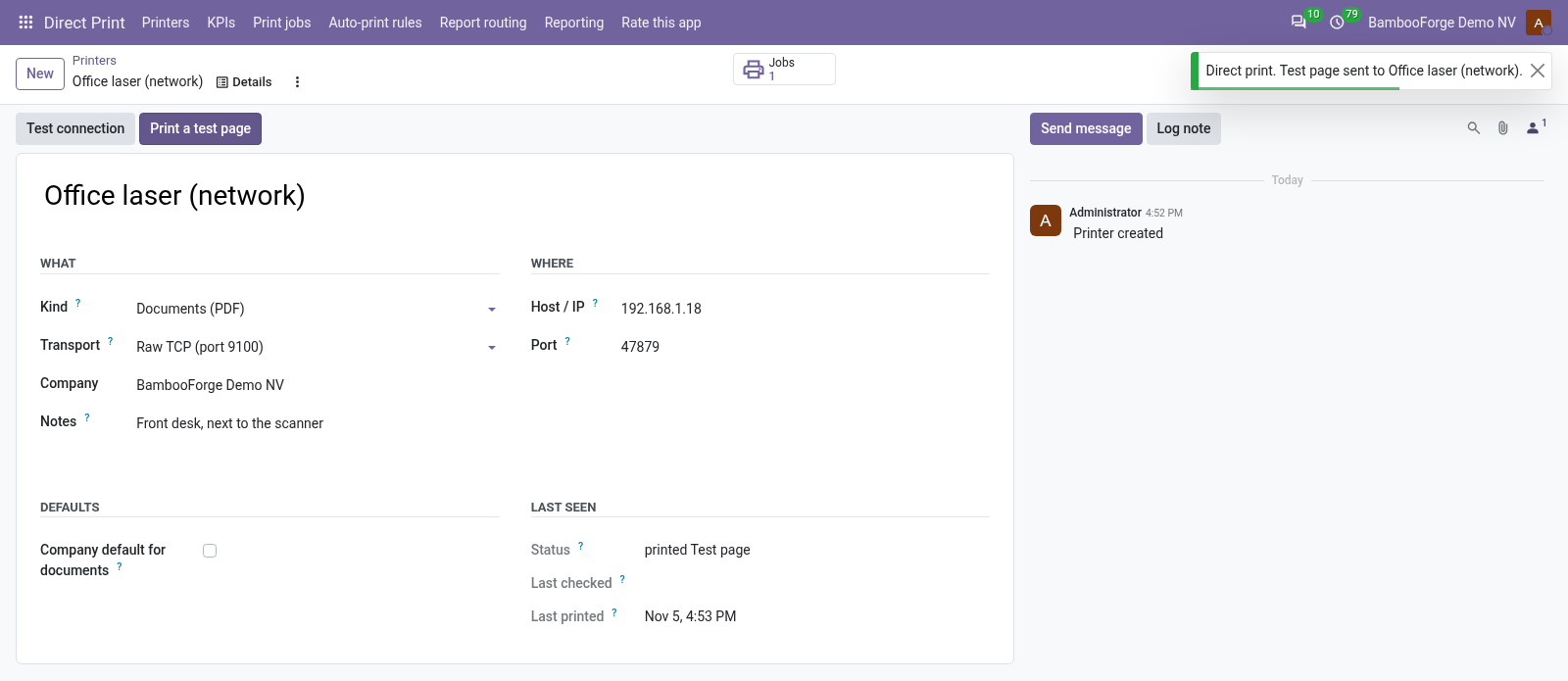
- Press Print a test page: a one-page PDF, a test label or a test receipt, according to the kind.
Send a report to the printer from the Print menu
Choose report by report. The rest keep opening in the browser, as Odoo does.
- Direct Print > Report routing opens on the reports already sent to a printer. Remove the filter to see every PDF and text report.
- Set When printed on a report: Send to the printer, or Send to the printer and open in the browser.
- Name a printer on the report, or leave it empty: then the user's own printer from Preferences is used, else the company default for that kind.
- From now on the Print menu says Delivery Slip sent to Office laser, and nothing downloads.
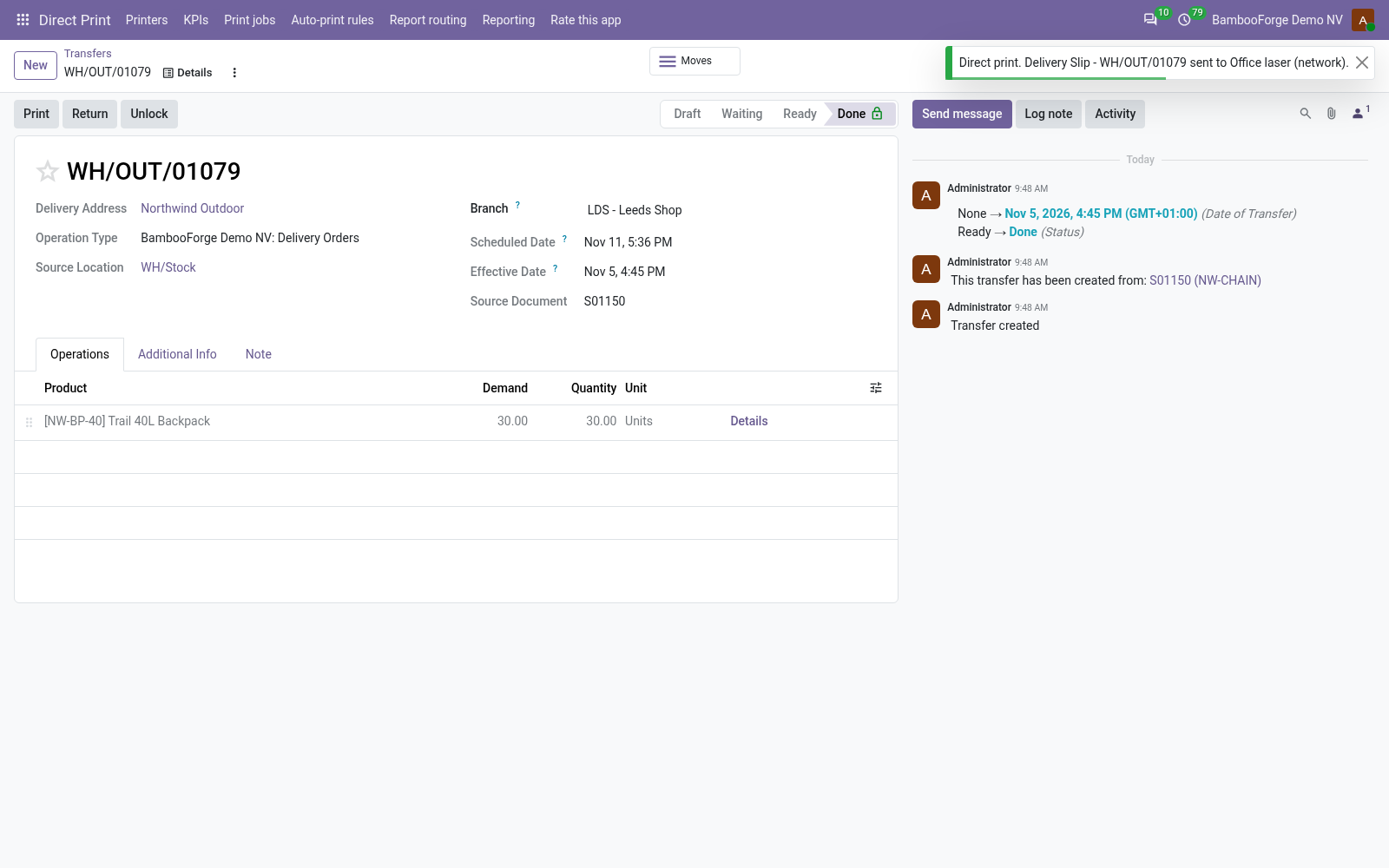
Print by itself when a record changes
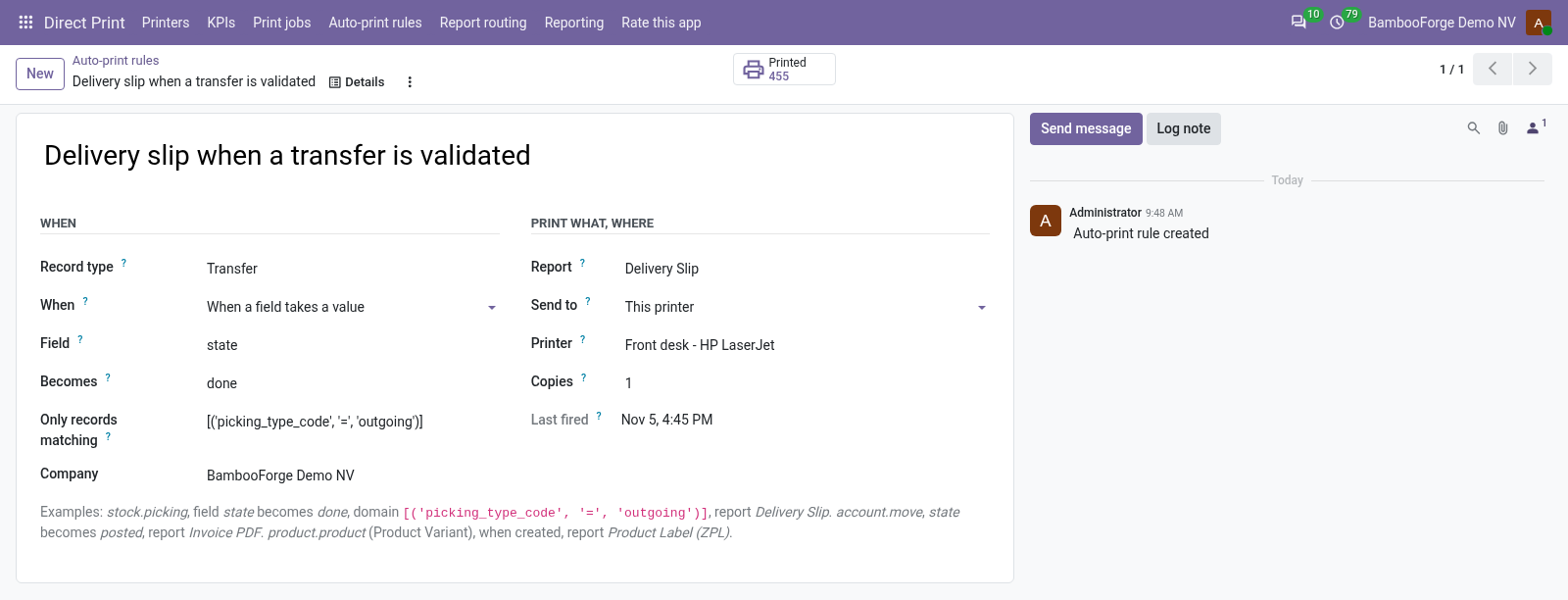
A rule watches a kind of record and sends a report when it reaches a state or is created.
- Direct Print > Auto-print rules > New. Pick the record type: Transfer, Journal Entry, Sales Order, Product.
- Say when: when a record is created, or when a field takes a value, such as state becomes done. A filter can keep it to outgoing transfers.
- Pick the report, the printer and the copies. The printer has to be of the right kind: a PDF is never sent to a label printer.
- The transfer is validated at once. The queue renders the slip and sends it within a minute, so nobody waits for a PDF.
Follow every job in the queue
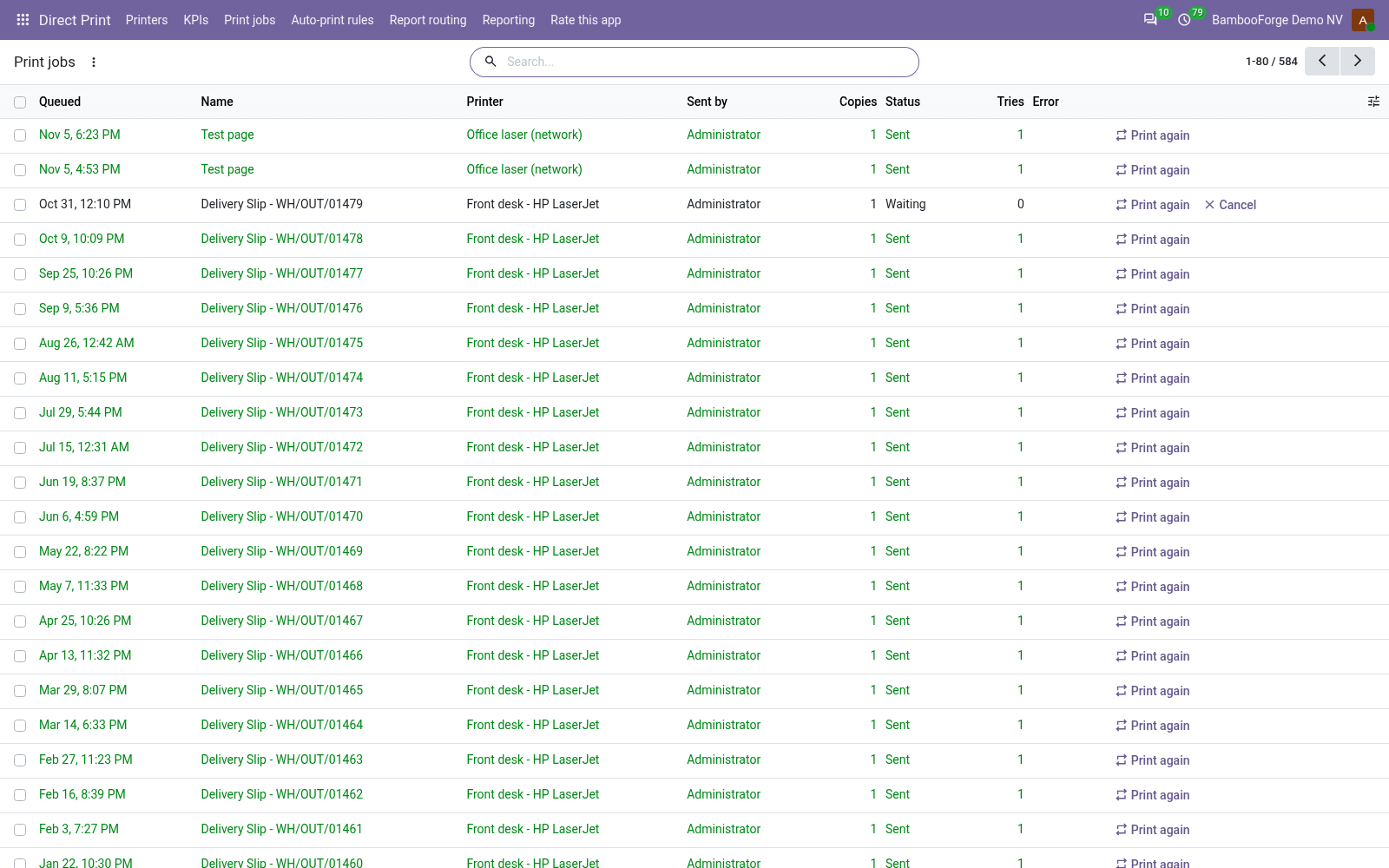
Every document on its way to a printer is a line, with who sent it and what the printer said.
- Direct Print > Print jobs. Users see their own jobs, managers every job of their companies.
- Retrying means the printer did not take it: the error column says why, and tries come after 1, 5, 15 and 60 minutes.
- Print again sends a job once more, now. Cancel stops one that has not gone out.
- A label or a receipt shows as text on its job: what was really sent.
A printer on a USB cable: QZ Tray
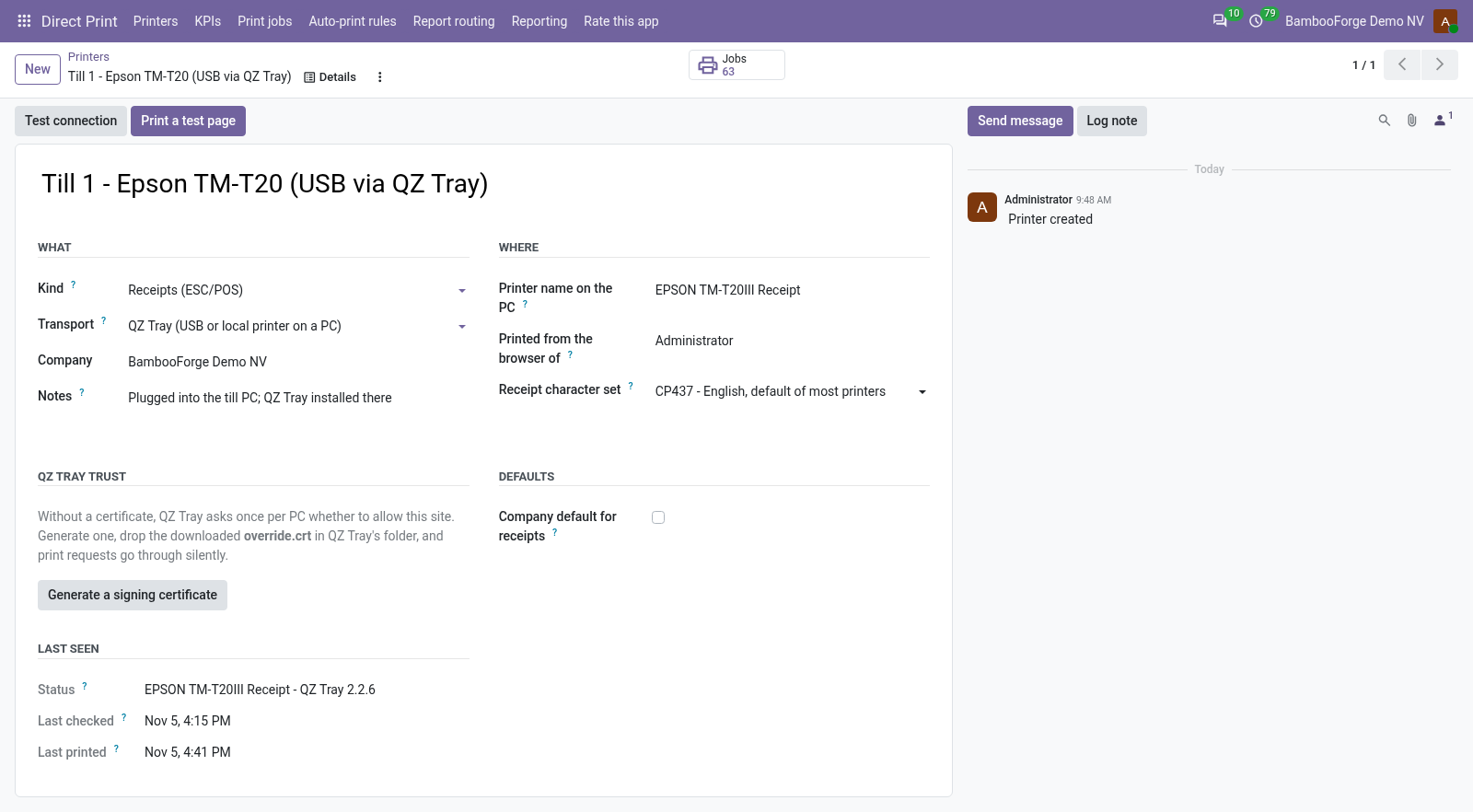
A printer with no network port is reached through the free QZ Tray program on the PC it is plugged into.
- Install QZ Tray on that PC. In Odoo, make a printer with transport QZ Tray, the name the PC gives it, and whose browser prints for it.
- Press Test connection from that PC: QZ Tray looks the printer up.
- Optional: Generate a signing certificate and drop the downloaded override.crt in QZ Tray's folder, and it stops asking whether to allow the site.
- Jobs for it wait until that user has Odoo open on that PC, and then print.
See how printing is going
One page for whoever answers for the printers, and the same on paper for the month's file.
- Direct Print > KPIs: today, this month and the month before, for one printer or all of them.
- Jobs sent, copies, how many a rule queued, how many failed for good, and the time a printer takes to answer. Click a figure to open the jobs.
- Beside them, right now: jobs waiting, jobs retrying, printers not answering.
- Print statement puts a period on paper, printer by printer, with every job that ran out of retries and the printer's last answer.
Price and where to buy
129 EUR, one payment per Odoo series, on the Odoo Apps Store. Pick your series:
Twelve months of support by the people who wrote the code; bug fixes and improvements within the series free for as long as it is published. Report a bug within two months of purchase and, if it is not resolved within fifteen days, you get a full refund. Full source under OPL-1, no licence key, no phone-home. The whole promise.