 BambooForge Labs

- Orders in without retypingThe buyer from NAD+BY, the products by their EAN or your internal reference, the quantities and prices from QTY and PRI. A file that fails part-way leaves no order behind.
- Price differences on the orderWith the price check on, each line whose price differs from the price Odoo gives it from the customer's pricelist is listed in a note on the order. The order keeps the partner's price.
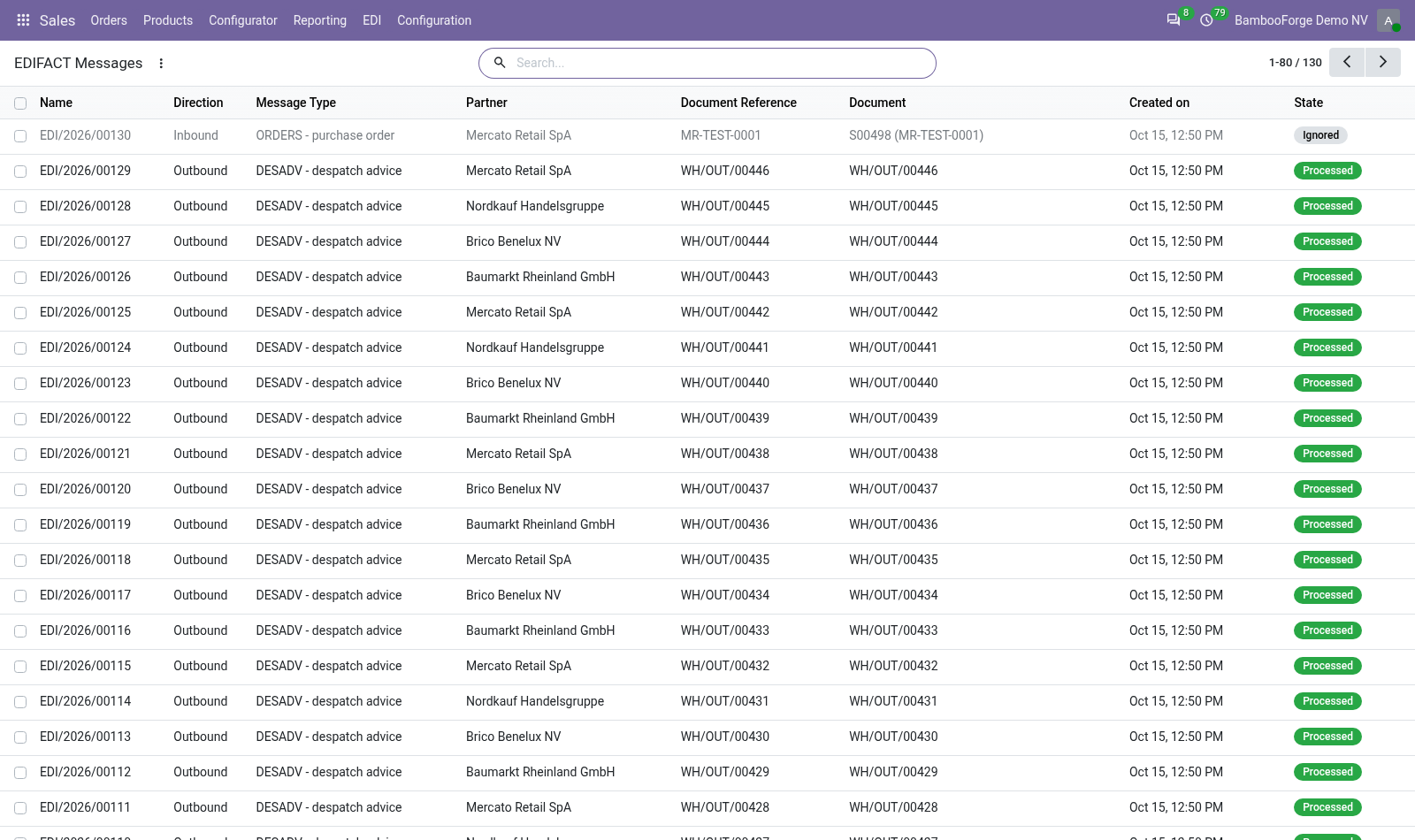
- Every file keptInbound and outbound files are stored as messages, with their status, the document they made or came from, and the reason when one failed. A resend gives back the first message, not a second order.
Runs onOdoo 16 to 20Community or Enterprise, self-hosted or Odoo.sh
NeedsInventory, Invoicing, Salesno Enterprise module
Price249 EURone-time, per series, on the Odoo Apps Store
Demodemo20.bambooforge.devlogin page already filled in
Supportsupport@bambooforge.devfirst reply within one business day
Version20.0.1.1.3
bambooforge_edifact61 automated checks run before every release of this app, the same suite on every series it ships for. The complete list is in the source you receive; run it yourself with --test-enable.
How you use it
Three things you do with it
Flow 01
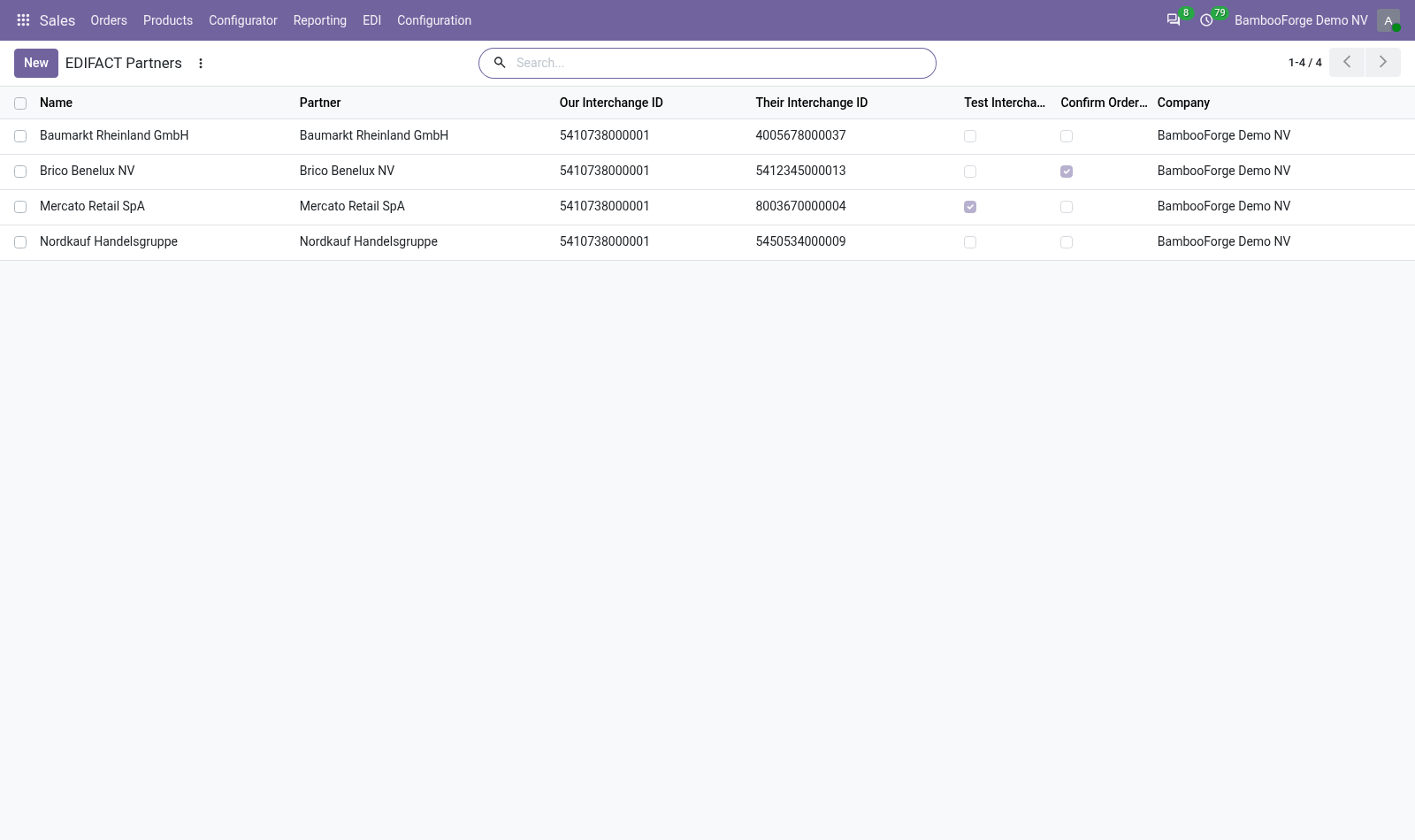
Set up a trading partner
Once per retail chain and company.
- Open Sales > EDI > Trading Partners and press New.
- Choose the customer, and enter their interchange ID and yours: usually the two GLNs, with qualifier 14.
- Choose the product field their codes are matched against, a warehouse, and whether to check prices and to confirm their orders automatically.
- Save: their ORDERS files can be read, and their invoices and deliveries sent.
Flow 02
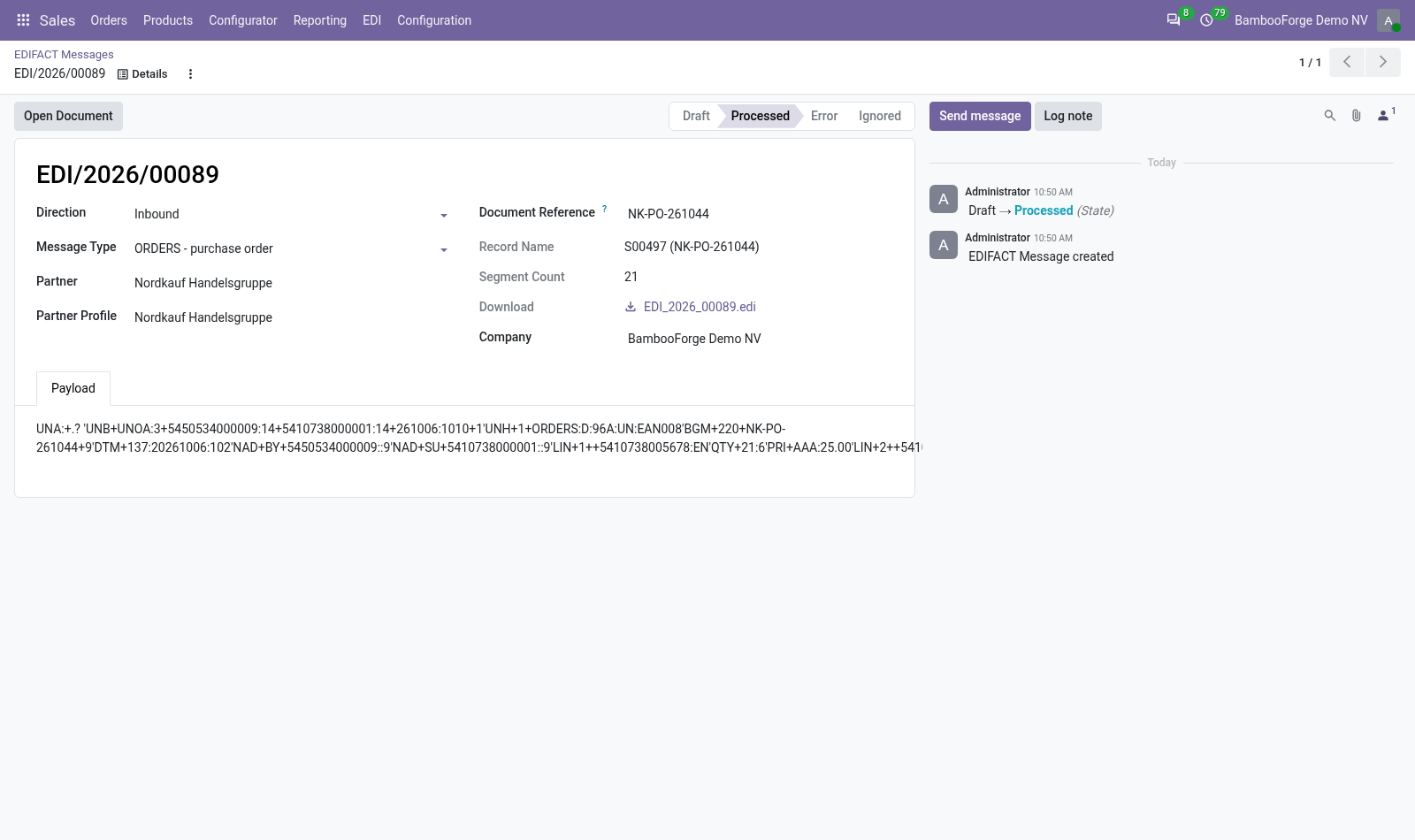
Receive an order
From your EDI gateway, through Odoo's external API.
- Your gateway hands the ORDERS file to the module (the method receive).
- The file is kept as an inbound message and read at once: a draft sales order for the buyer, one line per LIN, the buyer's order number as Customer Reference.
- Open the message and press Open Document to check the order.
- A file that fails goes to Error with the reason: fix the data and press Process Again.
Flow 03
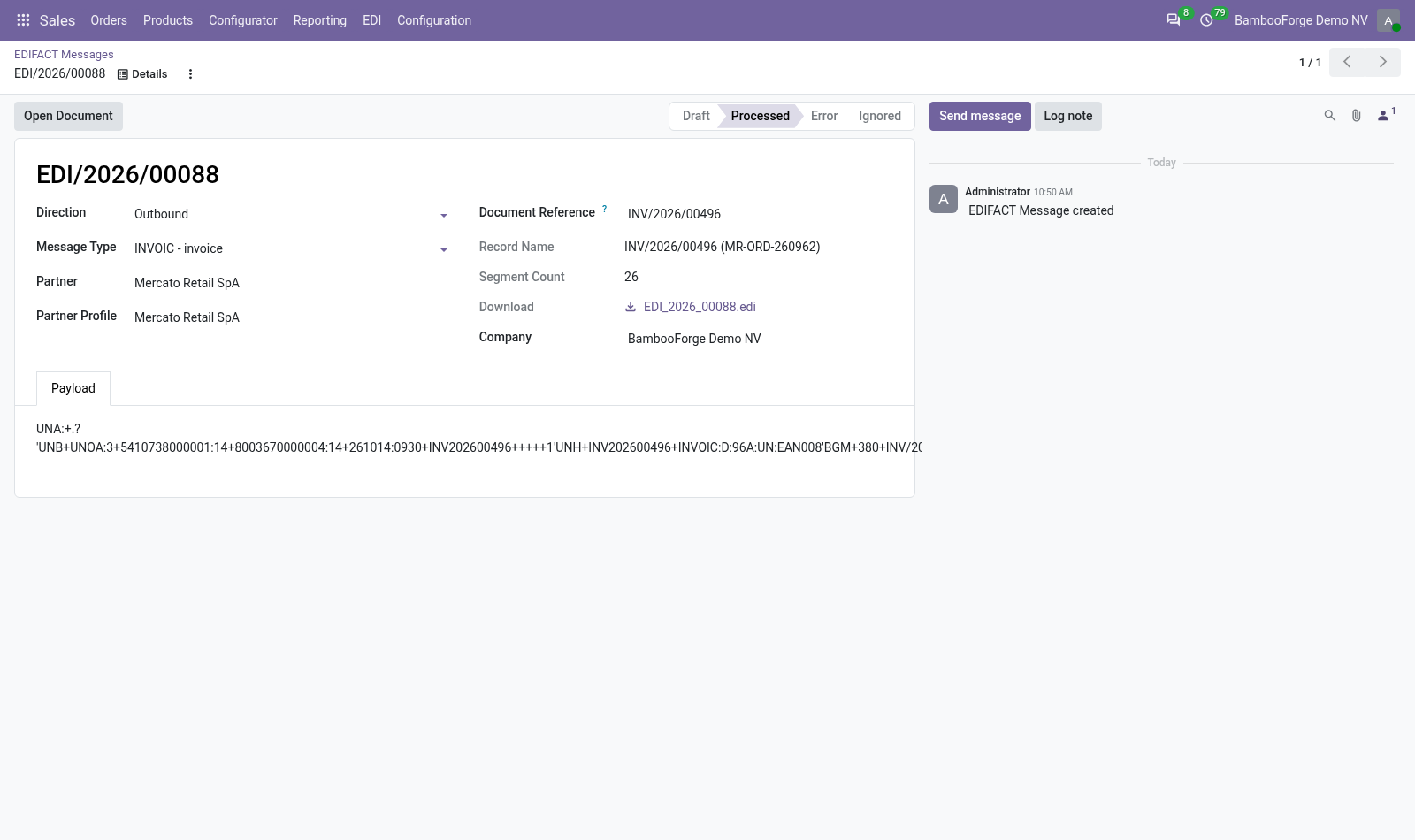
Send an invoice or a despatch advice
Built in Odoo, handed to your gateway.
- Create a server action once that calls build_invoic on the selected invoices, and one that calls build_desadv on transfers.
- Run it on a posted customer invoice, or a validated delivery.
- The INVOIC or DESADV is kept as an outbound message, linked to its document.
- Download the.edi file from the message and hand it to your gateway.
Price and where to buy
249 EUR, one payment per Odoo series, on the Odoo Apps Store. Pick your series:
Twelve months of support by the people who wrote the code; bug fixes and improvements within the series free for as long as it is published. Report a bug within two months of purchase and, if it is not resolved within fifteen days, you get a full refund. Full source under OPL-1, no licence key, no phone-home. The whole promise.