 BambooForge Labs

- Laid out your wayA line takes account codes (60, 411:419, 6 but not 603), Odoo account types, or a formula over other lines.
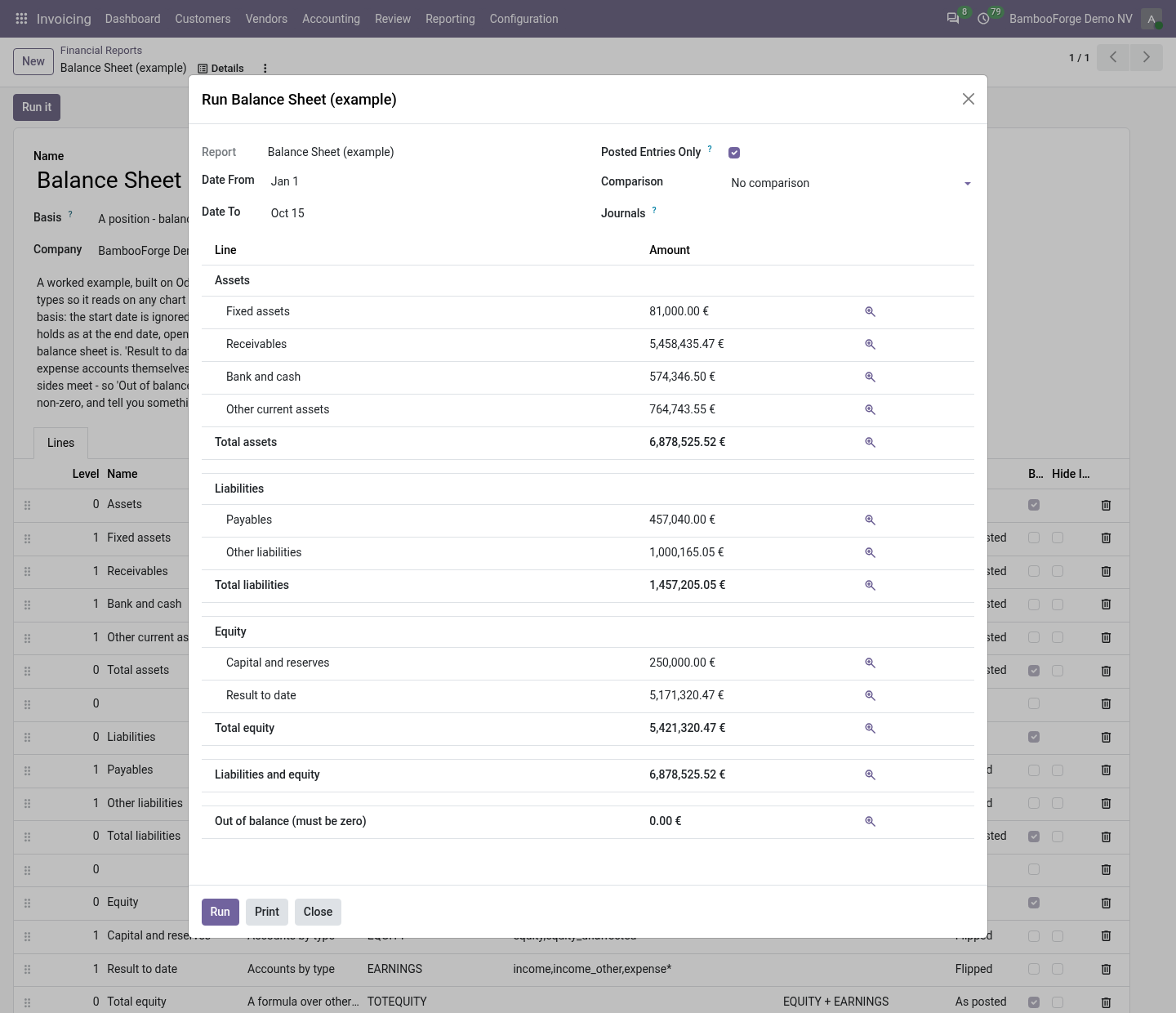
- A period or a positionA profit and loss runs over dates; a balance sheet runs as at a date, everything before it included.
- Every figure opensThe journal items behind a line, with the run's dates, journals and posted state.
Runs onOdoo 16 to 20Community or Enterprise, self-hosted or Odoo.sh
NeedsInvoicingno Enterprise module
Price119 EURone-time, per series, on the Odoo Apps Store
Demodemo20.bambooforge.devlogin page already filled in
Supportsupport@bambooforge.devfirst reply within one business day
Version20.0.1.0.4
bambooforge_fin_reports65 automated checks run before every release of this app, the same suite on every series it ships for. The complete list is in the source you receive; run it yourself with --test-enable.
How you use it
How it is used
Flow 01
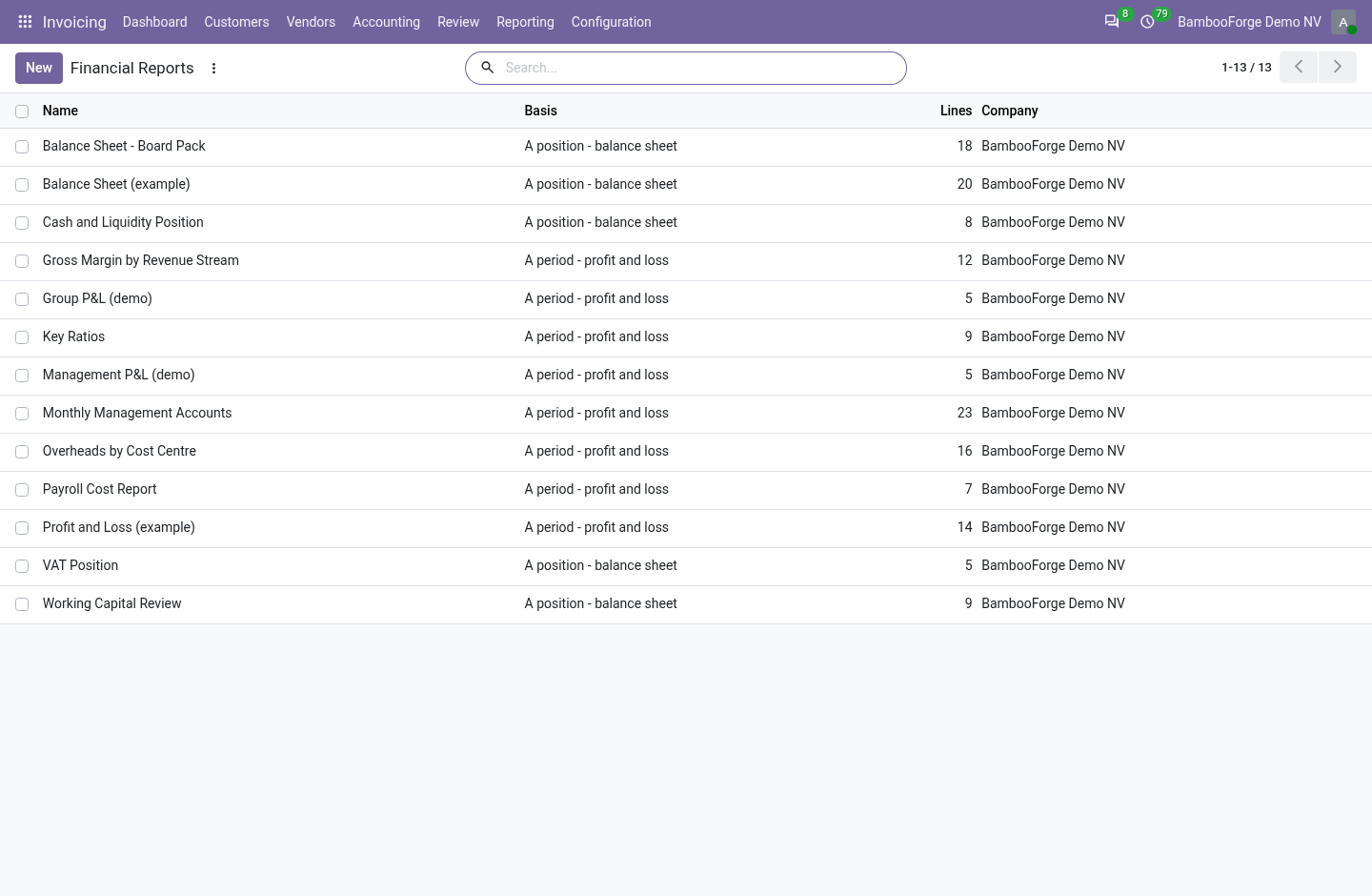
Run a statement
Under Invoicing > Reporting > Report Builder.
- Open Financial Reports and a statement, such as Profit and Loss (example).
- Press Run it: the start of this financial year to today, posted entries only.
- Press Run: one row per line with its figure.
- Read the yellow band, if any: the accounts that hold a balance and are on no line.
Flow 02
Write your own statement
For a Financial Report Designer.
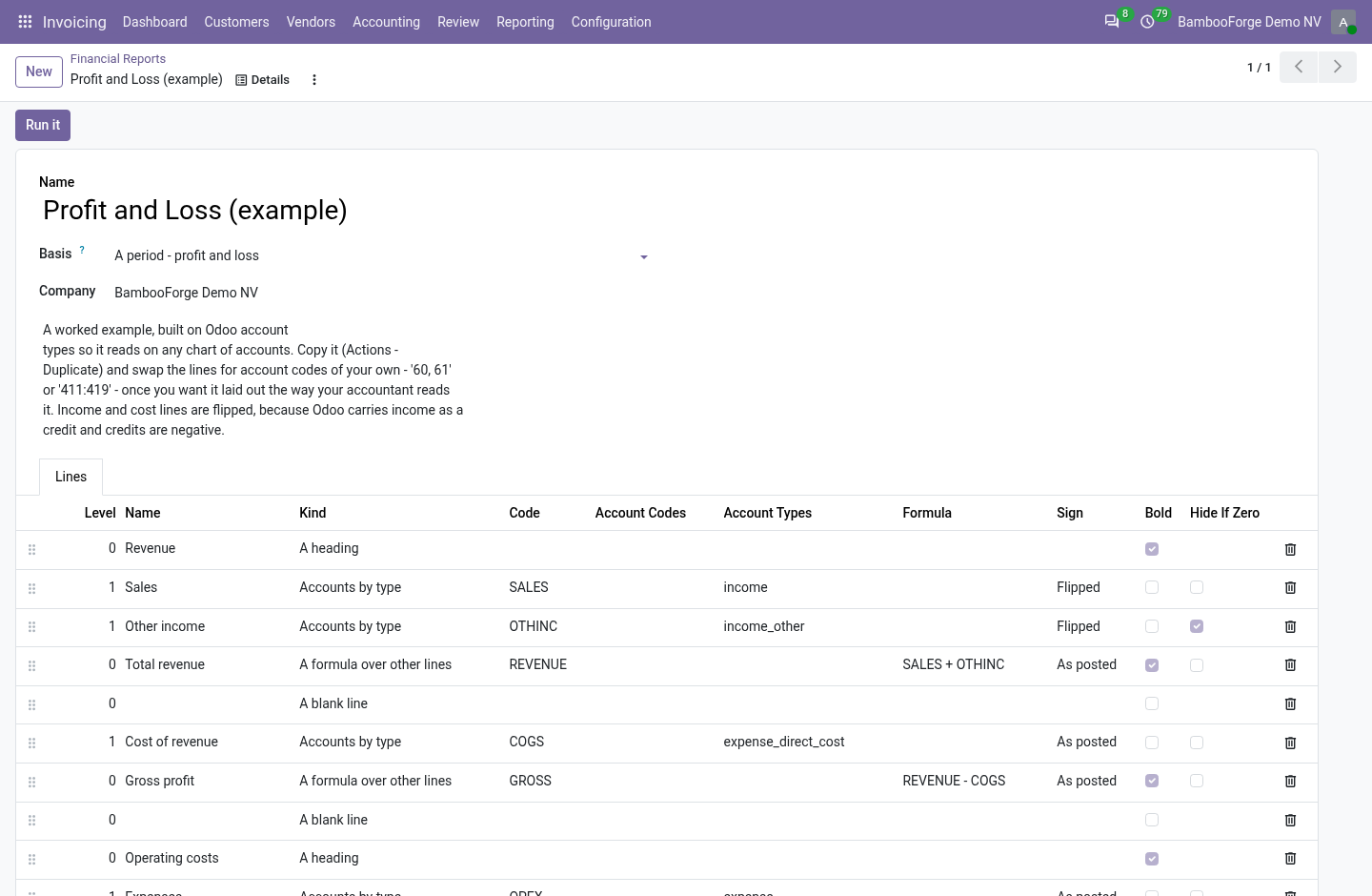
- Duplicate an example, or press New, and choose a period or a position.
- Add a line per row: accounts by code, accounts by type, a formula, a heading or a blank line.
- Give a code to each line a formula names, and flip the lines Odoo carries as credits.
- Save and run it.
Flow 03
Compare, drill and print
In the run window.
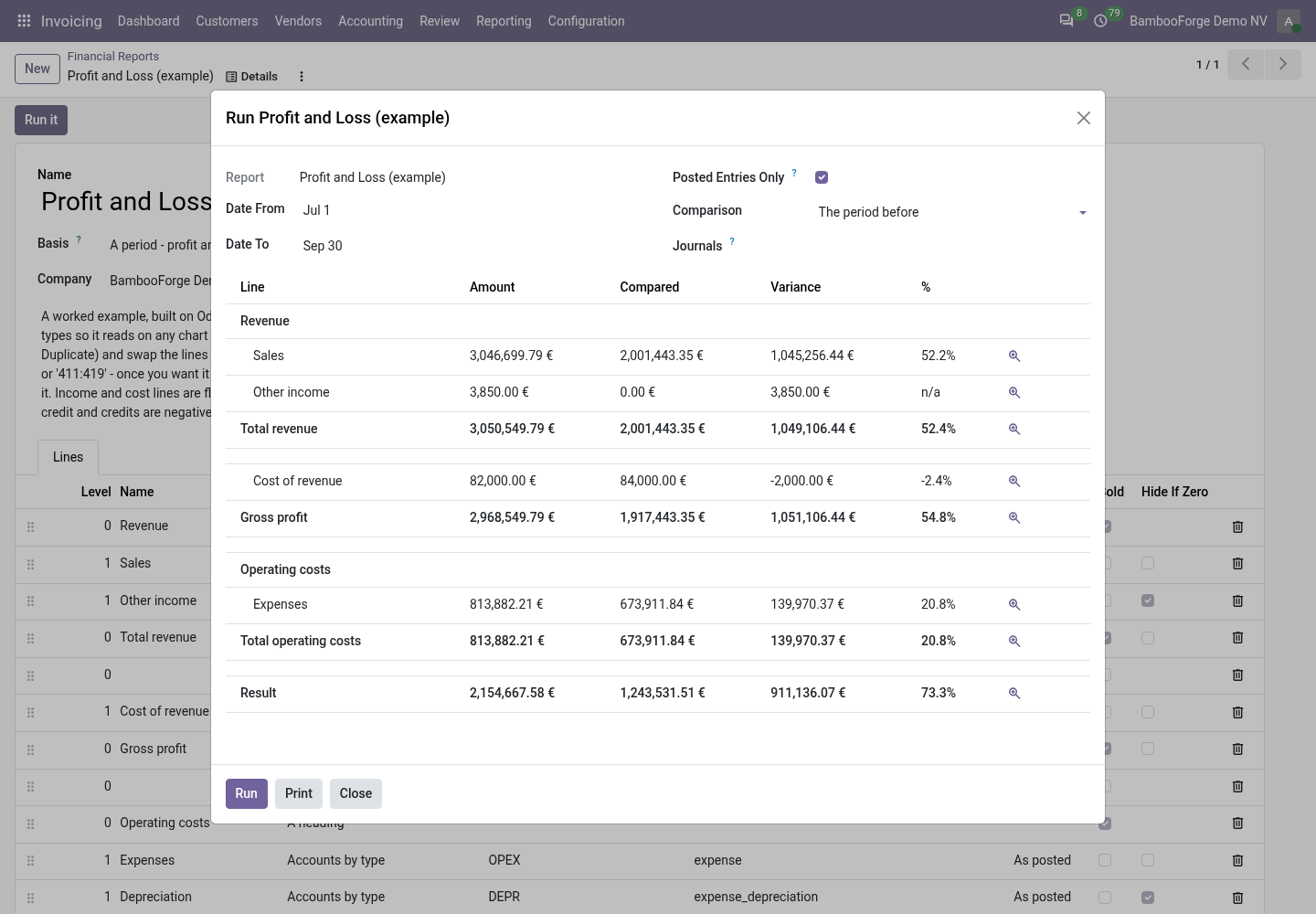
- Choose The period before or The same period last year, and press Run.
- Read Compared, Variance and the variance in per cent.
- Press the button beside a figure to open its journal items.
- Press Print for the PDF.
Price and where to buy
119 EUR, one payment per Odoo series, on the Odoo Apps Store. Pick your series:
Twelve months of support by the people who wrote the code; bug fixes and improvements within the series free for as long as it is published. Report a bug within two months of purchase and, if it is not resolved within fifteen days, you get a full refund. Full source under OPL-1, no licence key, no phone-home. The whole promise.