 BambooForge Labs

- Subscribers where Odoo mailsLists become mailing lists and subscribers mailing contacts, linked to the lists they are on.
- Opt-outs both waysA Listmonk unsubscribe or blocklist opts the contact out in Odoo at its import; an Odoo opt-out or blacklisted address is pushed back to Listmonk. Off until you tick it.
- Dry-run firstA new instance reads Listmonk and keeps what it would have written or pushed, without writing, until you untick Dry Run Mode.
bambooforge_listmonk_connector141 automated checks run before every release of this app, the same suite on every series it ships for. The complete list is in the source you receive; run it yourself with --test-enable.
How you use it
Four flows, in the order you will meet them
Connect: one instance per Listmonk server, dry-run first
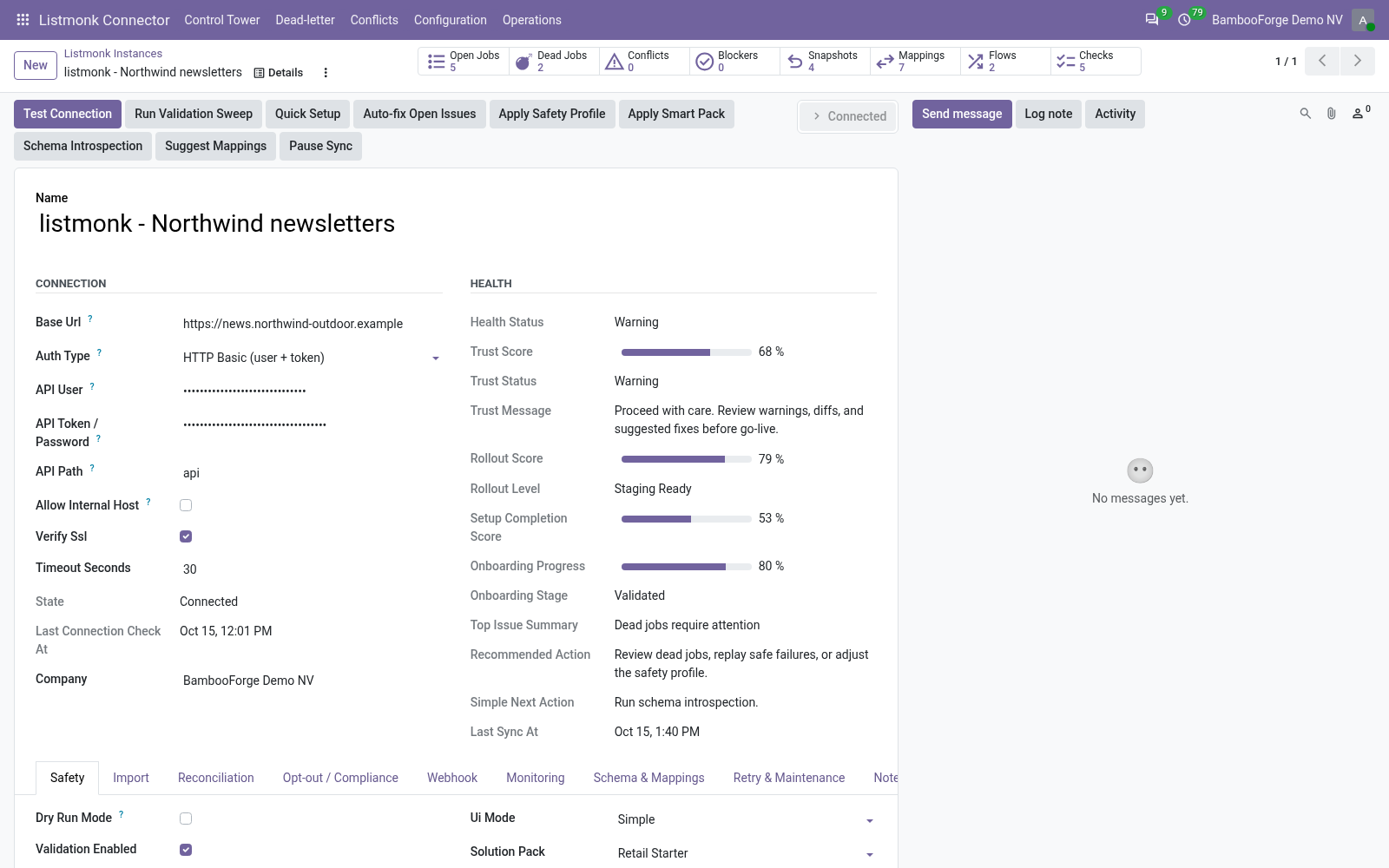
Test Connection proves the address and the user, and the first import writes nothing.
- In Odoo: Listmonk Connector > Configuration > Instances > New. Enter the server's address, the API user and its token.
- Press Test Connection. The state turns Connected.
- On the Import tab, set Import Subscribers Limit above your number of subscribers, then press Queue List Import and Queue Subscriber Import.
- Read Operations > Logs and Validation Results, untick Dry Run Mode and import again, lists first.
Lists and subscribers come into Email Marketing
Each Listmonk record lands where Odoo sends from.
- A list becomes a mailing list with its Listmonk id, type, opt-in mode and subscriber count.
- A subscriber becomes a mailing contact with its name, e-mail and status, on the imported lists it is on.
- Each import writes Listmonk's name and e-mail again, and adds list links; it removes none.
Opt-outs travel both ways
Switched on per instance, on the Opt-out / Compliance tab.
- Tick Sync Opt-out / Suppression; keep Use Email Blacklist for an address-wide stop.
- A subscriber Listmonk shows disabled, blocklisted or unsubscribed from a list is opted out of every list in Odoo at its import, and blacklisted.
- An opt-out or a blacklist entry made in Odoo queues a push: the subscriber is blocklisted in Listmonk, or its lists are unsubscribed and added back as Odoo keeps them.
- A newer Odoo opt-out wins over an enabled subscriber, and is pushed again.
A failed job lands in a list, not in silence
Every job is retried, set aside after its last try, and shown with its error.
- Open the Control Tower: one card per instance with its backlog, dead letters and conflicts.
- Open Dead-letter, fix the cause the error names, select the jobs and use Requeue Jobs.
Price and where to buy
89 EUR, one payment per Odoo series, on the Odoo Apps Store. Pick your series:
Twelve months of support by the people who wrote the code; bug fixes and improvements within the series free for as long as it is published. Report a bug within two months of purchase and, if it is not resolved within fifteen days, you get a full refund. Full source under OPL-1, no licence key, no phone-home. The whole promise.