 BambooForge Labs

- Dry-run first, on every new storeA new instance simulates every job: no record changes in Odoo, and each job keeps what it would have written. You untick Dry Run Mode when you have read the results.
- Read only, nothing to install in nopCommerceOdoo reads the store's MySQL database with a user that may only read: no plugin, no API, and nothing is ever written to nopCommerce.
- Orders that add up to nopCommerce's totalEach line on the product the buyer chose, the shipping as a line of its own and what still differs as one named line, so the order adds up to what the customer paid. The lines carry prices with tax and no Odoo tax unless you turn tax matching on.
bambooforge_nopcommerce_connector216 automated checks run before every release of this app, the same suite on every series it ships for. The complete list is in the source you receive; run it yourself with --test-enable.
How you use it
Four flows, in the order you will meet them
Connect: one instance per store, dry-run first
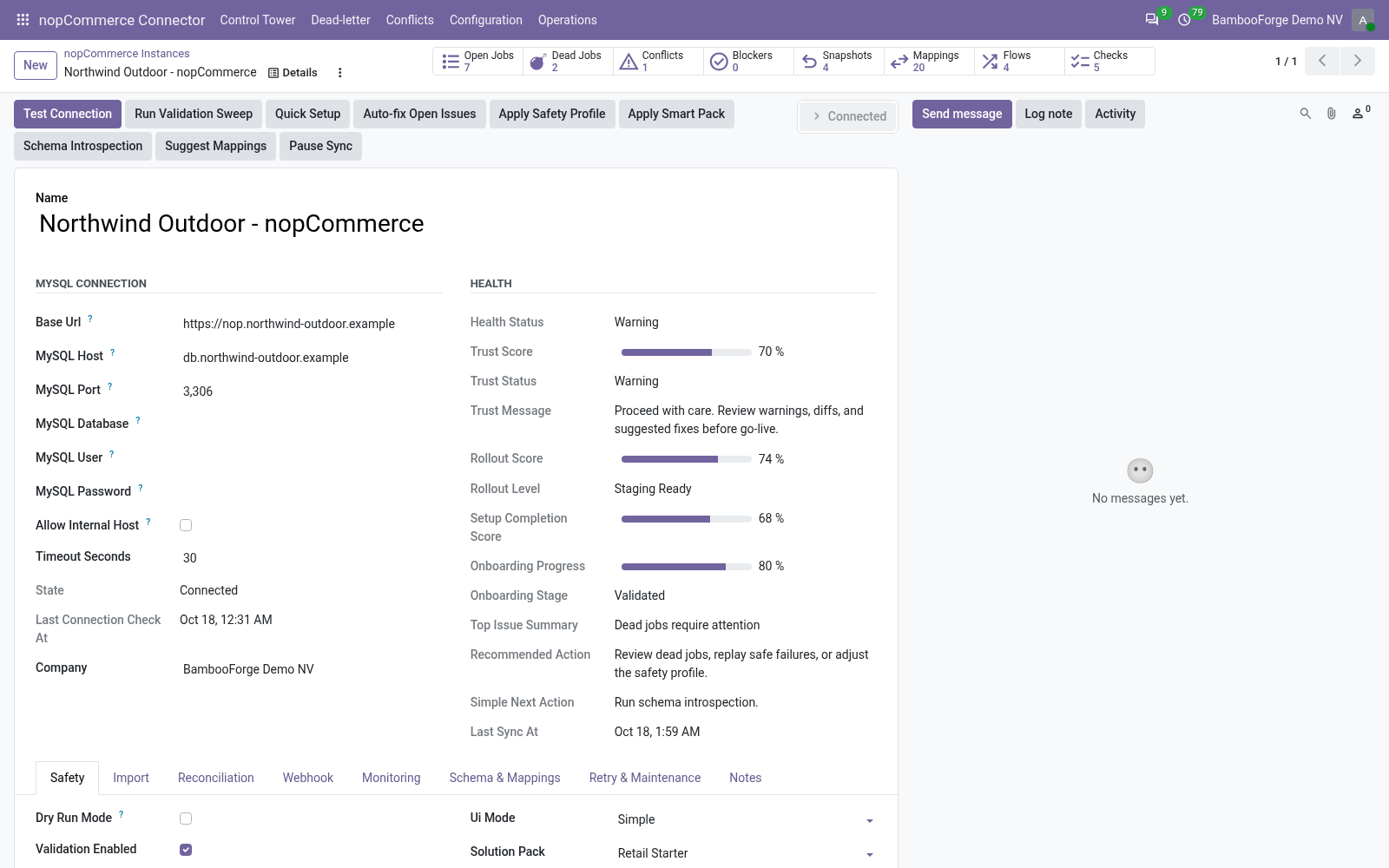
Test Connection proves the database and the user, and the first sync writes nothing.
- In Odoo: nopCommerce Connector > Configuration > Instances > New. Enter the storefront's address and the MySQL host, port, database, user and password of a user that may only read.
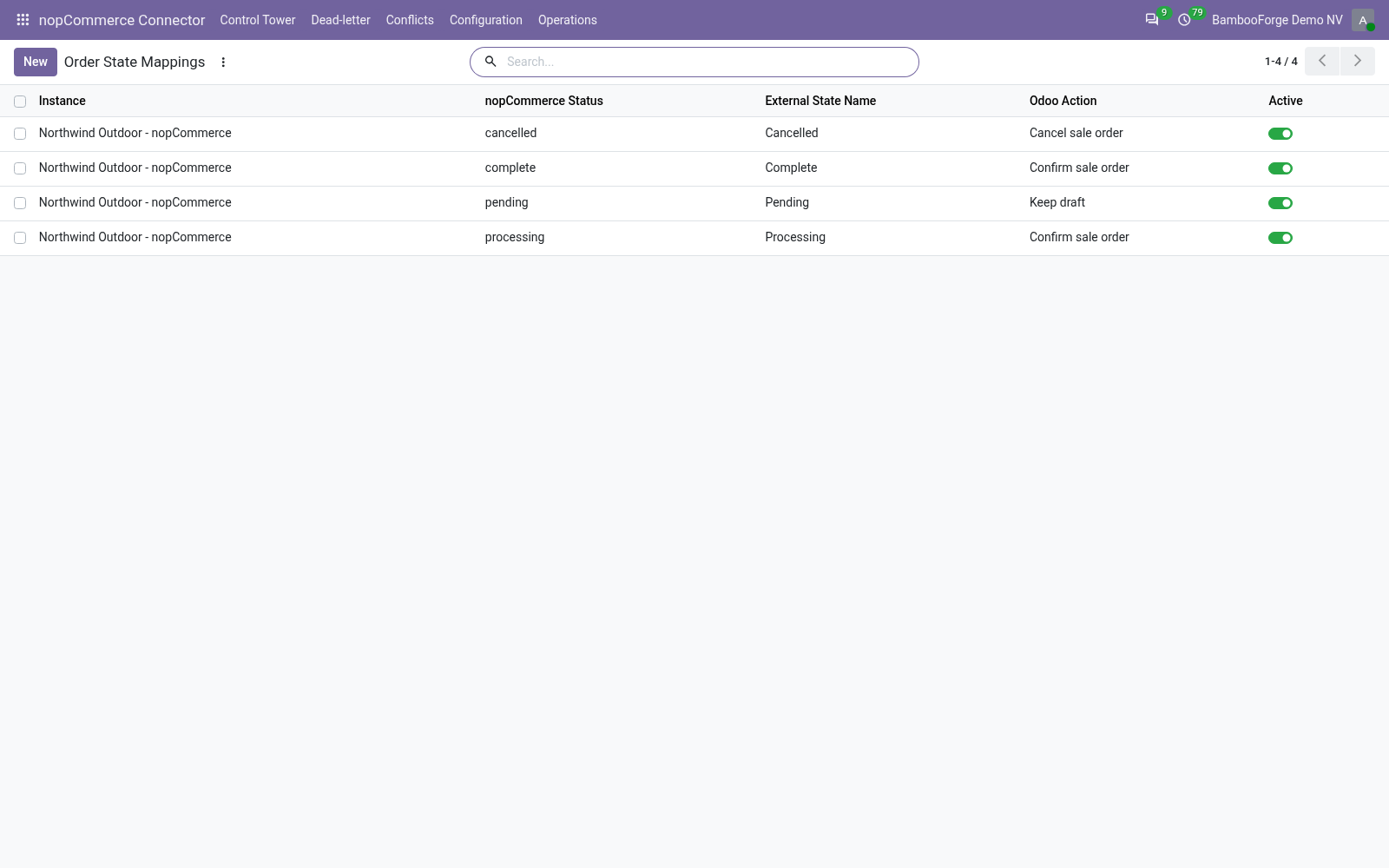
- Press Test Connection. The state turns Connected and Configuration > Order State Mappings gets four rows for the store; a failure sets Error, and Last Connection Error says why.
- On the Import tab press Queue Customer Import and Queue Product Import. Dry Run Mode is on: each job keeps what it would have written, and Operations > Validation Results lists what the checks found.
- Untick Dry Run Mode on the Safety tab and press the buttons again: the records are written, each with a nopCommerce tab and a row under Configuration > Binders.
Every order status has a rule, and every order adds up
nopCommerce gives each order a status; a table per store decides what Odoo does with it.
- Configuration > Order State Mappings holds the statuses nopCommerce uses, each with Keep draft, Confirm sale order, Cancel sale order or Ignore; an administrator changes a row or adds one.
- An imported order is confirmed, cancelled or left as a quotation by the row of its status. A status changed later in nopCommerce comes in when you import the order again: orders are listed by creation date.
- With Match Storefront Totals on, the shipping is a line of its own and what still differs one named line; the total the order had to reach and the difference left stay on its nopCommerce tab.
Stock from nopCommerce into Odoo, on request
nopCommerce takes nothing from Odoo; Odoo can take nopCommerce's figure as its own.
- Tick Stock Import To Odoo on the Import tab and choose the Stock Source Warehouse, or leave it empty for the company's first warehouse.
- A product import then sets that warehouse's on-hand to the stock nopCommerce keeps for the product, through an inventory adjustment; it never runs in dry-run.
- A product that keeps its stock per attribute combination or per warehouse has no single figure and is left as it is, with a warning on its job.
A failed job lands in a list, not in silence
Every import is a queue job with its retries.
- A job that fails waits and is tried again with a growing wait; five failures in a row pause the store until it is healthy again.
- Dead-letter lists the jobs that will not run again by themselves; Requeue Jobs sends them back once the cause is fixed.
- Control Tower shows each store's health, backlog, dead letters and conflicts on one card.
Price and where to buy
199 EUR, one payment per Odoo series, on the Odoo Apps Store. Pick your series:
Twelve months of support by the people who wrote the code; bug fixes and improvements within the series free for as long as it is published. Report a bug within two months of purchase and, if it is not resolved within fifteen days, you get a full refund. Full source under OPL-1, no licence key, no phone-home. The whole promise.