 BambooForge Labs

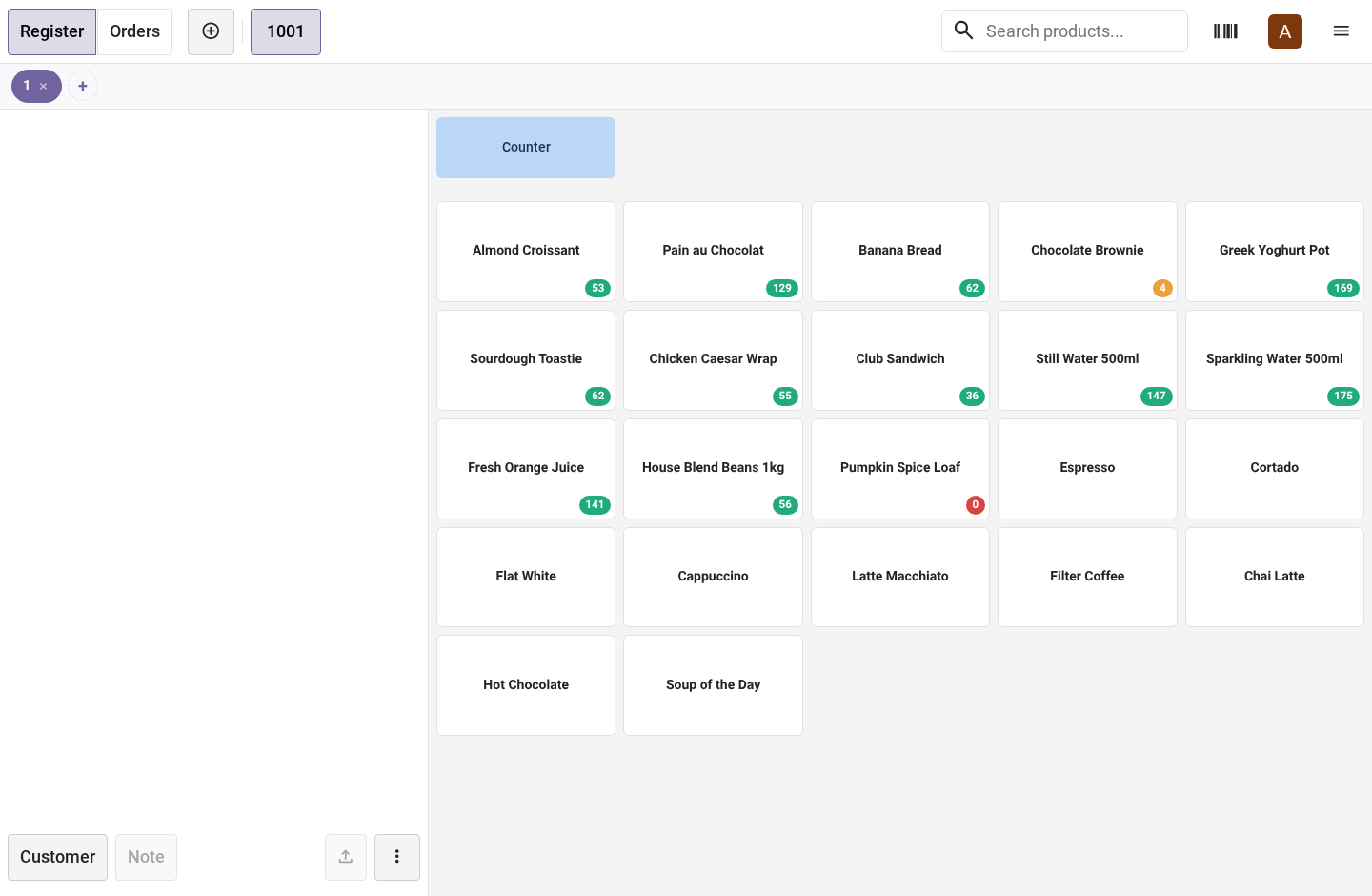
- A number on every cardOn hand minus reserved, in the warehouse of the register's operation type. Green, orange under your threshold, red at zero.
- A warning or a refusalPer register: say nothing, ask the cashier, or refuse the line. The check counts what the open orders of the till already hold.
- Read again while you sellWhen the register is opened, after each paid order of the till and every few minutes. Offline, the last numbers stay on the cards.
bambooforge_pos_stock28 automated checks run before every release of this app, the same suite on every series it ships for. The complete list is in the source you receive; run it yourself with --test-enable.
How you use it
One setting, then the till speaks up
Set a register up
The app is on for every register from the install, on Warn. Each register has its own four settings.
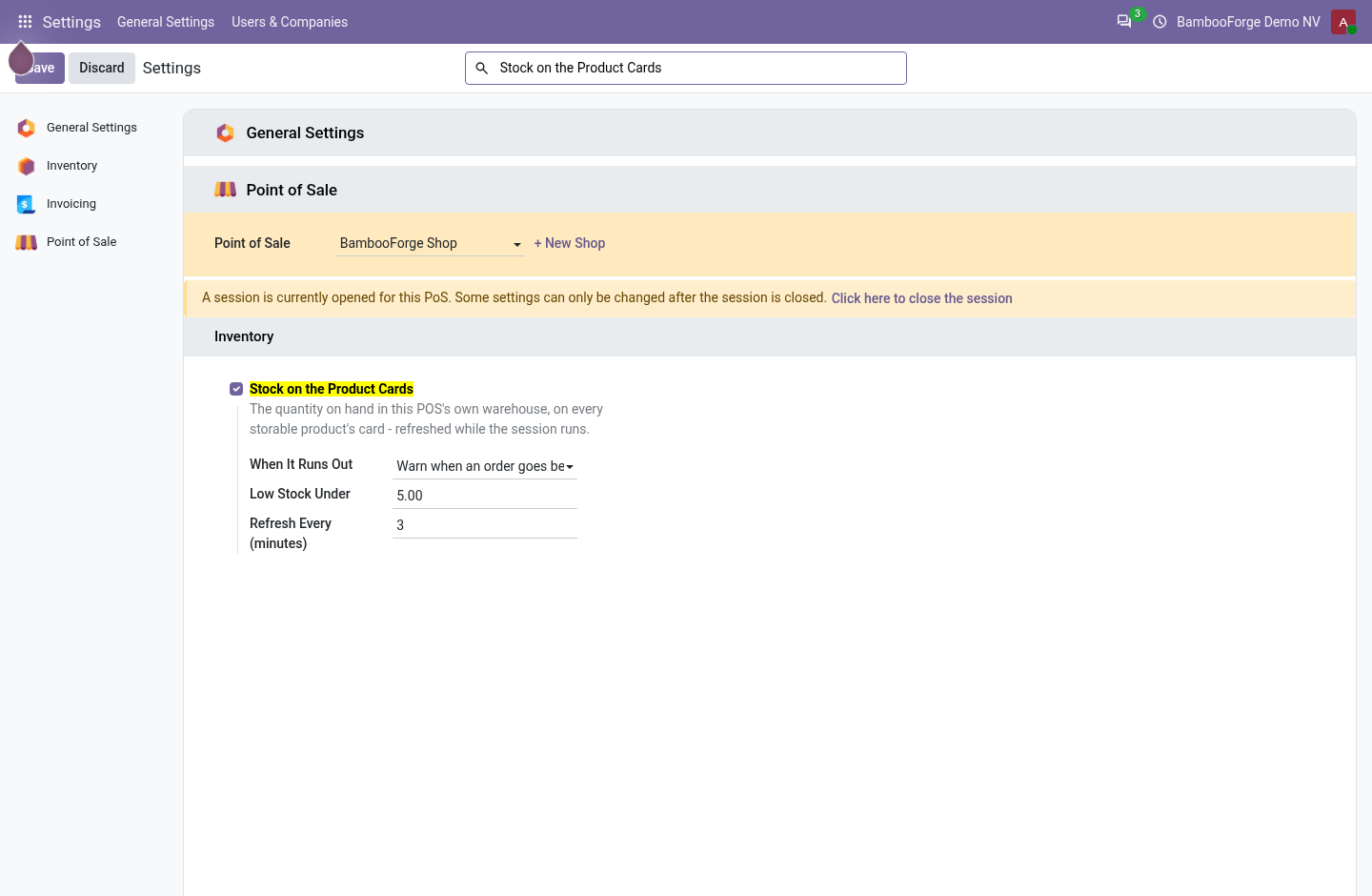
- Point of Sale > Configuration > Settings: choose the register and go to Inventory.
- Stock on the Product Cards shows the badge.
- When It Runs Out: Show the quantity, say nothing; Warn when an order goes below zero; or Refuse the line outright.
- Low Stock Under sets where the badge turns orange, Refresh Every (minutes) how often the till reads again.
- Save, then open the register again or reload its tab.
When the shelf is short
What the cashier meets depends on the register's setting.
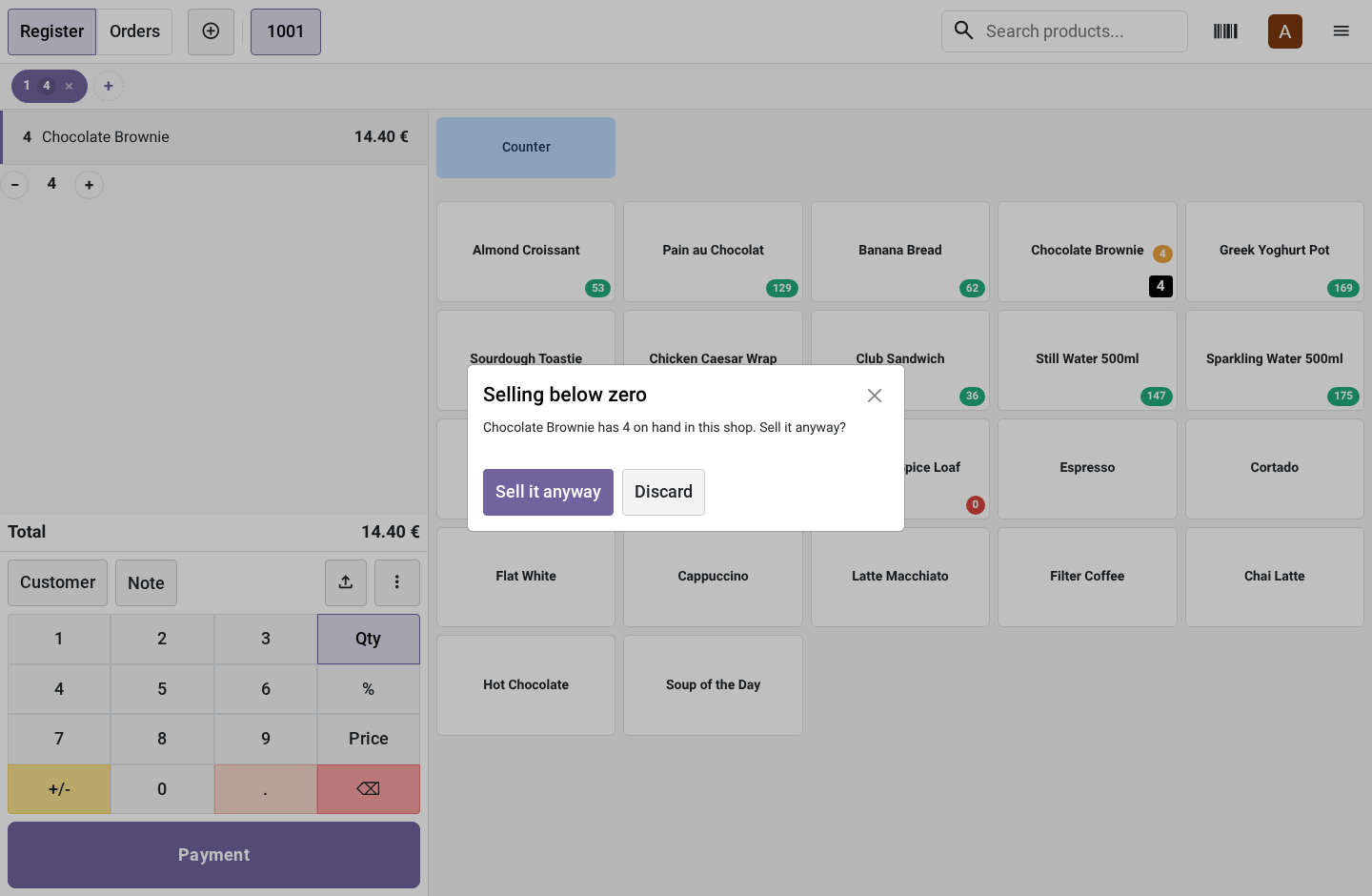
- On Warn, a tap or a scan that goes below zero asks: Sell it anyway? The other button adds nothing.
- On Warn, a quantity typed on the keypad goes in, with a notification as the orders pass the shelf.
- On Refuse, the dialog Not enough stock says what is free. The line is not added, or keeps the quantity it had.
- With BambooForge POS UI, the + of a line asks the same check before it adds a unit.
Price and where to buy
89 EUR, one payment per Odoo series, on the Odoo Apps Store. Pick your series:
Twelve months of support by the people who wrote the code; bug fixes and improvements within the series free for as long as it is published. Report a bug within two months of purchase and, if it is not resolved within fifteen days, you get a full refund. Full source under OPL-1, no licence key, no phone-home. The whole promise.