 BambooForge Labs

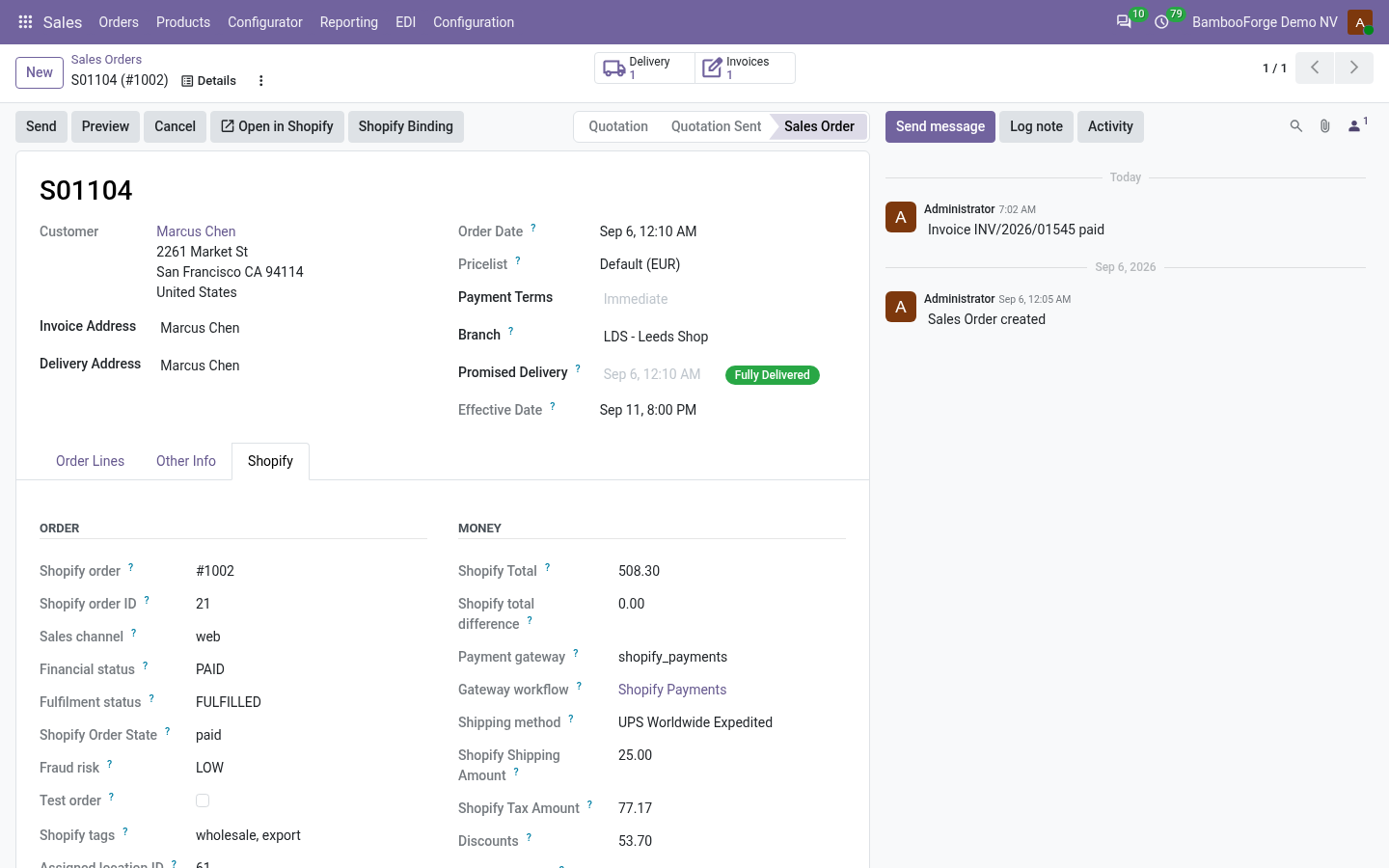
- Every order adds up to what the customer paidShipping, order discounts and any rounding come in as lines of their own, so the Odoo total equals the storefront total; the Shopify tab on the order shows both and the difference between them.
- Ship, cancel and refund in Odoo; Shopify tells the customerValidating a delivery pushes the fulfilment with its tracking number, cancelling the order cancels it on Shopify with restock and refund, and a posted credit note becomes a Shopify refund against the original payment.
- Dry-run first, on every new storeA new instance simulates every job: no record changes in Odoo or Shopify, each job keeps what it would have written as its Dry Run Result, and you switch dry-run off when you have read them.
bambooforge_shopify_connector336 automated checks run before every release of this app, the same suite on every series it ships for. The complete list is in the source you receive; run it yourself with --test-enable.
For the people who decide
What your managers see
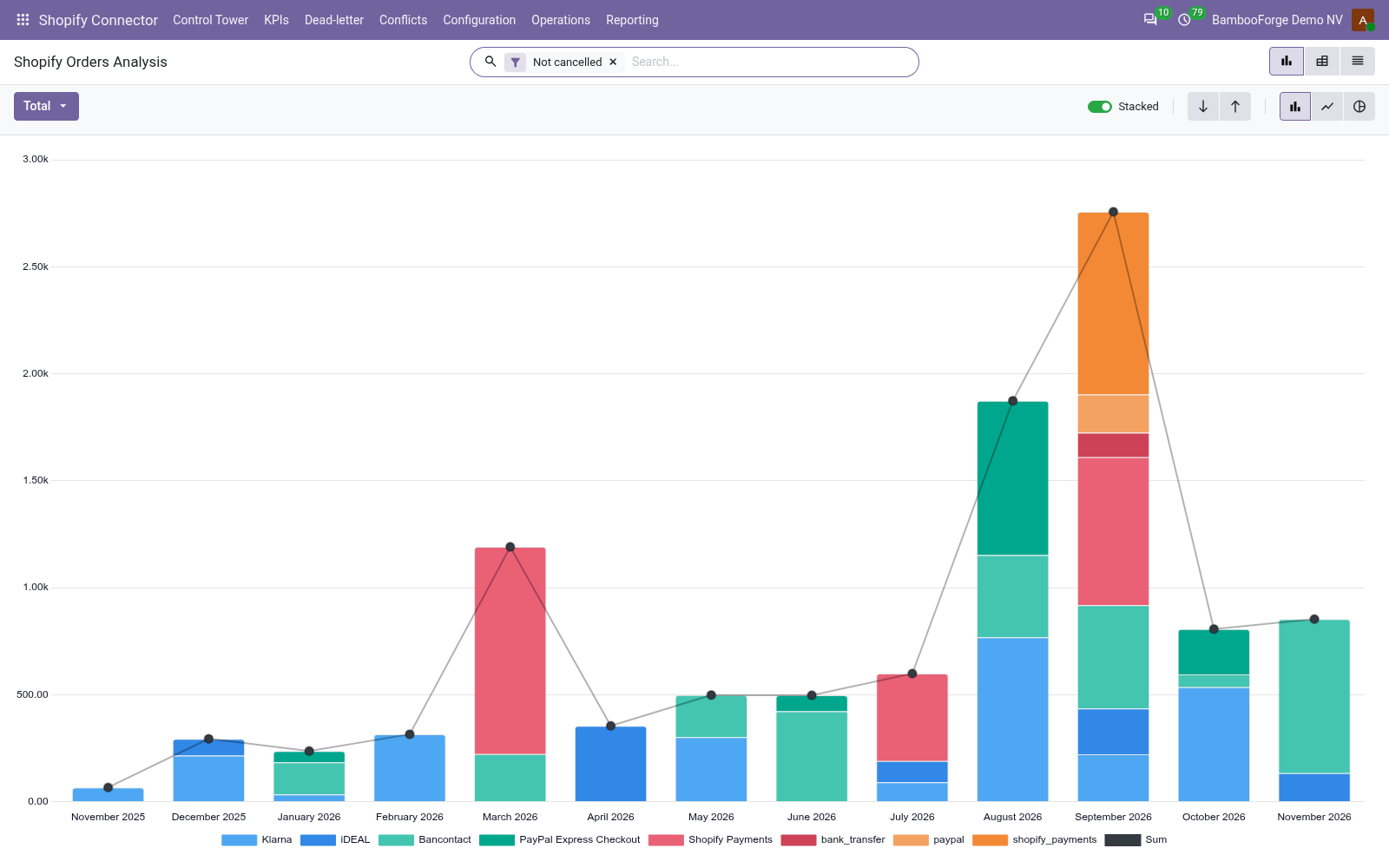
Shopify Connector > KPIs is the shop owner's page and Shopify Connector > Reporting is the menu for sales managers and accountants. The KPI board shows today, this month and the previous month for one store or all of them, and every figure opens the records behind it. Each analysis opens on a chart, with the pivot one click away, and the pivot downloads to Excel from its toolbar.
KPI board
for the shop owner: orders and their value in the company currency, orders still waiting in the queue, refunds from Shopify and refunds pushed to Shopify, payouts net of fees, stock pushes done, failed jobs and dead letters, abandoned checkouts and the ones recovered since; today, this month and the previous month side by side.
The owner sees whether the store is selling, whether money is coming back, and whether anything is stuck, before the month closes.
Shopify Orders
for the shop owner: the imported orders by month and payment gateway with their value, with filters for paid, refunded and not yet fulfilled orders and group-bys by financial status, sales channel and customer.
The owner decides which gateway to keep and which month to compare the next one with.
Queue Jobs
for operations: every job by day, model and outcome, done, failed with a retry scheduled, dead letter, with the error type one group-by away.
Operations sees which import or push fails, since when, and whether the dead letters need requeueing or a mapping fix.
Payouts
for finance: Shopify Payments payouts by month and store with charges, refunds, fees and the net amount, and which ones are on a bank statement already.
The accountant knows what Shopify kept in fees and which payout still has to be reconciled.
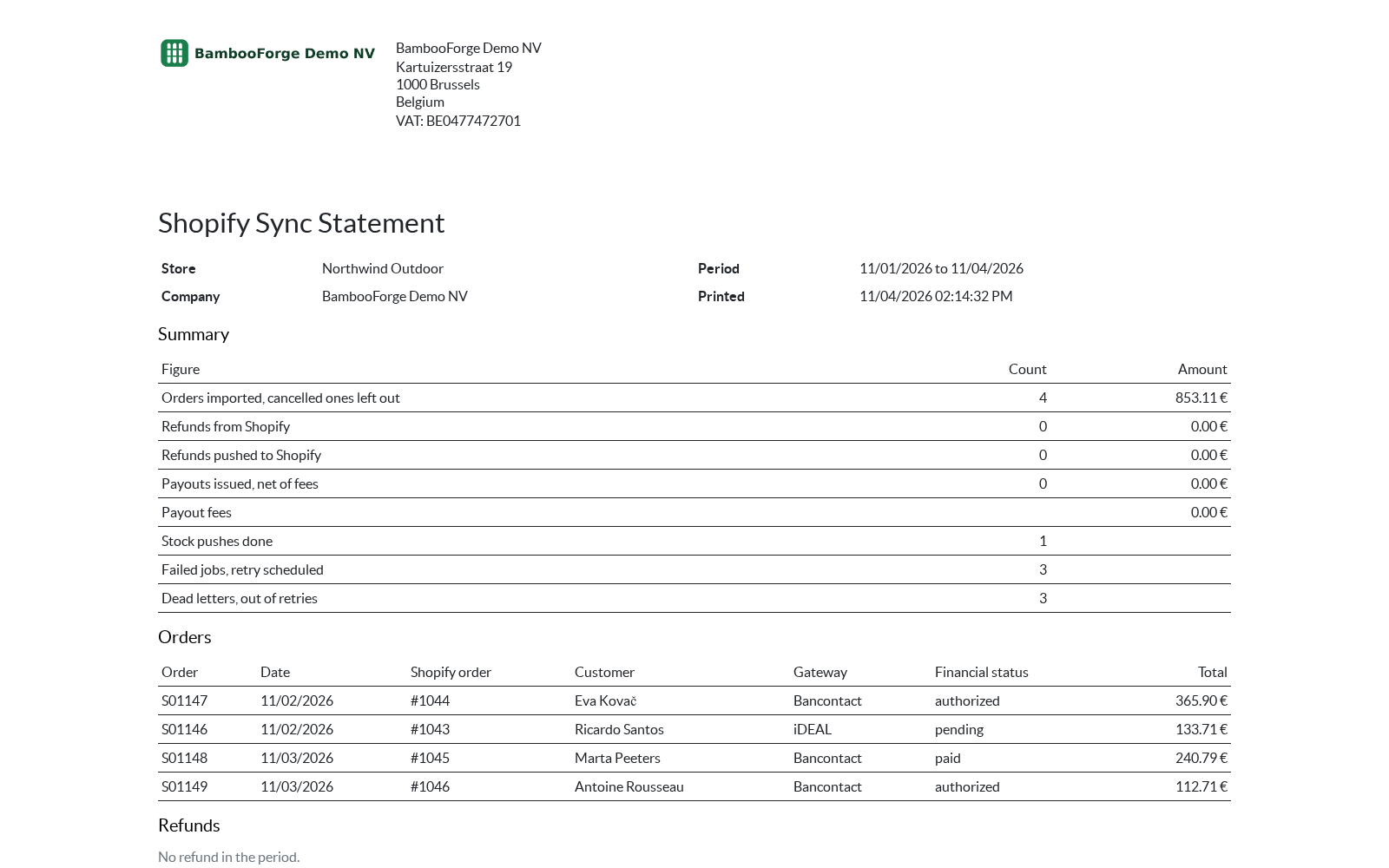
One document prints, from Reporting > Sync Statement (PDF) or the Print statement button of the KPI board:
- Shopify Sync Statement: one store and one period on paper: the orders imported and their value, the refunds both ways, the payouts with their fees, and the jobs that failed or ran out of retries with the reason. The page the owner reads at month end and the accountant files with the payout.
How you use it
Eight screens, in the order you will meet them
Connect, and the store describes itself
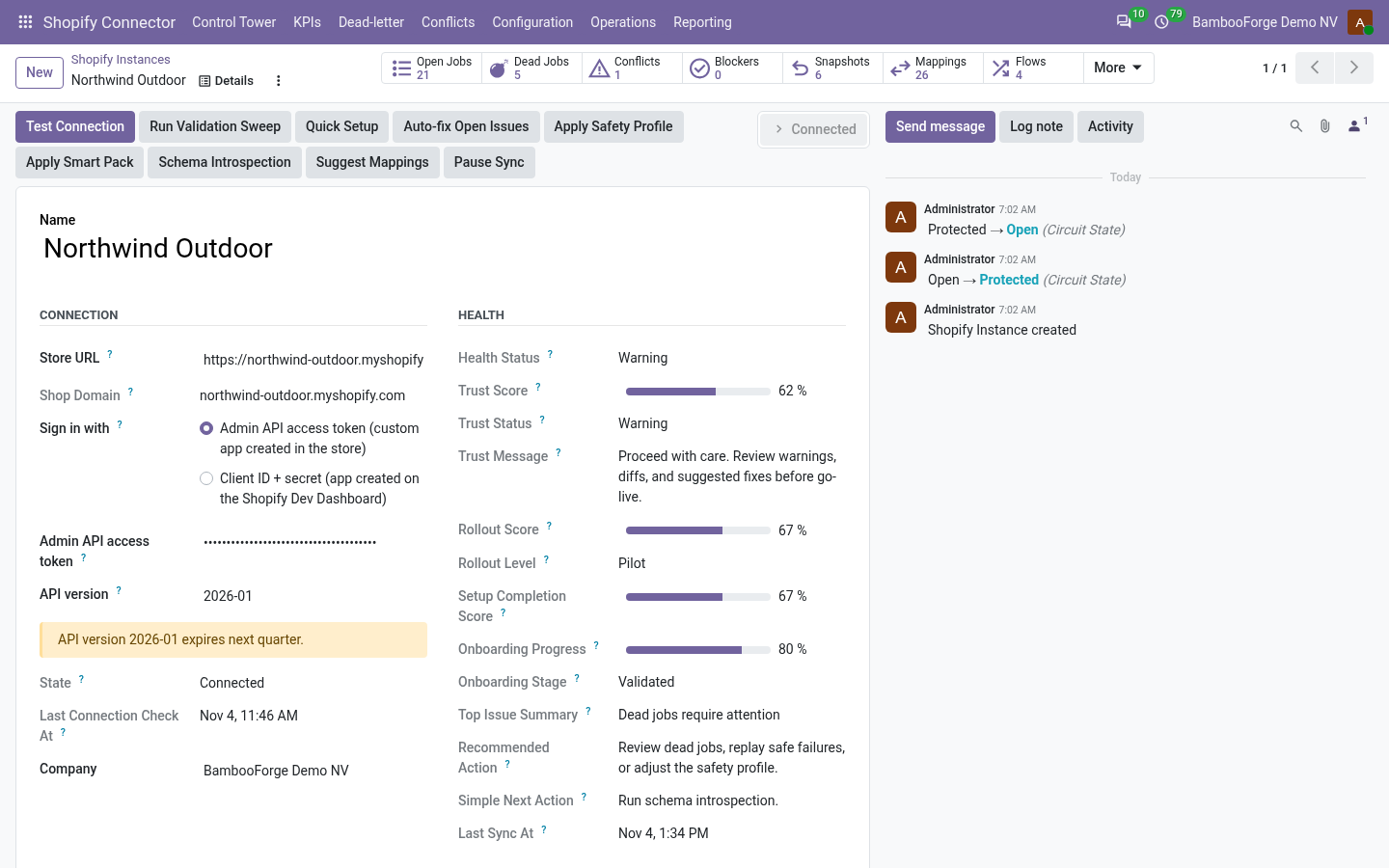
One instance per store. Paste the credentials of your own Shopify app, press one button, and the instance fills in what the store is: name, plan, currency, country, time zone, whether prices include tax, its locations and its payment gateways.
- Shopify Connector > Configuration > Instances > New: name the store, enter the Store URL and choose Sign in with: the Admin API access token of a custom app created in the store, or the Client ID and secret of an app created on the Shopify Dev Dashboard.
- Press Test Connection. The Store block fills in with the shop name, plan, currency, presentment currencies, country, time zone and whether prices include tax; a failure sets the instance to Error and shows the message.
- Configuration > Locations lists every Shopify location with an Odoo warehouse to map it to; Configuration > Payment Gateways gets seven gateway rows with a default workflow each.
- Configuration > Onboarding Checklist says what is still missing before going live; every open item has a Fix This button that opens the screen that clears it.
The first sync writes nothing
Dry Run Mode is on for every new instance. Queue the imports, let the jobs run, and read what each one would have done before a single record changes.
- On the instance's Import tab press Queue Product Import, Queue Customer Import and Queue Order Import. Each enqueues jobs; the screen is never blocked.
- The Shopify Queue Processor scheduled action runs every minute, or press Process Now on a job under Operations > Queue Jobs.
- Open a job: its Payload tab holds the Dry Run Result. Operations > Validation Results lists what the checks found, with a Blocking filter.
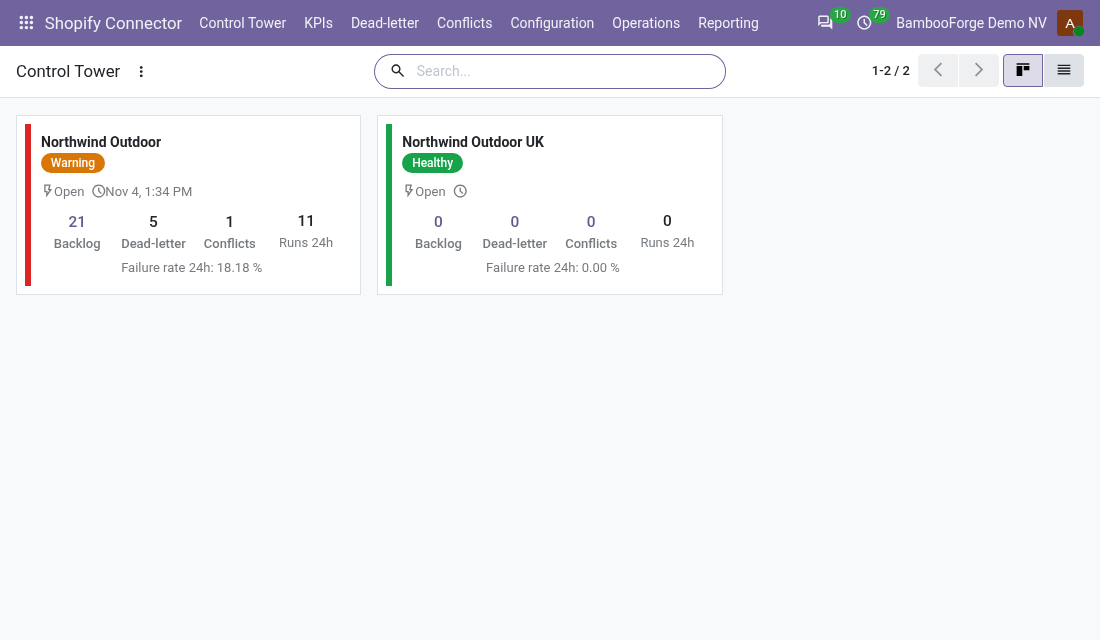
- Shopify Connector > Control Tower shows one card per store: health, circuit state, last sync, backlog, dead letters, conflicts and the runs of the last 24 hours.
- Untick Dry Run Mode on the Safety tab and queue the imports again. Imported records land in Sales > Products, Contacts and Sales > Orders, each with a Shopify tab; a re-import updates the same record.
Variants are variants, not a title with a slash in it
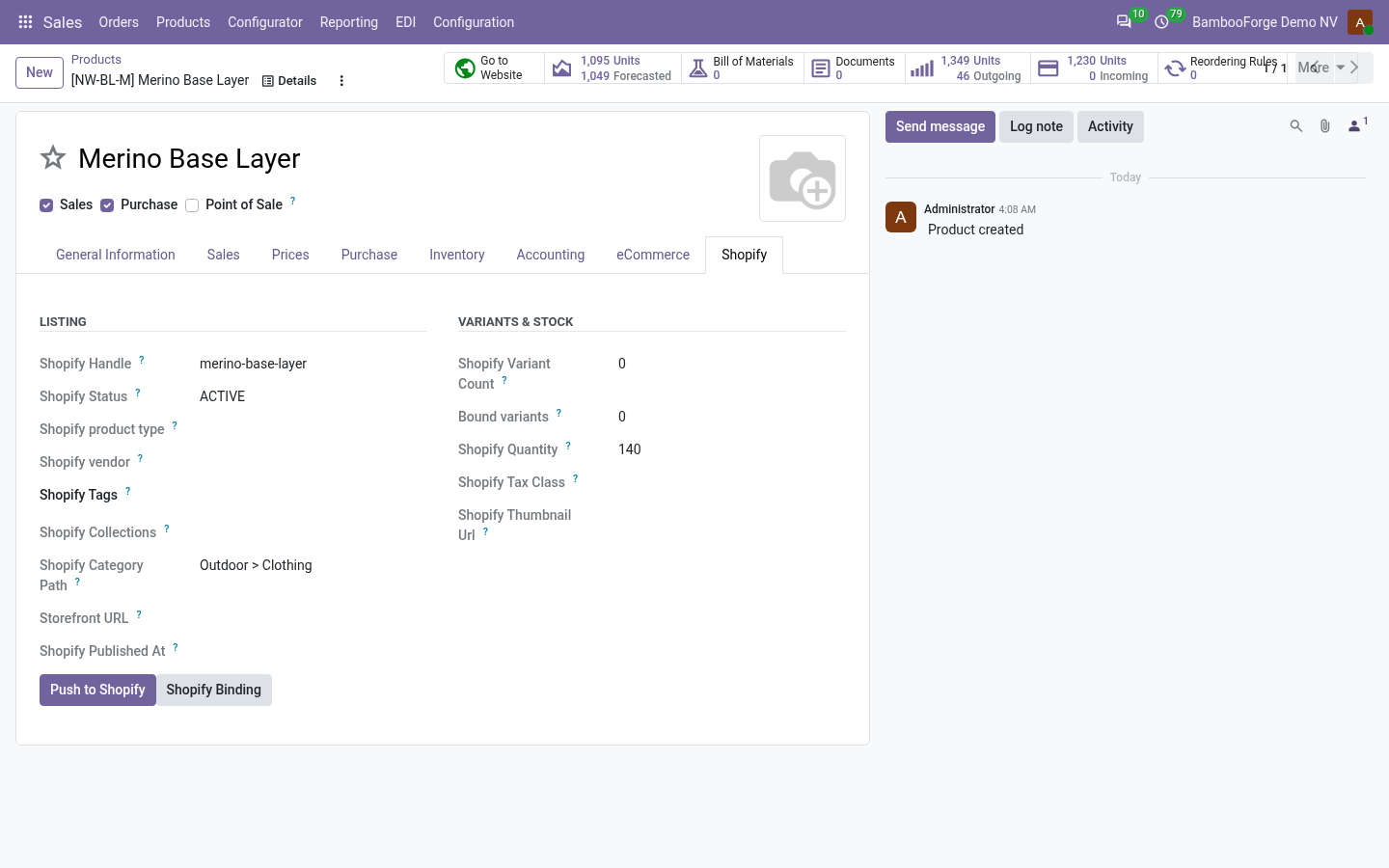
A Shopify product with three sizes and two colours becomes one Odoo template with two attributes and six variants. Each variant is bound to its own Shopify variant id, inventory item, SKU, barcode, price and compare-at price.
- Import: option names become attributes, variants are matched by an existing binding, then attribute values, SKU, barcode, or the single variant. Collections become categories, tags stay tags, metafields land as JSON.
- Sales > Products, Shopify tab: handle, status, collections, category path, storefront link, the variant counts and the stock Shopify reports; each variant's own Shopify tab shows its id, price, compare-at price and inventory policy.
- Export: Push to Shopify on the product sends options, variants, prices and SKUs in one productSet call, as Draft until you publish in Shopify or straight to Active, as set on the instance's Import tab.
- View on storefront opens the product on the shop; Shopify Binding opens the binding rows behind it.
Every financial status has a rule, every gateway has a workflow
Shopify reports a financial status and a gateway on every order. The connector uses both: the status decides what happens to the sale order, the gateway decides whether it is confirmed, invoiced and paid on arrival.
- Configuration > Order State Mappings: paid, authorized and partially paid confirm; refunded, voided and cancelled cancel; pending and expired keep the draft; partially refunded is left alone and the refund arrives as a credit note. Change any row to Ignore, Keep draft, Confirm or Cancel.
- Tick Gateway workflows on the instance's Orders & Fulfilment tab, then Configuration > Payment Gateways: per gateway, Confirm order, Create invoice, Register payment on a journal, and Only when paid, which holds an authorized card order as a draft until capture.
- The order's Shopify tab carries the order name, gateway, financial and fulfilment status, fraud risk, tags, the Shopify total and the difference to the Odoo total; a difference above the Total Tolerance raises a validation warning.
- Open in Shopify opens the order in the admin; the Sales list has Shopify orders, Total mismatch and High fraud risk filters.
Ship in Odoo, the customer hears from Shopify
Three opt-in toggles on the instance, each a queue job, so a Shopify outage delays the push rather than losing it.
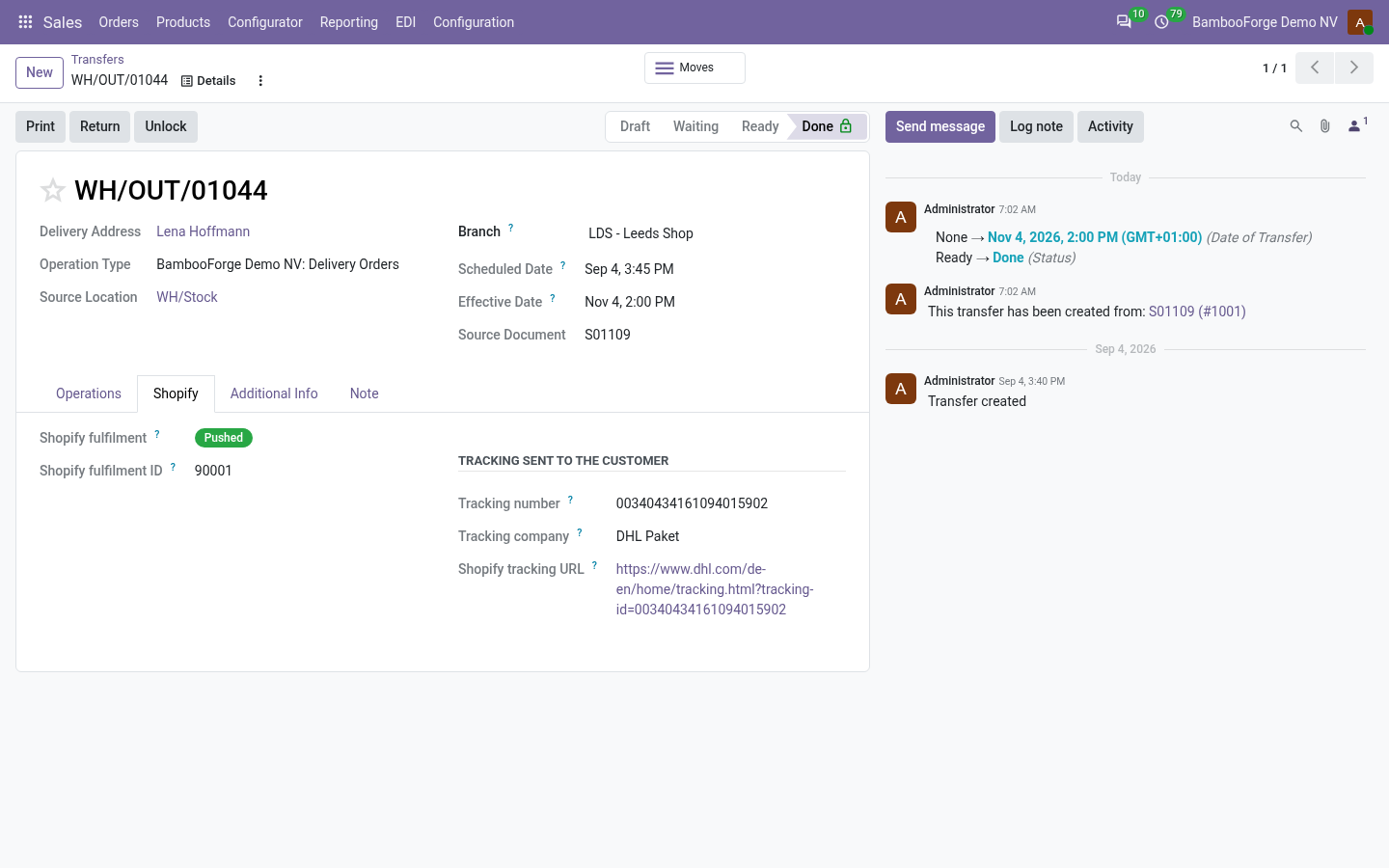
- Push fulfilments: validating the delivery of a Shopify order creates the fulfilment on the order's open fulfillment order with the quantities shipped and the tracking number, company and URL from the delivery's Shopify tab; Notify customer lets Shopify send its shipping email.
- The delivery shows Pushed with the fulfilment id, or Error with the message; Push fulfilment to Shopify in the header sends a done delivery that has not gone yet.
- Push cancellations: cancelling the sale order cancels the Shopify order with the reason chosen on the order; its items go back to stock and a paid order is refunded. Cancel on Shopify does it by hand.
- Push refunds: posting a credit note that reverses a Shopify order's invoice creates the refund against the original transaction, line by line; Refund on Shopify is the button. Refunds made in Shopify come back as credit notes, posted automatically when Auto Post Refund is on.
Stock per location, and several shops on one stock
Each Shopify location maps to an Odoo warehouse. Odoo pushes what it can still sell, per location, and a sale confirmed from any shop lowers the figure every shop shows within about a minute.
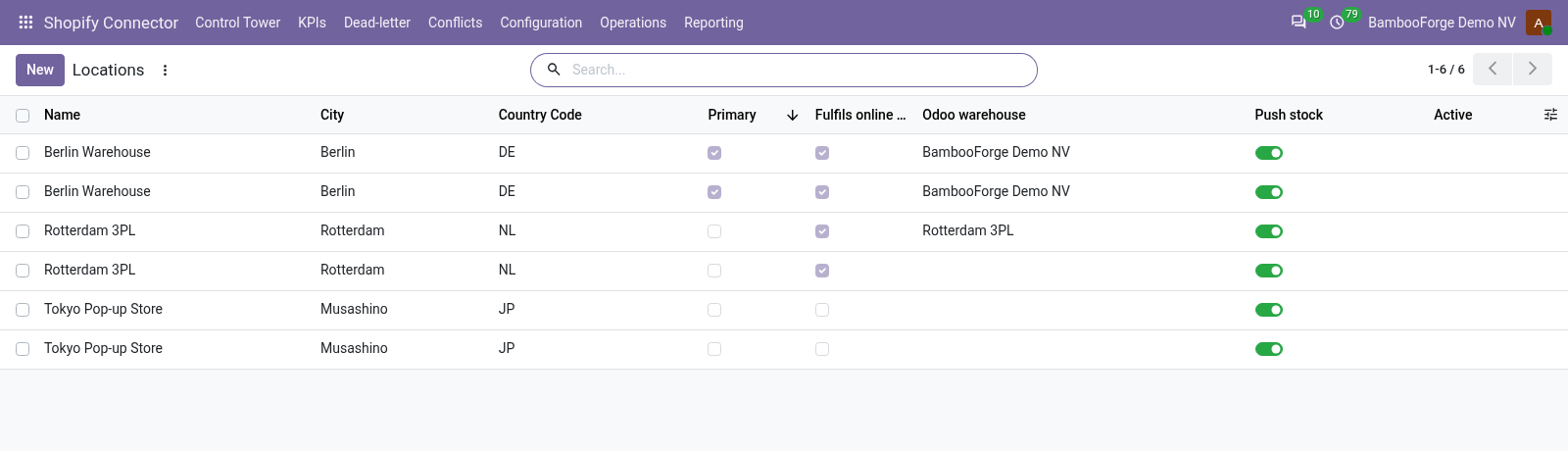
- Configuration > Locations: after Test Connection, or Fetch locations on the Import tab, every Shopify location is listed. Pick the Odoo warehouse and untick Push stock on any location Odoo should leave alone.
- Stock Export Enabled on the Import tab: the Shopify Stock Export action runs every 30 minutes, and within about a minute of any stock move, pushing on-hand less confirmed deliveries, less Stock Buffer Qty, never below zero with Stock Oversell Guard on. Only variants whose quantity changed are sent.
- Sync Stock Enabled reads the stock Shopify reports into the product's Shopify tab, per location in developer mode. Stock Import To Odoo also writes an inventory adjustment in the mapped warehouse; off by default because it changes valuation.
- Several shops: one instance per store, all pushing from the same Odoo stock. Where a shop's orders come into Odoo, the import leaves Odoo's stock alone, as the sale arrives as an order; where they do not, it takes the shop's change since the last push.
The money side: payouts with their fees, checkouts that walked away
Finance gets Shopify Payments payouts as records with every balance transaction; Sales gets the carts shoppers left behind, with the link that brings them back.
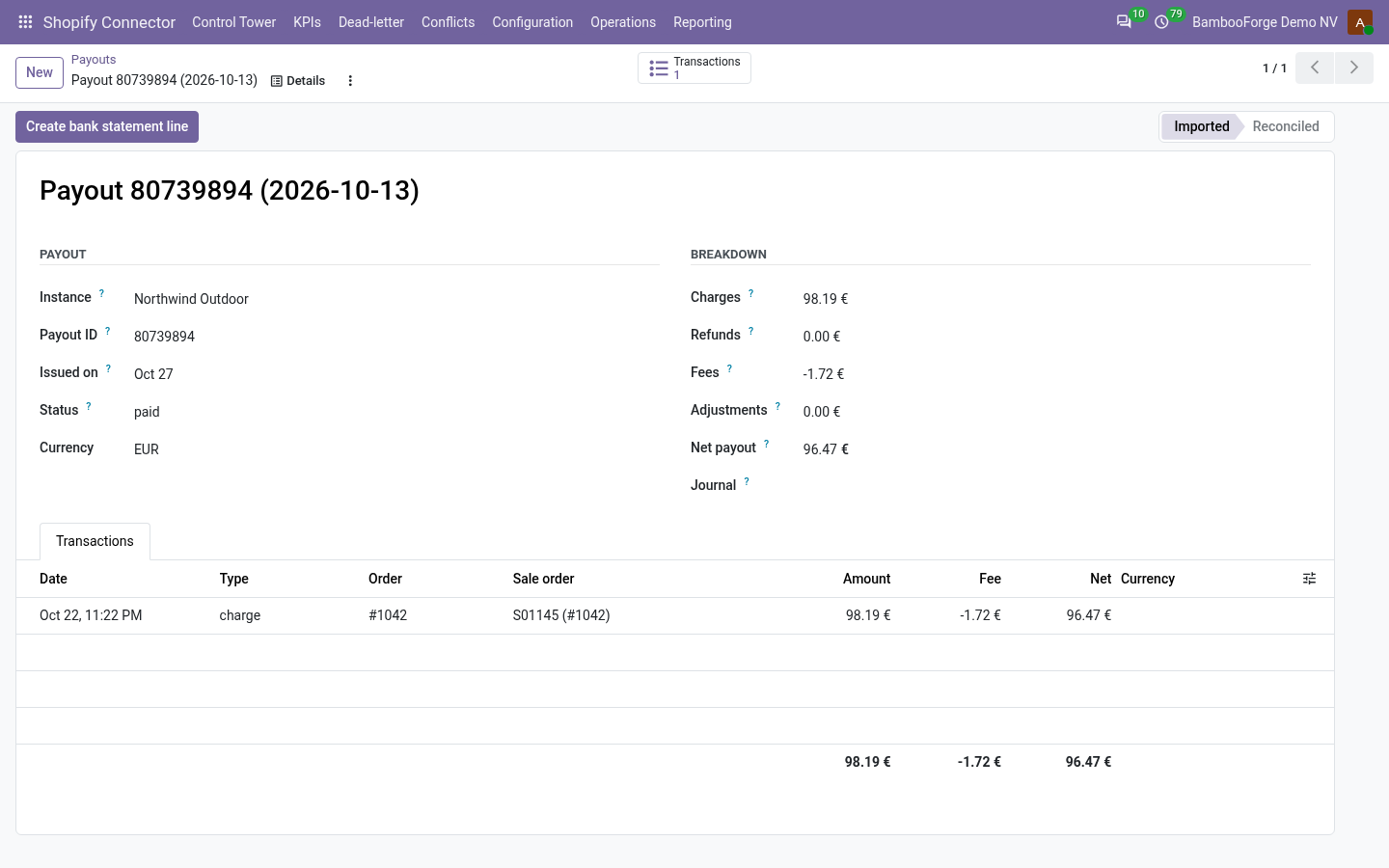
- Tick Import payouts and pick the Payout journal, the bank journal the deposit lands in. Operations > Payouts then holds each payout with its charges, refunds, fees, adjustments and net, and a transaction line per order pointing at the Odoo sale order it settles.
- Create bank statement line puts the net payout on that journal, ready to reconcile against the deposit. The Shopify Payouts & Abandoned Checkouts action runs every six hours; Import payouts now runs it at once.
- Tick Import abandoned checkouts: Operations > Abandoned Checkouts lists each cart with the shopper, cart value, recovery URL and whether Shopify already recovered it. Open recovery link opens it; Mark lost closes it.
- Create CRM leads turns each checkout into a lead for the sales team; Open lead takes you there.
Webhooks from Odoo, and what happens when a job fails
Shopify calls Odoo the moment something changes. Each delivery is checked against the app's secret and taken once; a job that keeps failing lands in a console, not in silence.
- Paste the app's secret into Webhook Secret on the instance's Webhooks tab, make sure web.base.url is your public https address, and press Register webhooks: 17 topics (products, customers, orders, refunds, inventory levels, locations, checkouts, app uninstall) are created and listed under Configuration > Webhook Subscriptions. Remove webhooks takes them away.
- Each delivery is verified with HMAC-SHA256, de-duplicated by its webhook id and enqueued as an import job; Webhook Process Immediately handles it on arrival. Without webhooks the Shopify Reconciliation action pulls recent changes every 15 minutes for the models with Auto reconcile on.
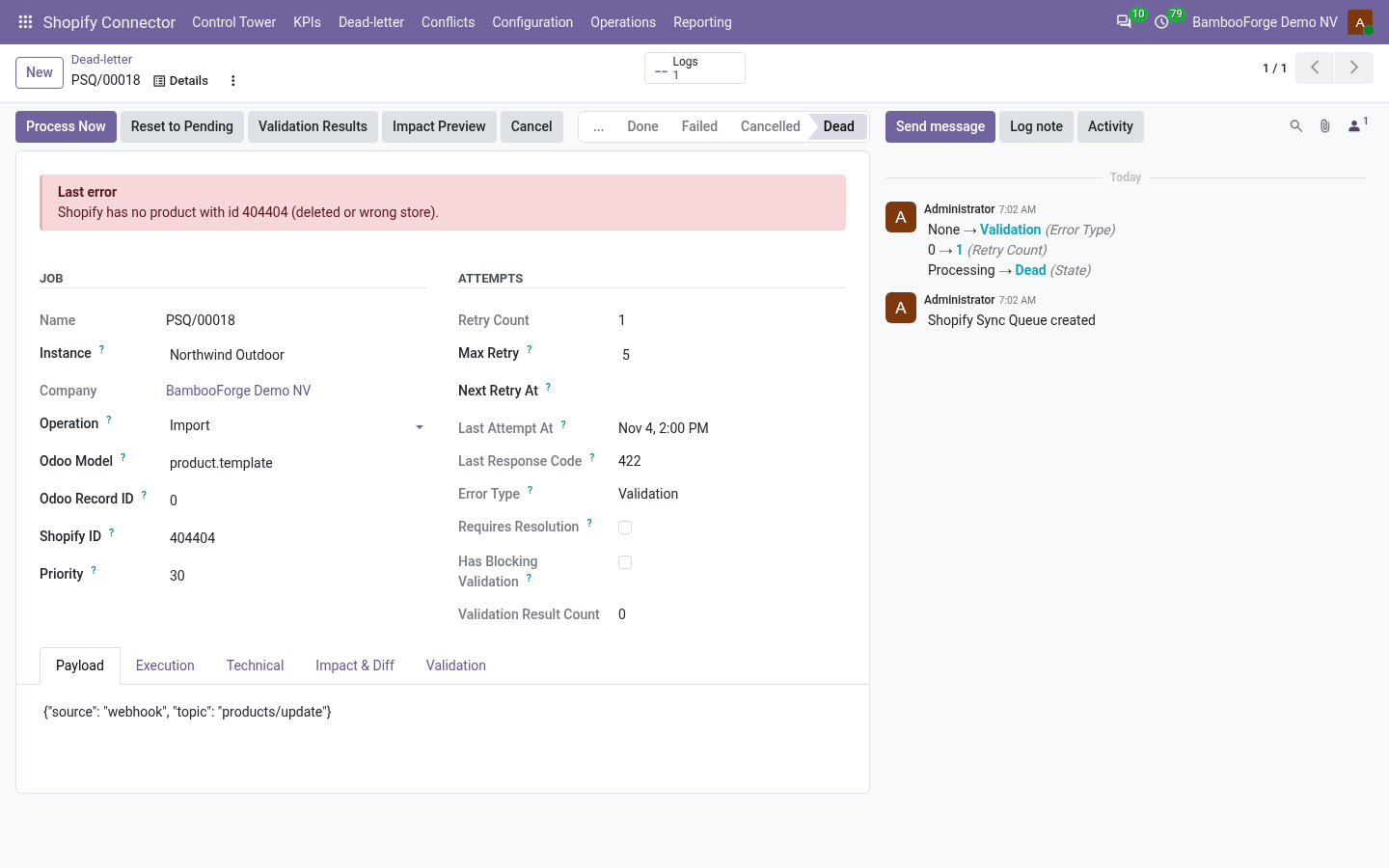
- A failed job retries with exponential back-off (5 retries, 1 minute doubling up to 120 by default); a throttled call waits for Shopify's cost bucket to refill. Auth and validation errors are not retried: the job goes to Shopify Connector > Dead-letter, grouped by error type, with Requeue Jobs and Discard Jobs in bulk.
- After five connection or server failures in a row the instance trips its circuit breaker and pauses; the Shopify Auto Recover action reopens it after 30 minutes, or press Resume Sync. A record changed on both sides waits under Shopify Connector > Conflicts with both versions: Resolve: Odoo wins, Resolve: Store wins or Mark Reviewed.
Price and where to buy
199 EUR, one payment per Odoo series, on the Odoo Apps Store. Pick your series:
Twelve months of support by the people who wrote the code; bug fixes and improvements within the series free for as long as it is published. Report a bug within two months of purchase and, if it is not resolved within fifteen days, you get a full refund. Full source under OPL-1, no licence key, no phone-home. The whole promise.