 BambooForge Labs

- Dry-run first, on every new storeA new instance simulates every job: no record changes in Odoo, nothing is sent to Shopware, and each job keeps what it would have written. You untick Dry Run Mode when you have read the results.
- One Odoo stock behind the storeOdoo sends Shopware what it can still sell of each product: the on-hand less what waits to go out, less a buffer, never below zero, within about a minute of a stock move.
- Orders that add up to Shopware's totalThe shipping comes in as a line of its own and what still differs (promotions, fees, rounding) as one named line. On an order shown with tax, the lines carry prices with tax and no Odoo tax unless tax matching is on.
bambooforge_shopware_connector249 automated checks run before every release of this app, the same suite on every series it ships for. The complete list is in the source you receive; run it yourself with --test-enable.
How you use it
Five flows, in the order you will meet them
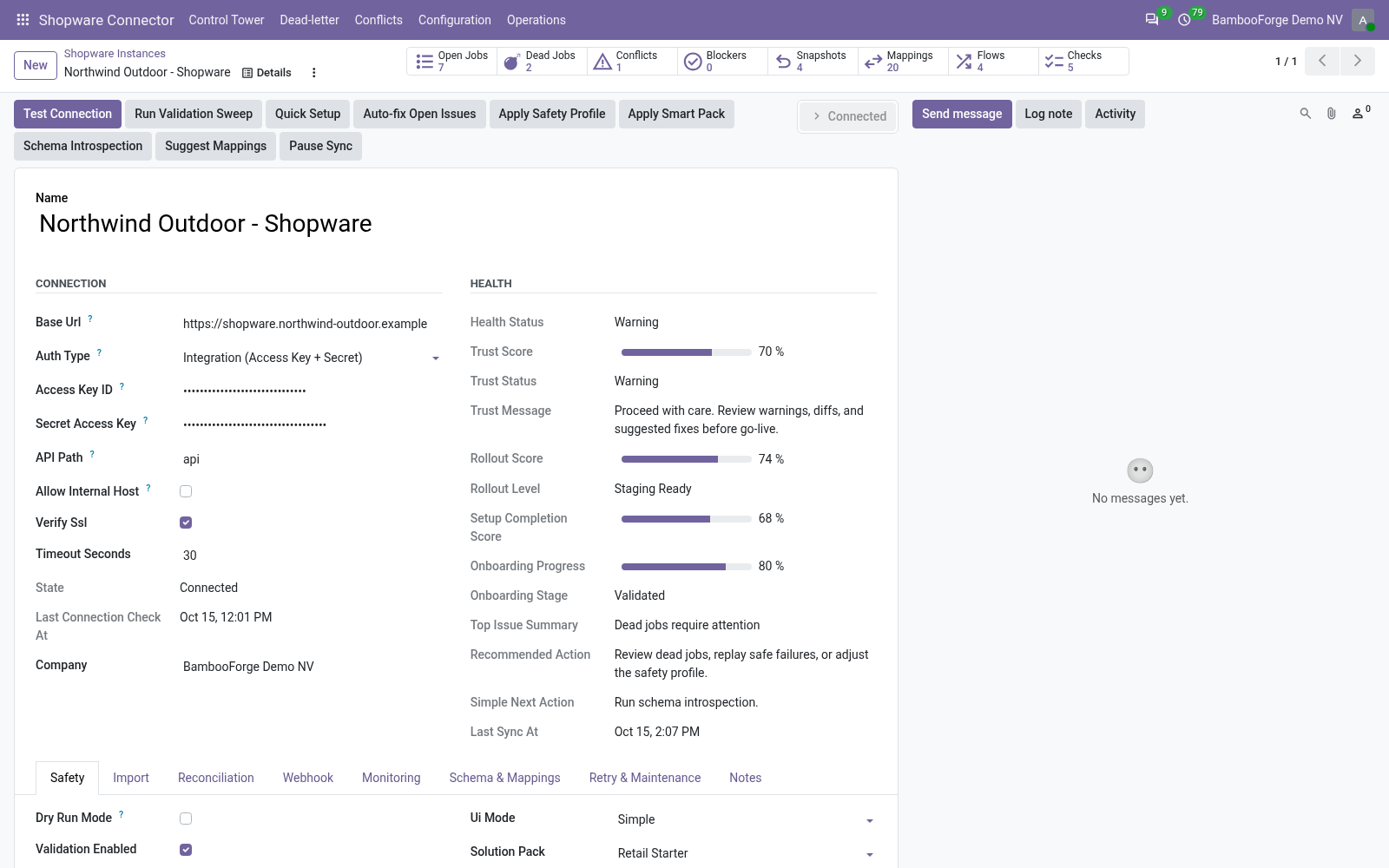
Connect: one instance per store, dry-run first
Test Connection proves the address and the integration, and the first import writes nothing.
- In Odoo: Shopware Connector > Configuration > Instances > New. Enter the store's address, the integration's access key id and secret.
- Press Test Connection. The state turns Connected and Order State Mappings gets four rows.
- On the Import tab, set the import limits above the store's counts, then press Queue Customer Import and Queue Product Import. Dry Run Mode is on: each job keeps what it would have written.
- Read Operations > Logs and Validation Results, untick Dry Run Mode and import again.
Orders come in, matched to the store's total
Each order state has a rule, and each order its lines, its shipping and its adjustment.
- Press Queue Order Import, or tick Auto Import Orders for a listing every minute.
- Each product line lands on the product bound to the variant it sold, else on the product with its product number.
- The shipping becomes a line, the rest of the difference an adjustment line; the Shopware tab shows the total it had to reach.
- The order's state row keeps it a quotation, confirms it or cancels it.
Products go out from a button
A product made in Odoo goes to Shopware with its price, tax, stock and sales channel.
- Open a product and press Queue Shopware Export.
- A new product gets the Shopware tax of its Odoo rate, its price in the store's currency and the storefront channel; a product Shopware holds gets its name, price, active state and changed description.
- With Upload Images On Export, its pictures follow, the main one as the cover.
One Odoo stock behind the store
Odoo is the stock; Shopware is told what it can still sell.
- Tick Stock Export Enabled and choose the Stock Source Warehouse.
- A sale confirmed, a delivery or a receipt done, or an inventory count queues a push within about a minute; a scheduled run checks every 30 minutes.
- Each push sends the on-hand less what waits to go out, less the buffer, never below zero.
A failed job lands in a list, not in silence
Every job is retried, set aside after its last try, and shown with its error.
- Open the Control Tower: one card per store with its backlog, dead letters and conflicts.
- Open Dead-letter, fix the cause the error names, and requeue the jobs.
- Resolve a conflict with Shopware's version or Odoo's.
Price and where to buy
199 EUR, one payment per Odoo series, on the Odoo Apps Store. Pick your series:
Twelve months of support by the people who wrote the code; bug fixes and improvements within the series free for as long as it is published. Report a bug within two months of purchase and, if it is not resolved within fifteen days, you get a full refund. Full source under OPL-1, no licence key, no phone-home. The whole promise.