 BambooForge Labs

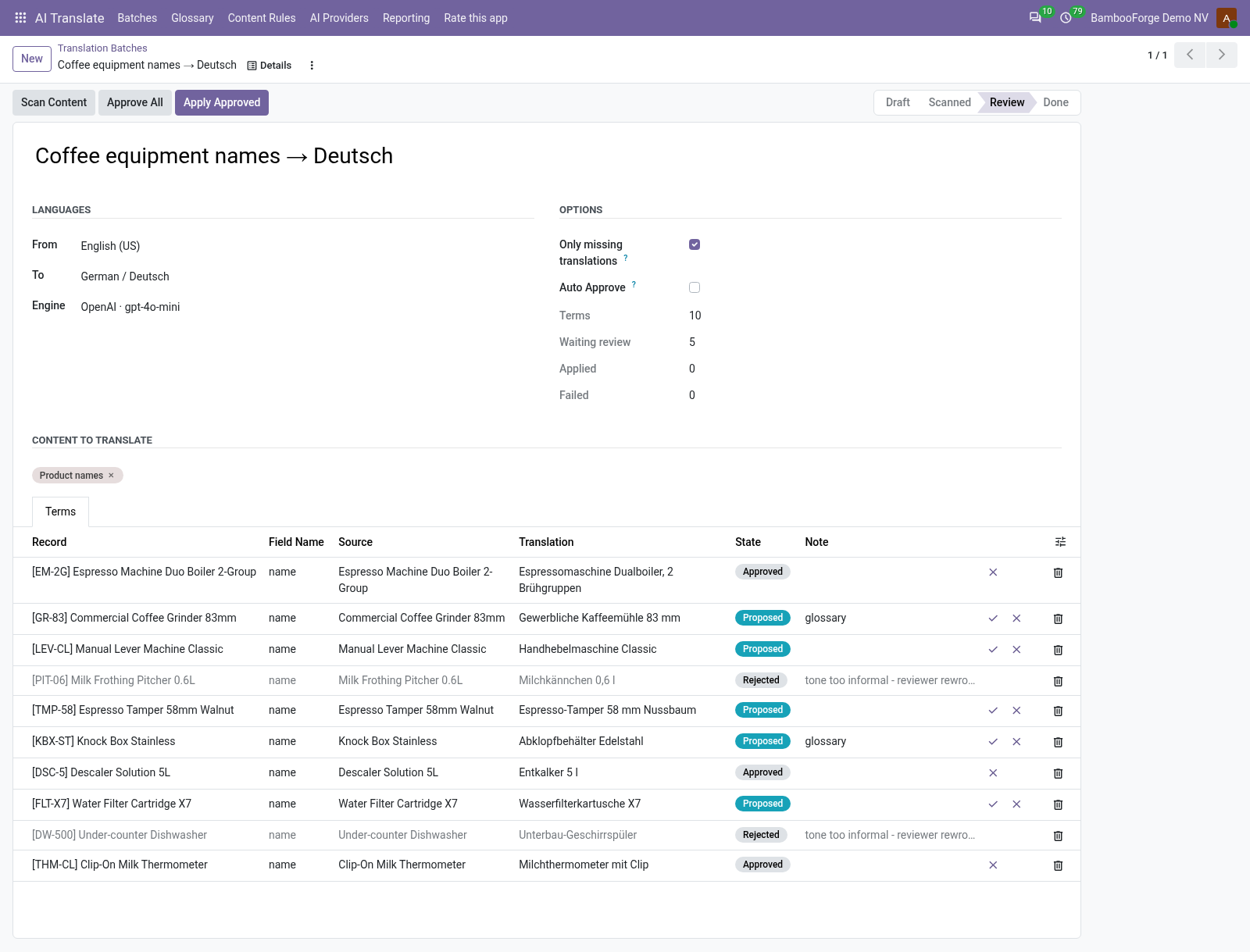
- Every missing translation in one listA batch scans the fields your content rules name and lists every text with no translation in the target language. Five rules come with the app: product names, sales descriptions, website pages, blog titles and blog content.
- Your provider, your key, your glossaryOpenAI, Google Gemini, OpenRouter, a local Ollama or DeepL, 40 texts to a request. A text that is exactly a glossary term is answered from the glossary and never sent.
- A review before it is appliedEach proposal is a line with source and translation side by side. You correct, approve or reject, and only approved lines are written into Odoo's own translations. A batch you trust can skip the review with Auto Approve.
bambooforge_translate_ai28 automated checks run before every release of this app, the same suite on every series it ships for. The complete list is in the source you receive; run it yourself with --test-enable.
For the people who decide
What your managers see
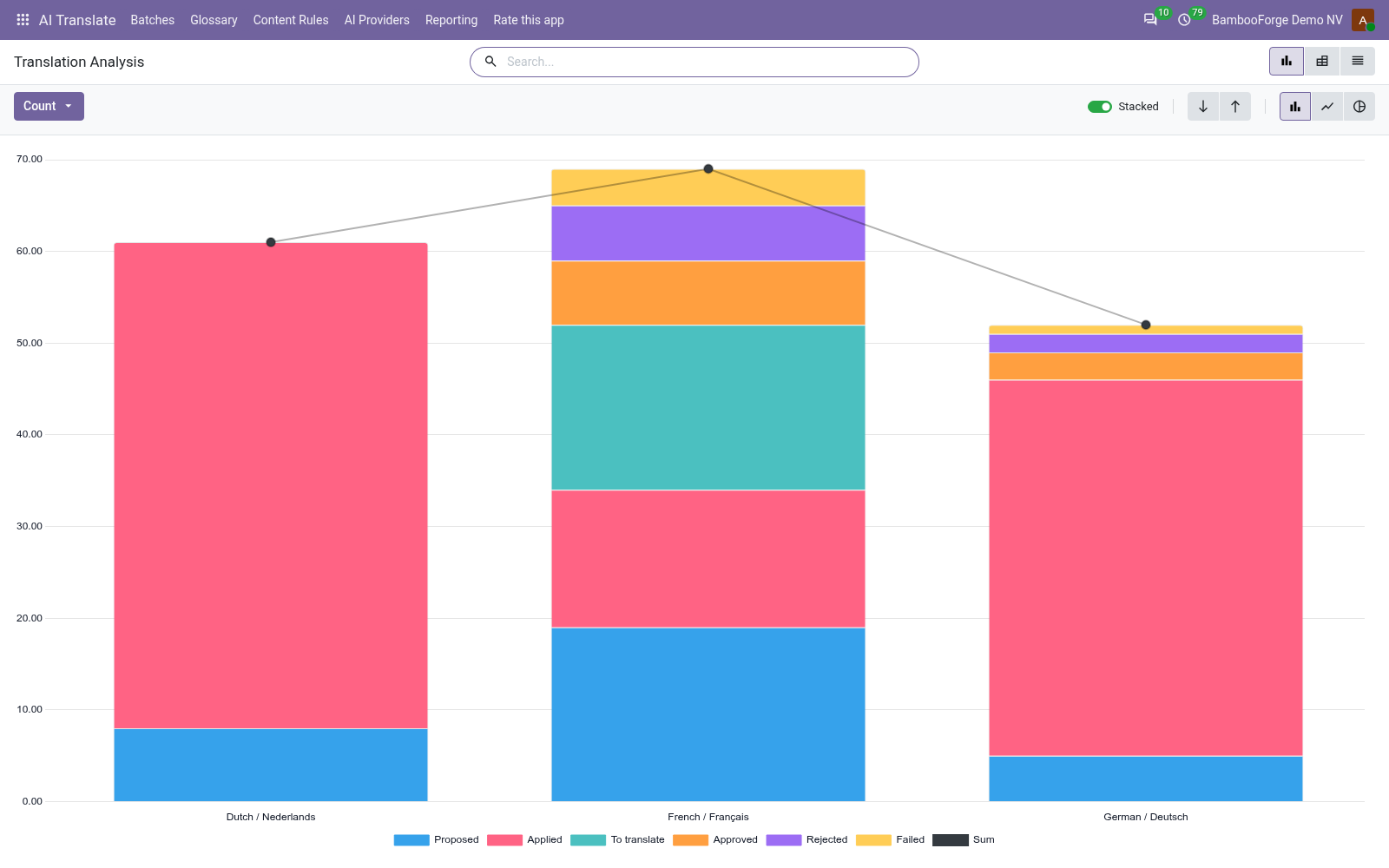
AI Translate > Reporting is the manager's menu. Its one analysis, Translations, opens on a chart, with the pivot one click away.
Translations
every term a scan listed, counted and with the characters of its source, by target language, engine, content, batch, status and month, with filters for the applied, failed, rejected and waiting ones.
The e-commerce or marketing manager sees what each language took in characters, which engine fails, and what still waits for a reviewer.
Batch counters
each batch card shows its terms, its applied lines and its failed lines, and the batch form adds the lines waiting for review.
The reviewer sees which batch still needs a decision.
The app prints no document. One file leaves it:
- Excel file: the pivot of Translations as it stands on screen, from Download xlsx in the pivot's toolbar.
How you use it
From a list of missing texts to translations you approved
Scan, translate, review, apply
A batch goes from one language to another, with one engine, over the content rules picked on it.
- AI Translate > Batches > New: choose the languages under From and To, and the engine. Every content rule is on a new batch.
- Scan Content lists each text that has no translation in the target language, one line per term.
- Translate answers from the glossary first and sends the rest to the engine, 40 to a request. Each line comes back Proposed, or Failed with the reason under Note.
- Type over a translation to correct it, approve or reject each line or press Approve All, then Apply Approved writes the approved lines.

The glossary answers first
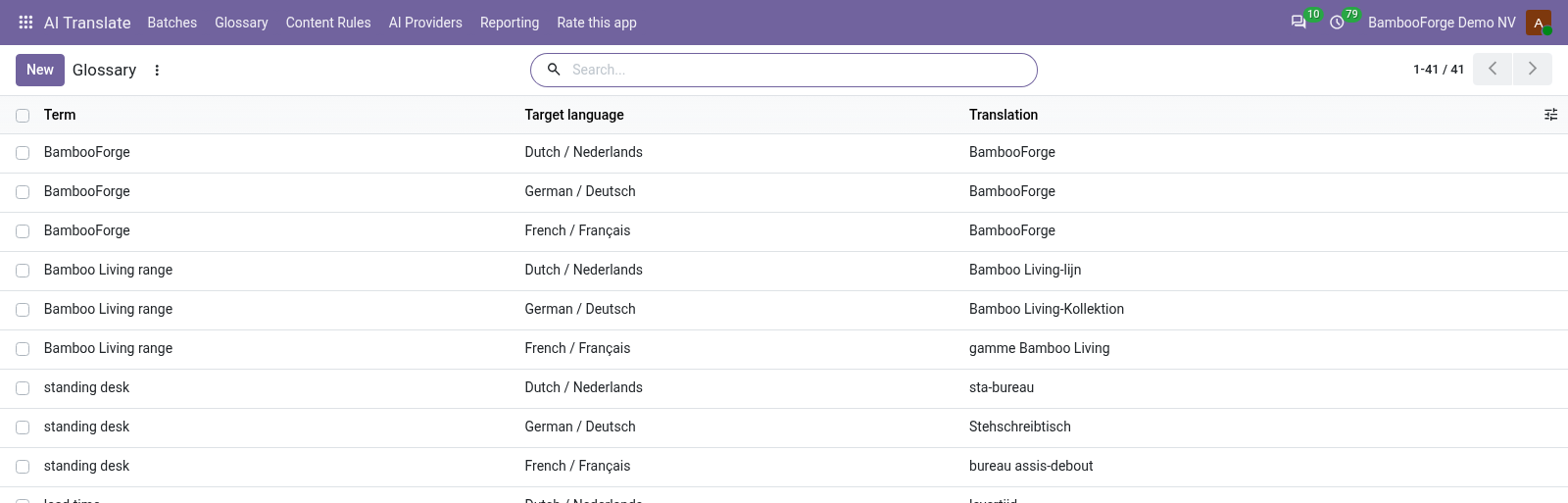
For one target language, a term and the translation it must get.
- AI Translate > Glossary: type the term, pick the target language, type the translation.
- A text that is exactly the term gets that translation, with the note glossary, and is not sent to the provider.
- An OpenAI-compatible provider also gets the glossary of the target language in its prompt. To keep a word as it is, a brand name for example, repeat it as its own translation.
Connect the provider you already pay
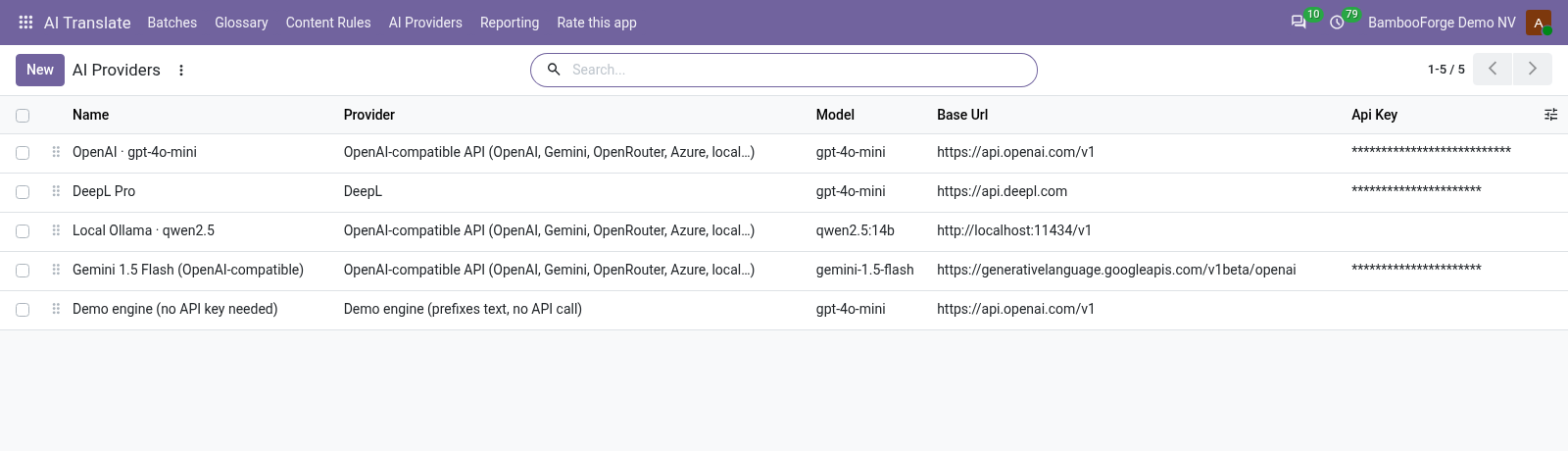
One line per service, kept by a manager. The line at the top is the engine a new batch starts with.
- AI Translate > AI Providers > New: name the line and choose an OpenAI-compatible API, DeepL or the Demo engine.
- Type the address under Base URL, and your key. A new line starts with OpenAI's address: for DeepL type DeepL's, a DeepL line without it sends nothing.
- For an OpenAI-compatible API, choose the model and add extra instructions if you want: tone of voice, formality, audience.
- The key is masked on screen and only managers can read it. Users run batches with it all the same.
Price and where to buy
129 EUR, one payment per Odoo series, on the Odoo Apps Store. Pick your series:
Twelve months of support by the people who wrote the code; bug fixes and improvements within the series free for as long as it is published. Report a bug within two months of purchase and, if it is not resolved within fifteen days, you get a full refund. Full source under OPL-1, no licence key, no phone-home. The whole promise.