 BambooForge Labs

- Every order adds up to what the customer paidShipping comes in as a line of its own, and what still differs (discounts, fees, rounding) as one named adjustment line. The order's WooCommerce tab shows the WooCommerce total and the difference left; a difference above Total Tolerance raises a validation warning.
- Several shops, one Odoo stockOdoo sends every store what it can still sell: the on-hand less confirmed deliveries, less a buffer, never below zero. A sale confirmed in Odoo, from any shop, lowers what every shop is sent within about a minute.
- Dry-run first, on every new storeA new instance simulates every job: no record changes in Odoo or WooCommerce, and each job keeps what it would have written as its Dry Run Result. You switch dry-run off when you have read them.
bambooforge_woocommerce_connector285 automated checks run before every release of this app, the same suite on every series it ships for. The complete list is in the source you receive; run it yourself with --test-enable.
For the people who decide
What your managers see
WooCommerce Connector > KPIs is the shop owner's page and WooCommerce Connector > Reporting is the menu for sales managers and accountants. The KPI board shows today, this month and the previous month for one store or all of them, and every figure opens the records behind it. Each analysis opens on a chart, with the pivot one click away, and the pivot downloads to Excel from its toolbar.
KPI board
for the shop owner: orders and their value in the company currency, orders marked Refunded in WooCommerce, orders whose Odoo total differs from the storefront total, orders still waiting in the queue, new products and customers synced, stock pushes done, failed jobs, dead letters and conflicts waiting for a decision. Refunds are not imported as credit notes, so the refunded figure reads the WooCommerce order status.
The owner sees whether the store is selling, whether the orders add up, and whether anything is stuck, before the month closes.
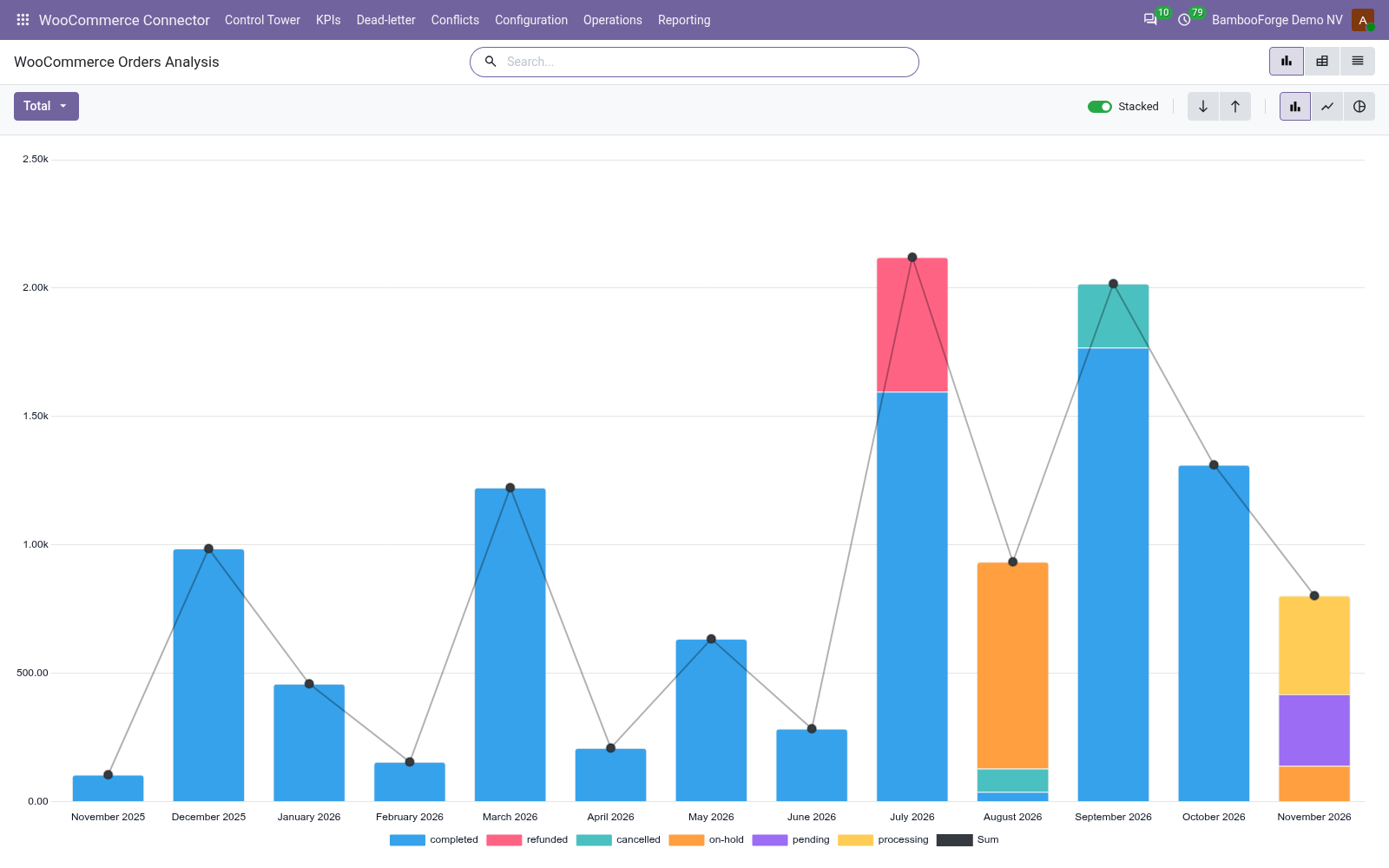
WooCommerce Orders
for the shop owner: the imported orders by month and WooCommerce status with their value, with filters for completed, processing, waiting and refunded orders and group-bys by payment method, customer and Odoo status.
The owner sees how many orders end completed, cancelled or refunded, and which month to compare the next one with.
Payment Methods
for the shop owner and finance: the value of the orders by the payment method the customer chose in WooCommerce, month by month in the pivot, orders cancelled in Odoo left out by default.
The owner decides which payment methods to keep offering.
Queue Jobs
for operations: every job by day, model and outcome (done, failed with a retry scheduled, dead letter), archived jobs included, with the error type one group-by away.
Operations sees which import or push fails, since when, and whether the dead letters need requeueing or a mapping fix.
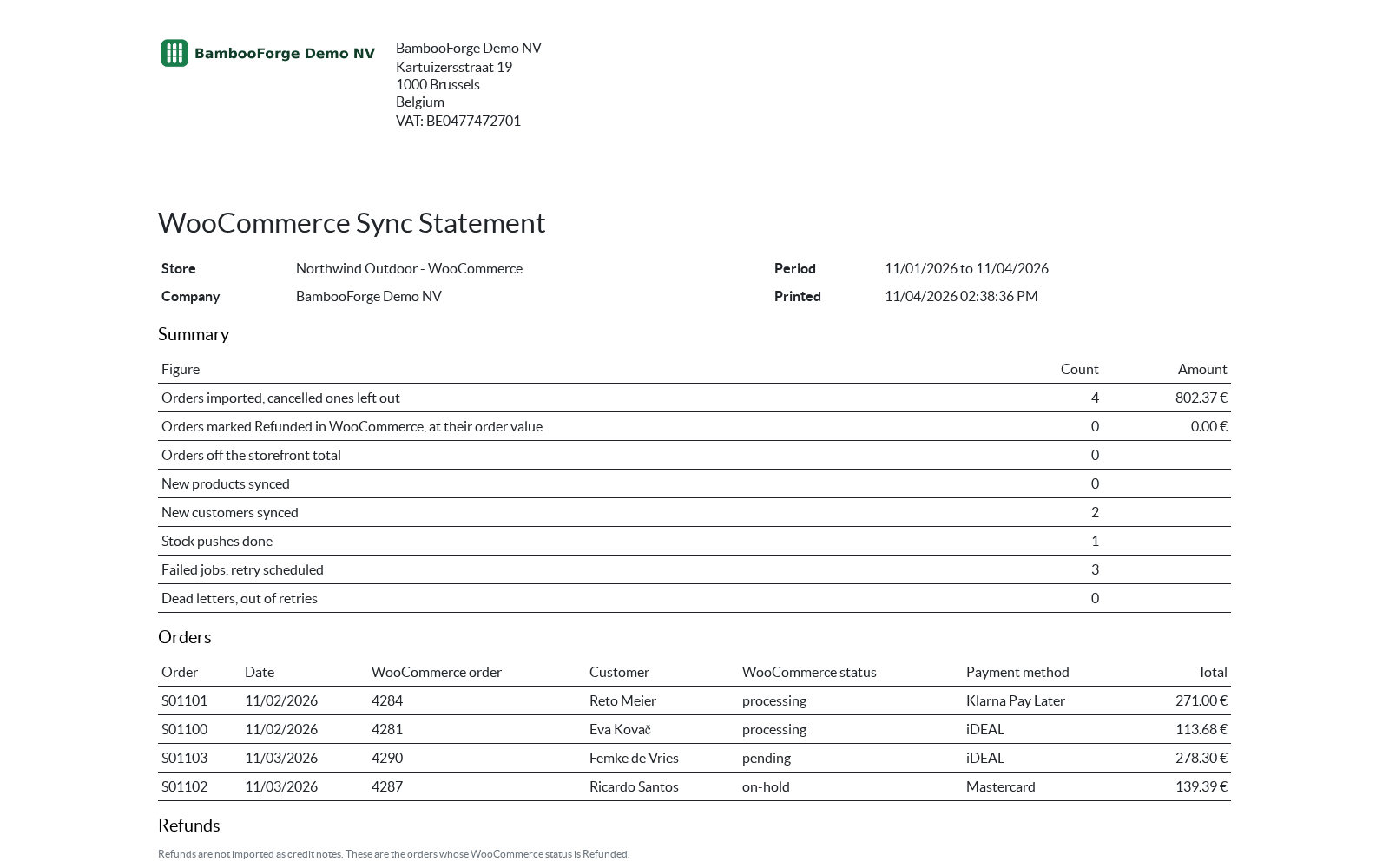
One document prints, from Reporting > Sync Statement (PDF) or the Print statement button of the KPI board:
- WooCommerce Sync Statement: one store and one period on paper: the orders imported and their value, the orders marked Refunded, the orders that do not match the storefront total, the new products and customers, the stock pushes, and the jobs that failed or ran out of retries with the reason. The page the owner reads at month end and the accountant files with the month.
How you use it
Eight flows, in the order you will meet them
Connect: one REST key in WooCommerce, one instance in Odoo
One instance per store. Create a REST API key in WooCommerce, paste it into Odoo, and Test Connection proves the address and the key in one call.
- In WordPress: WooCommerce > Settings > Advanced > REST API > Add key, Permissions Read/Write (Read is enough to import only), then Generate API key. Copy the consumer key and secret; WooCommerce shows them once.
- In Odoo: WooCommerce Connector > Configuration > Instances > New. Name the store, enter its address, keep Consumer Key/Secret over HTTPS (Basic) for an https store (OAuth 1.0a for a plain http one) and paste the key and secret. Only a Settings administrator can read them back.
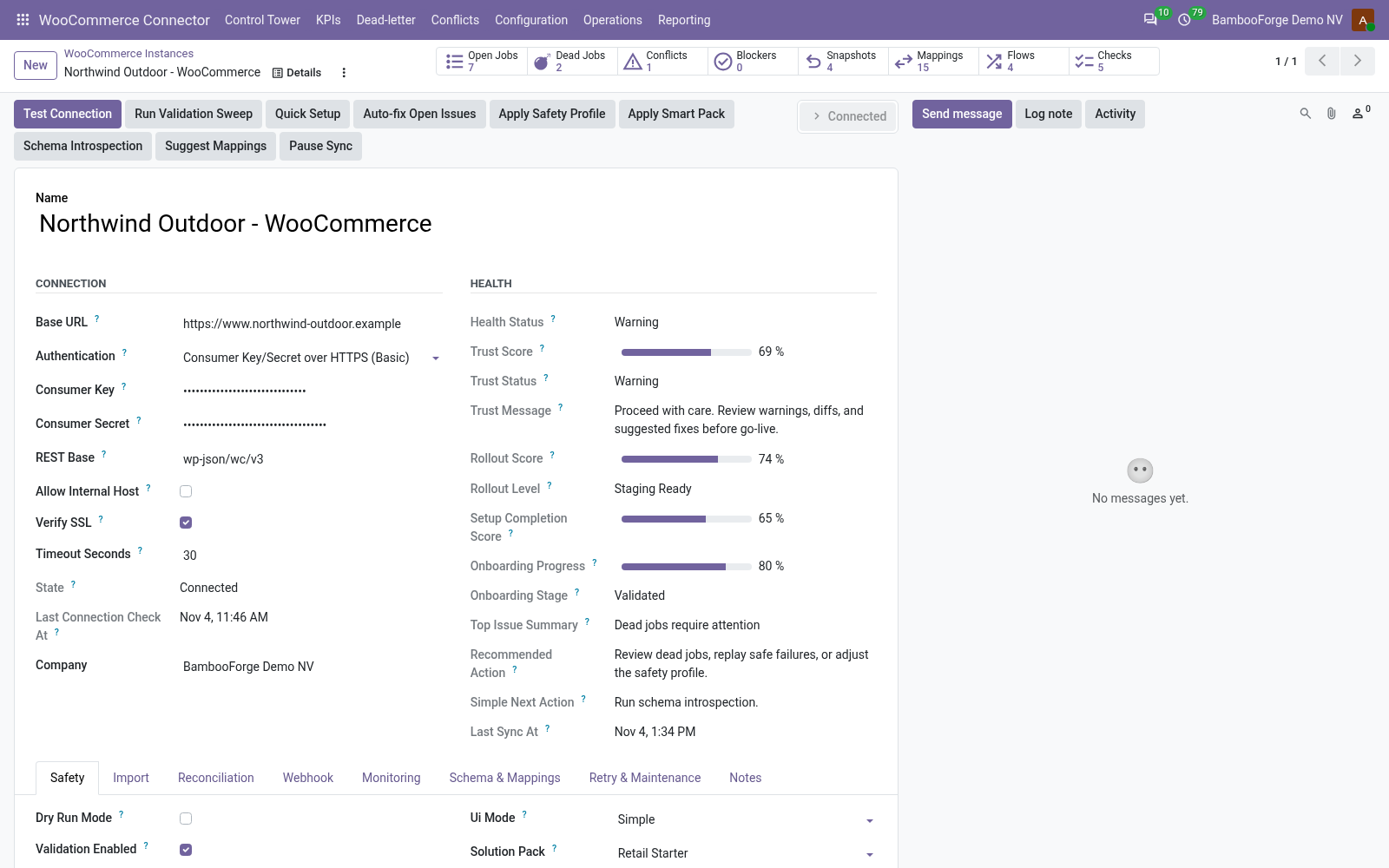
- Press Test Connection: Odoo reads one product. The state turns Connected and Configuration > Order State Mappings gets the store's eight status rows; a failure sets Error, and Last Connection Error says why.
- An address on localhost or a private network is refused when you save, unless you tick Allow Internal Host.
The first sync writes nothing
Dry Run Mode is on for every new instance: read what each job would have done before a record changes.
- On the instance's Import tab press Queue Product Import, Queue Customer Import and Queue Order Import. Each lists the store's records, up to the limit on the tab (100 by default), and queues one job per record.
- The WooCommerce Queue Processor runs every minute, or press Process Now on a job under Operations > Queue Jobs.
- Open a finished job: its Payload tab holds the Dry Run Result, the values it would write and what it would create. Operations > Validation Results lists what the checks found, with a Blocking filter.
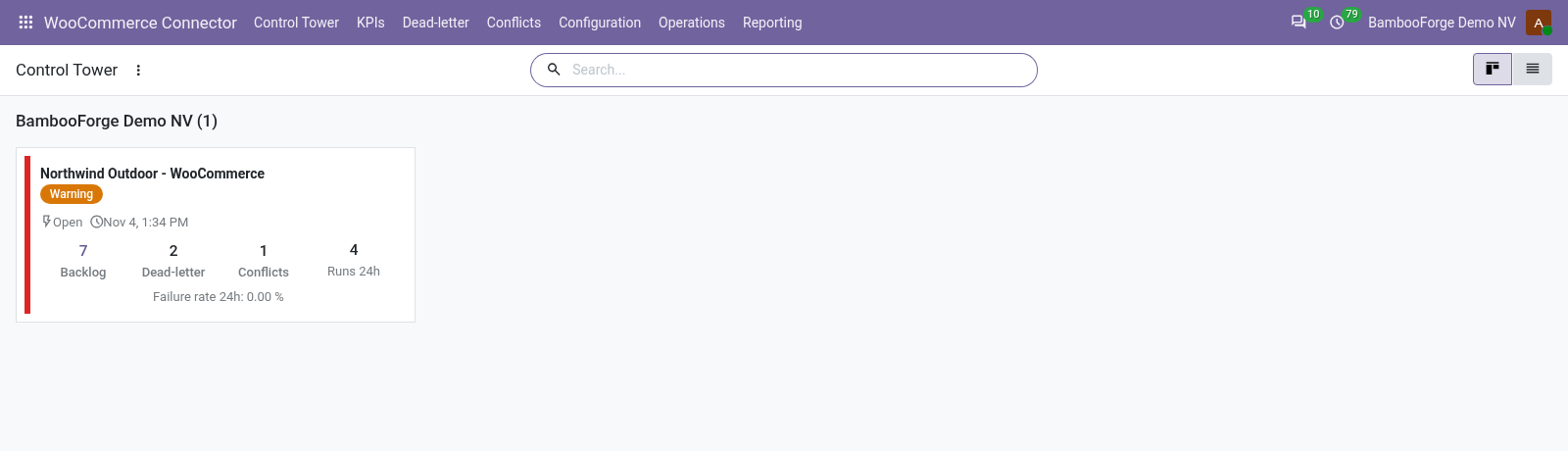
- WooCommerce Connector > Control Tower: a card per store with health, circuit state, last sync, backlog, dead letters, conflicts and the last 24 hours of flow runs.
- Untick Dry Run Mode on the Safety tab, then under Operations > Queue Jobs remove the Open filter, select the dry-run jobs and choose Requeue Jobs in the Actions menu: they run again and write. A re-import later updates the same record.
Products come in with their category, pictures and SKU
One Odoo product per WooCommerce product, found again by its binding, then by SKU, so a re-import updates it instead of making a second one.
- Import brings the name, the SKU as Internal Reference, the price, the description and the first category, created in Odoo if missing. A product that is not published comes in archived; a variable product comes in as one product with its variant count.
- Sync Images Enabled on the Import tab downloads up to Sync Images Max pictures: the first becomes the product image, the others extra images with the eCommerce app. A picture the product already holds is not written again.
- Sales > Products, WooCommerce tab: the category path, the variant count and the picture addresses; WooCommerce Binding opens the row that ties the product to its WooCommerce id.
- Queue WooCommerce Export on that tab sends the name, SKU, price and description as a simple product, priced from the list in Export prices from when one is set. Only export records matching keeps the rest of the catalogue out.
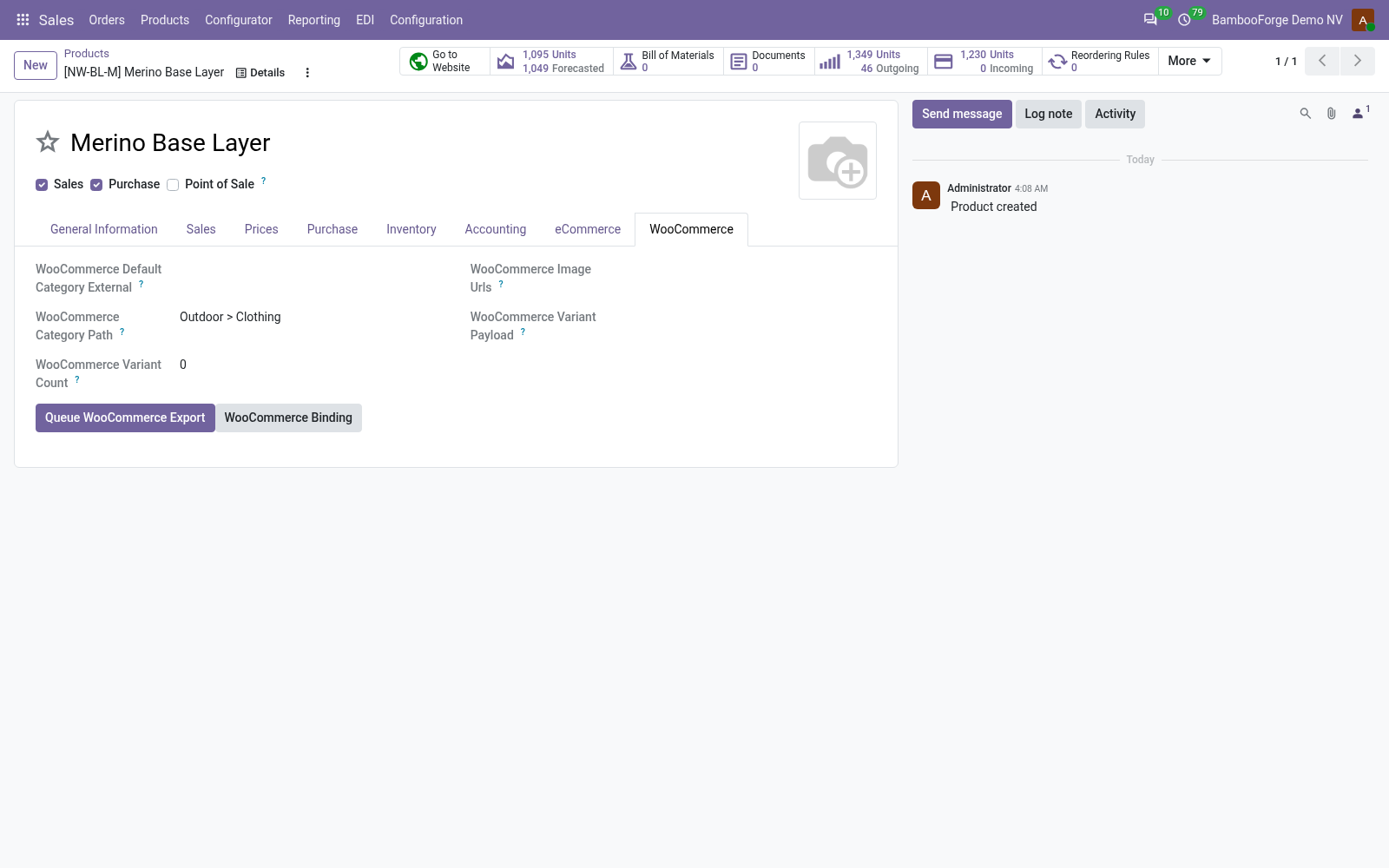
Every order status has a rule, and every order adds up
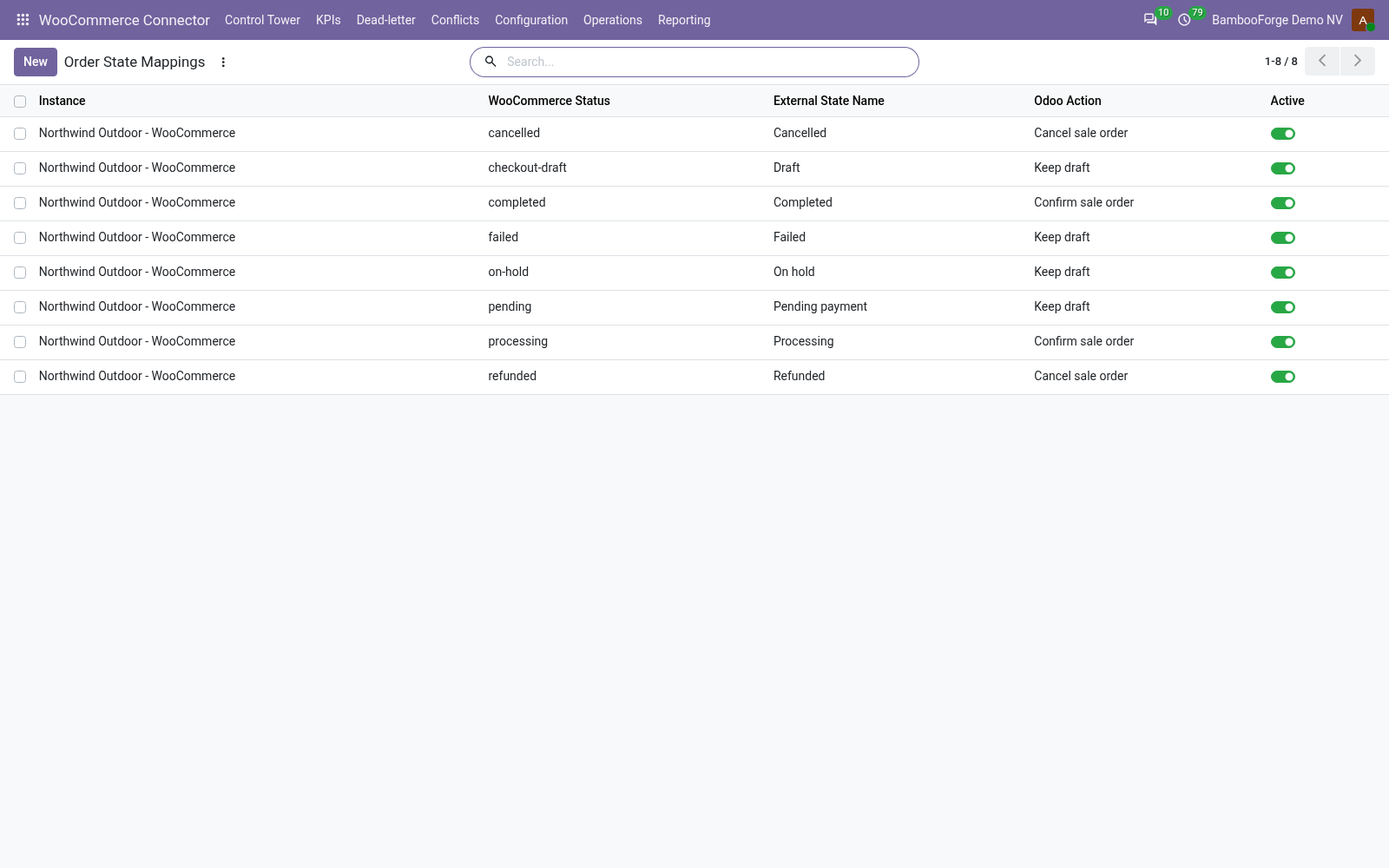
WooCommerce sends a status with every order; a table per store decides what Odoo does with it.
- Configuration > Order State Mappings, written at the first Test Connection: processing and completed confirm the sale order, cancelled and refunded cancel it, pending, on-hold, failed and checkout-draft keep it a quotation. Change any row to Ignore (do nothing), Keep draft, Confirm sale order or Cancel sale order.
- A status without a row, a custom one for instance, is ignored, so it never cancels an order. Add a row with its exact slug.
- Each line lands on the bound product or variation it sold, else on the product whose Internal Reference is its SKU, else on [WooCommerce] Unmapped product. The customer is found by email; a guest checkout becomes a contact with its billing name and email.
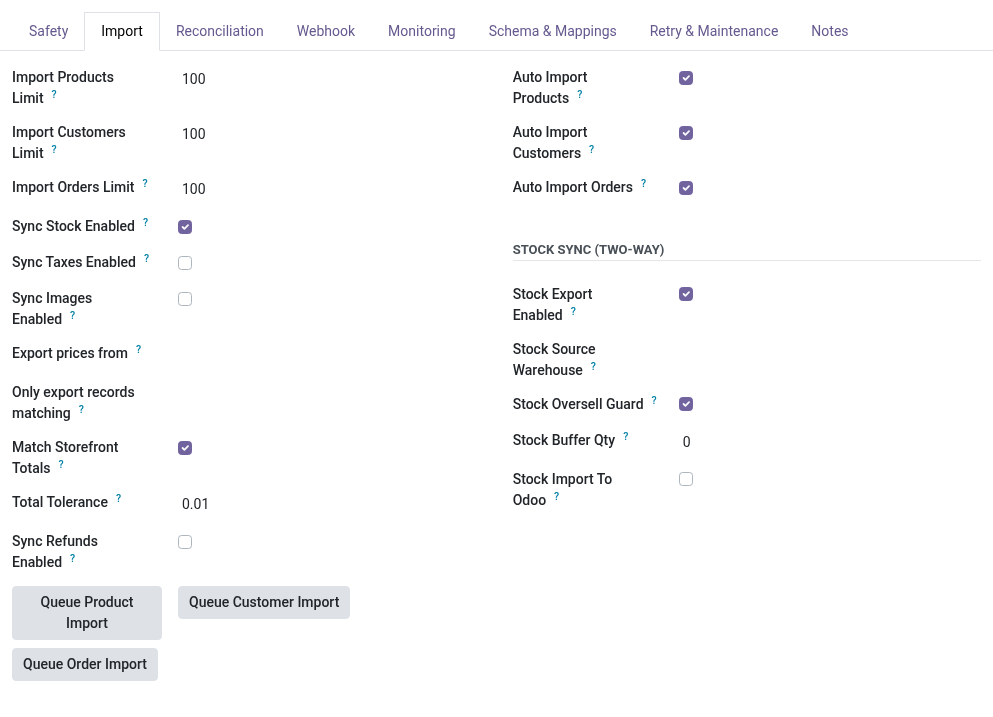
- Match Storefront Totals, on by default, adds shipping as a line and what still differs as one adjustment line. The order's WooCommerce tab shows the WooCommerce total and the difference left; one above Total Tolerance raises a validation warning.
One Odoo stock behind every shop
Odoo holds the stock; each store is sent what Odoo can still sell.
- Tick Stock Export Enabled on the Import tab and pick the Stock Source Warehouse. Every 30 minutes, and about a minute after any stock move, each tracked product is sent its on-hand less confirmed deliveries, less Stock Buffer Qty, never below zero; only changed figures go.
- A sale confirmed in Odoo, from any shop, lowers what every shop is sent before it is delivered.
- Stock Import To Odoo sets a product's starting stock from WooCommerce. After the first push it takes only the shop's change since the last push, and only where the shop's orders do not come into Odoo.
Real time, from WooCommerce's own webhooks
WooCommerce calls Odoo when a product, a customer or an order changes. Nothing is installed in WordPress.
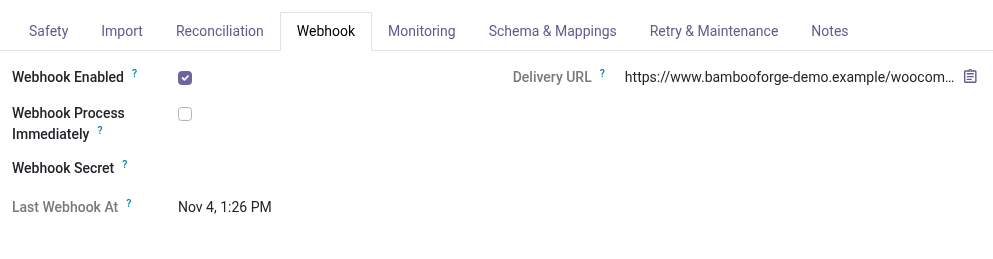
- Set Webhook Secret on the instance's Webhook tab (administrators only). In WooCommerce > Settings > Advanced > Webhooks add one per topic, Delivery URL copied from that tab (it names this store), the same secret.
- Odoo refuses a delivery whose HMAC-SHA256 signature does not match, drops a repeated one and queues an import; a deleted product or customer is archived. Webhook Process Immediately runs the job on arrival.
- Without webhooks, the Auto Import switches (Import tab) pick up changes every minute and the Auto Reconcile switches (Reconciliation tab) catch missing or failed records every 15 minutes.
A failed job lands in a console, not in silence
Every remote call is a queue job, retried by the kind of error it met.
- Network, timeout and server errors retry with back-off: 5 retries, 1 minute doubling up to 120, set on the Retry & Maintenance tab. A rate limit waits five minutes. A refused key, or a record WooCommerce rejects, is not retried.
- Five failures in a row that are not about one record pause the instance (circuit Tripped). WooCommerce Auto Recover reopens it 30 minutes later unless blocking validation results are open; Resume Sync reopens it at once. A refused key pauses it until you press Resume Sync.
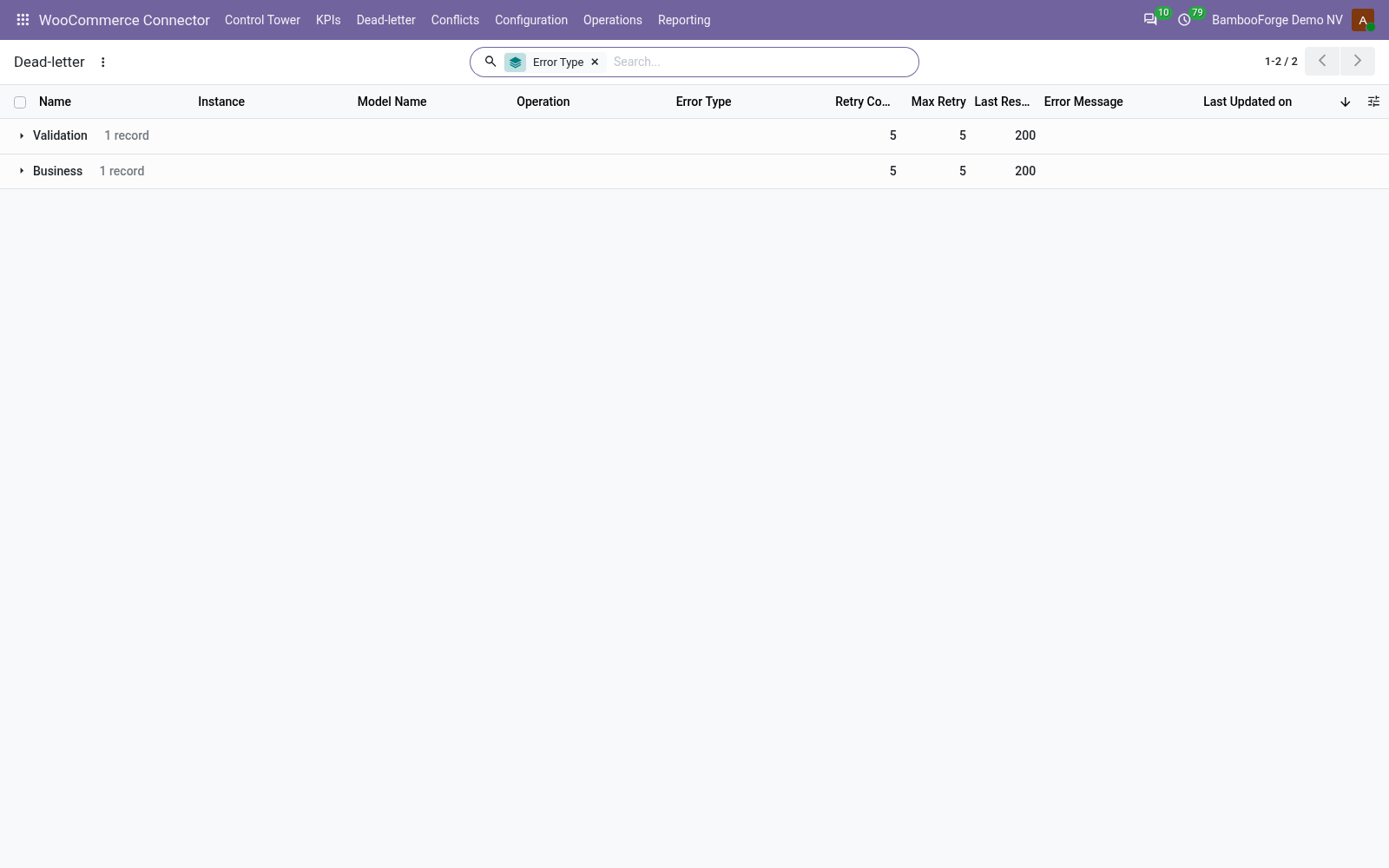
- A job out of retries is Dead: WooCommerce Connector > Dead-letter lists it, grouped by error type. Select rows and choose Requeue Jobs or Discard Jobs in the Actions menu.
- Operations > Logs keeps a line per job that ran, with the error and the status code WooCommerce answered.
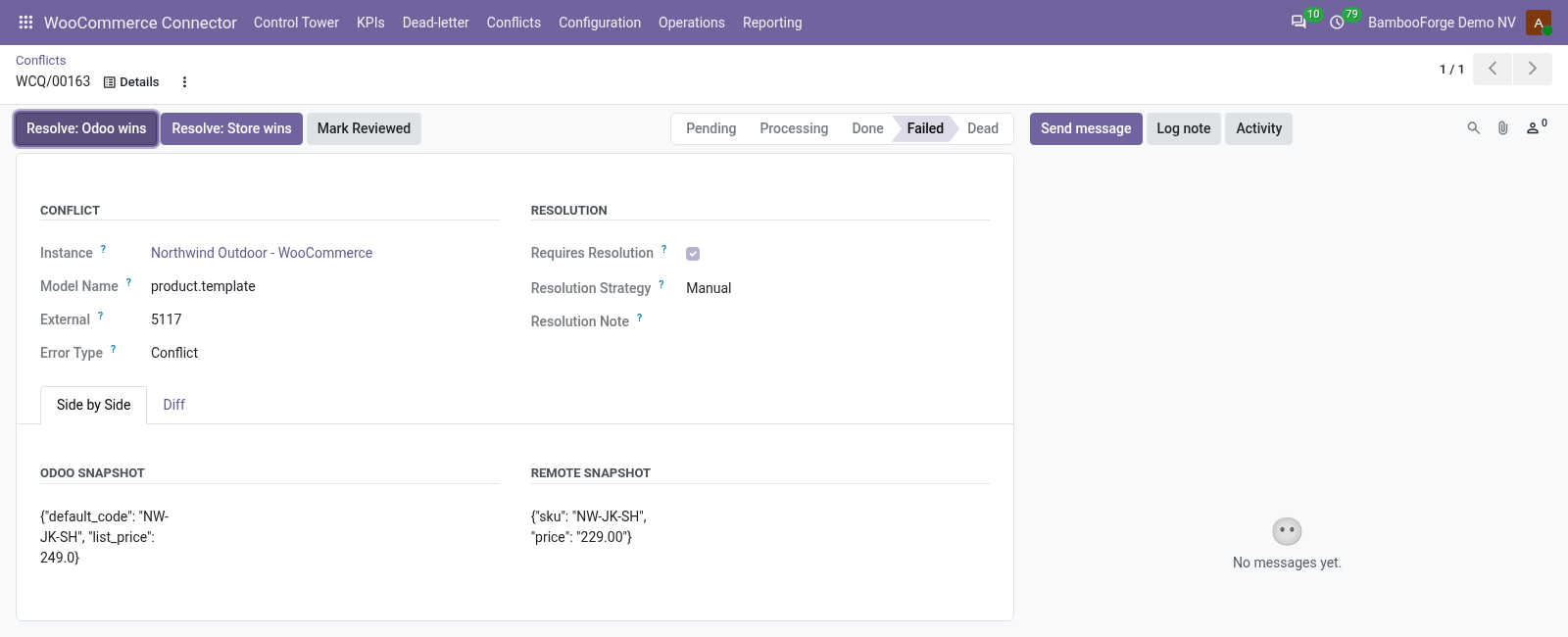
WooCommerce refused a write: both versions side by side
When WooCommerce answers a write with a conflict or a duplicate, a duplicated SKU for one, the job keeps Odoo's version and, when the record exists there, the store's.
- WooCommerce Connector > Conflicts lists them by store; the Conflicts button on the instance opens that store's.
- Open one: Side by Side shows the Odoo and store snapshots, Diff the fields that differ.
- Resolve: Odoo wins queues the export again; for a record WooCommerce takes no export of, it keeps Odoo's version and sends nothing. Resolve: Store wins queues the import. Mark Reviewed takes it off the list.
- Select several and resolve them together from the Actions menu.
Price and where to buy
249 EUR, one payment per Odoo series, on the Odoo Apps Store. Pick your series:
Twelve months of support by the people who wrote the code; bug fixes and improvements within the series free for as long as it is published. Report a bug within two months of purchase and, if it is not resolved within fifteen days, you get a full refund. Full source under OPL-1, no licence key, no phone-home. The whole promise.