 BambooForge Labs
Restaurant Management & Kitchen Display (KDS)
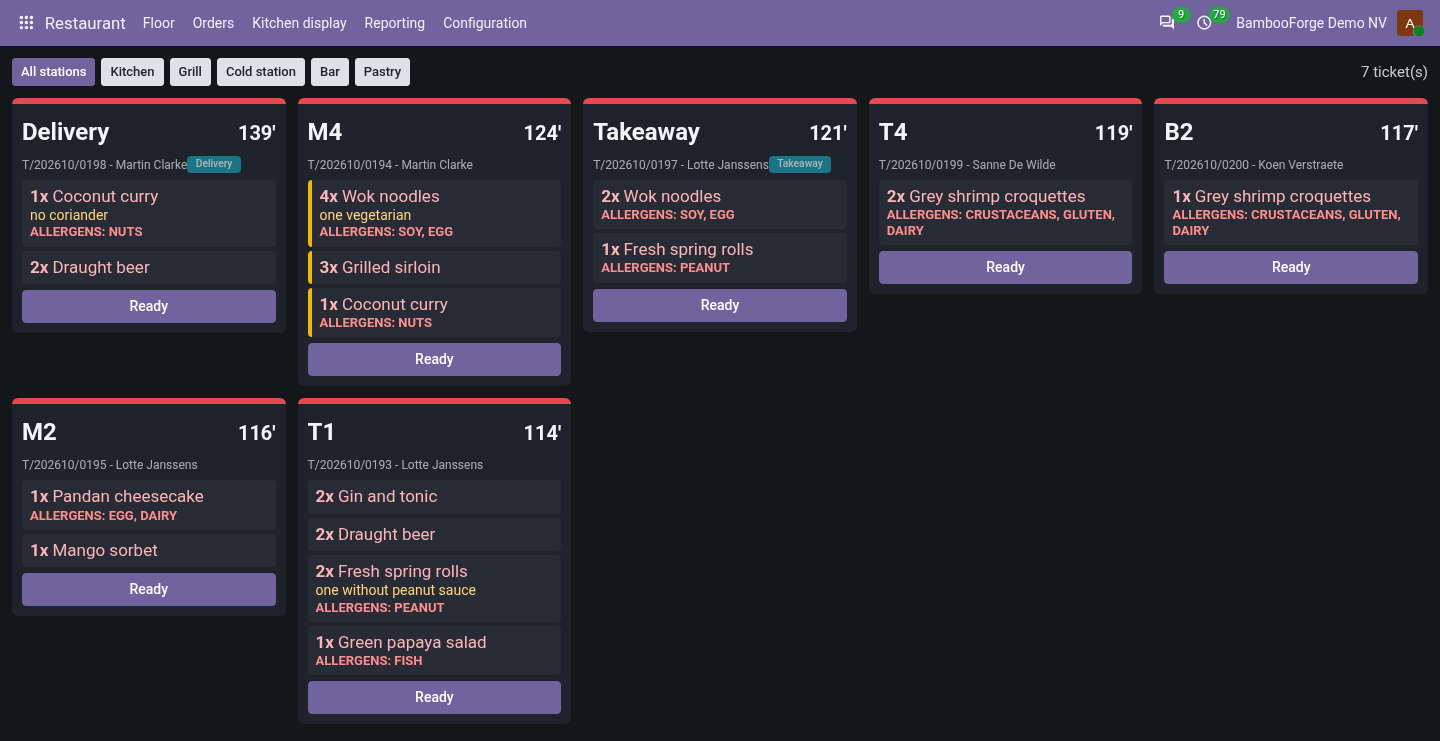
Restaurant management with a floor plan the host can read, orders fired by course, a kitchen display that bumps tickets, split bills, takeaway.
Table service on Odoo 20: a floor plan read from the open tabs, items fired to the kitchen by course, a kitchen screen that bumps tickets, bills split by item, and an end of service that closes what was paid. It is not a till: there is no cash drawer and no payment screen.
POS Interface: Fast Retail Point of Sale
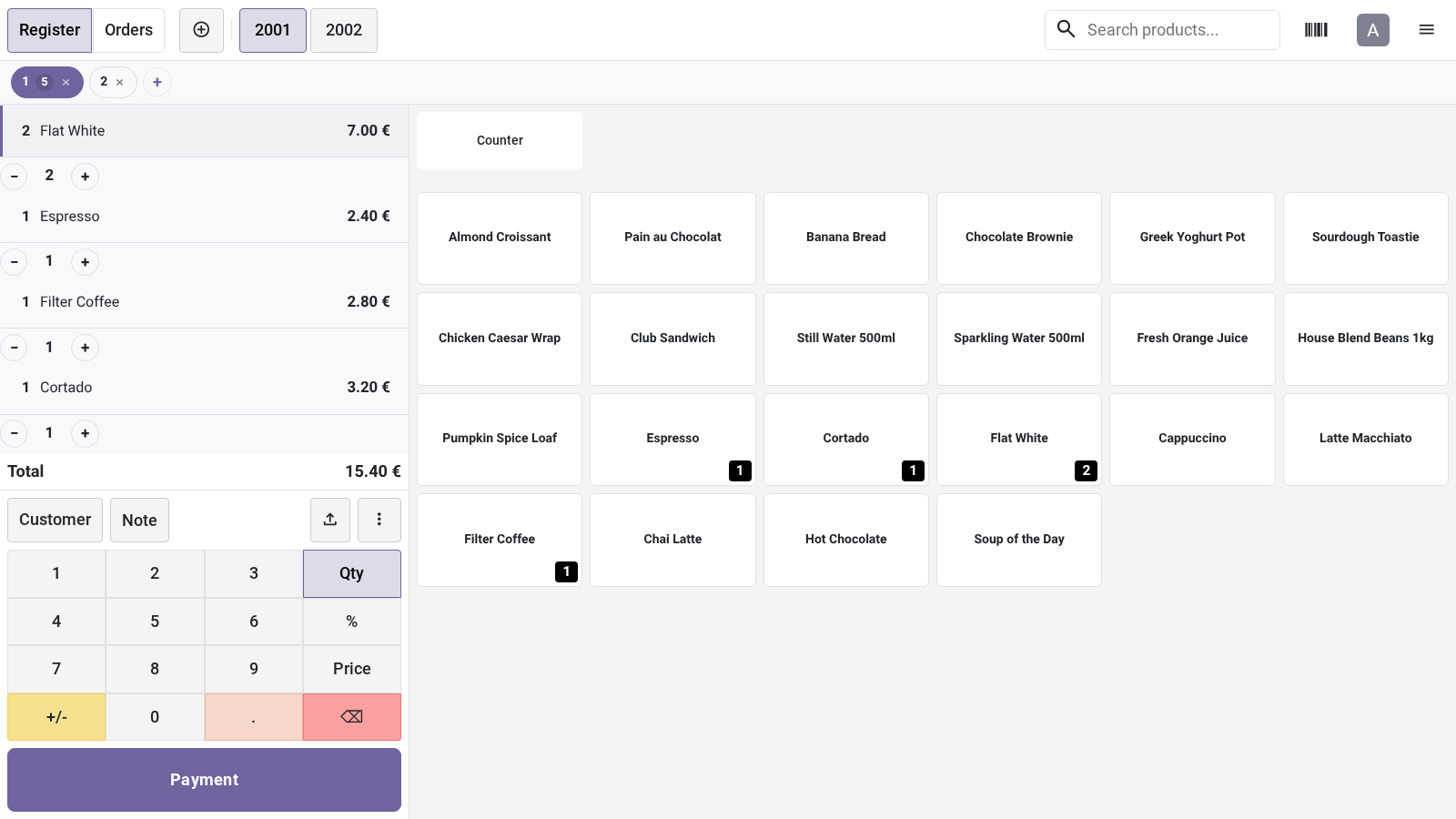
A counter layout for the Point of Sale: bordered product cards, a - and a + on every line of the order, tabs for the open orders and cash tendered in one tap.
A layout for the Point of Sale of Odoo 20, Community or Enterprise, made for a shop counter: product cards with a border and a bold name, a - and a + under every line of the order, a bar of tabs to keep several customers' orders side by side, and on the payment screen a Quick cash panel with the exact amount, rounded-up amounts and the change to hand back. It is switched on or off per register.
- Does anything leave my server?
- No. The app calls no outside address: no telemetry, no licence check, no third-party service.
- What happens if I uninstall it?
- The setting is removed from the registers. Orders, payments and sessions stay as they are.
- Does it change how orders or payments work?
- The layout does not. Its buttons do what a cashier could do by hand: change a quantity, remove a line, start or delete an order, enter a cash amount. The - and the + do not look at the cashier's access level: see What the buttons do to an order.
POS Stock: Live Stock in Point of Sale
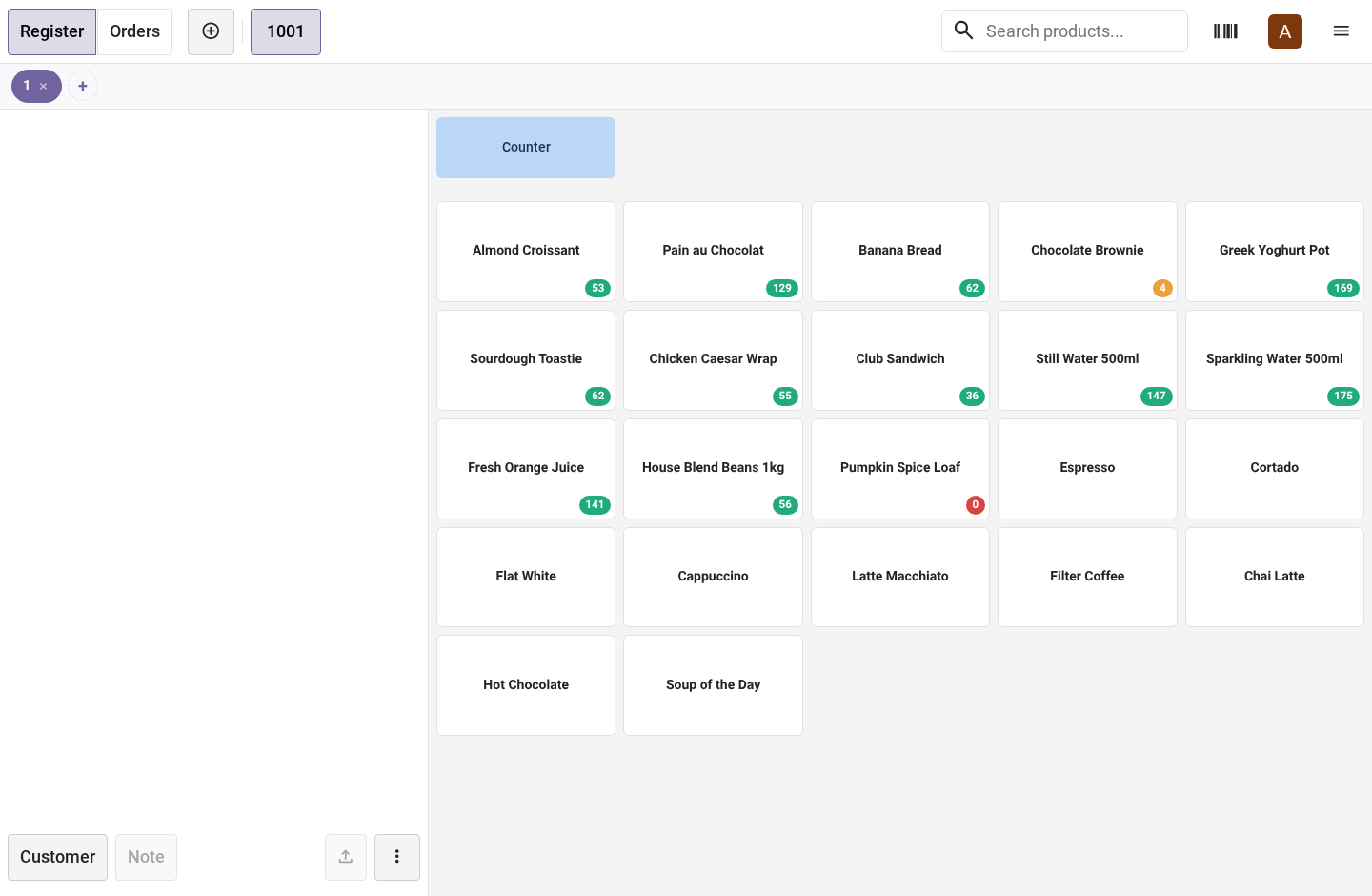
The quantity free to sell on every product card of the Point of Sale, counted in the register's own warehouse, with a warning or a refusal when an order would go below zero.
The Point of Sale of Odoo 20 shows a price on every product and no stock. This app puts the quantity free to sell on each product card of the till, counted in the warehouse the register sells from, reads it again every few minutes, and warns the cashier or refuses the line when an order would take a product below zero. Community or Enterprise.
- Does anything leave my server?
- No. The app calls no outside address: no telemetry, no licence check, no third-party service.
- What happens if I uninstall it?
- The four settings are removed from the registers. Products, stock and orders stay as they are.
- Is the number the quantity on hand?
- It is the quantity free to sell: on hand minus what is reserved. With nothing reserved the two are the same. The messages of the till call it on hand.
POS Keyboard Shortcuts
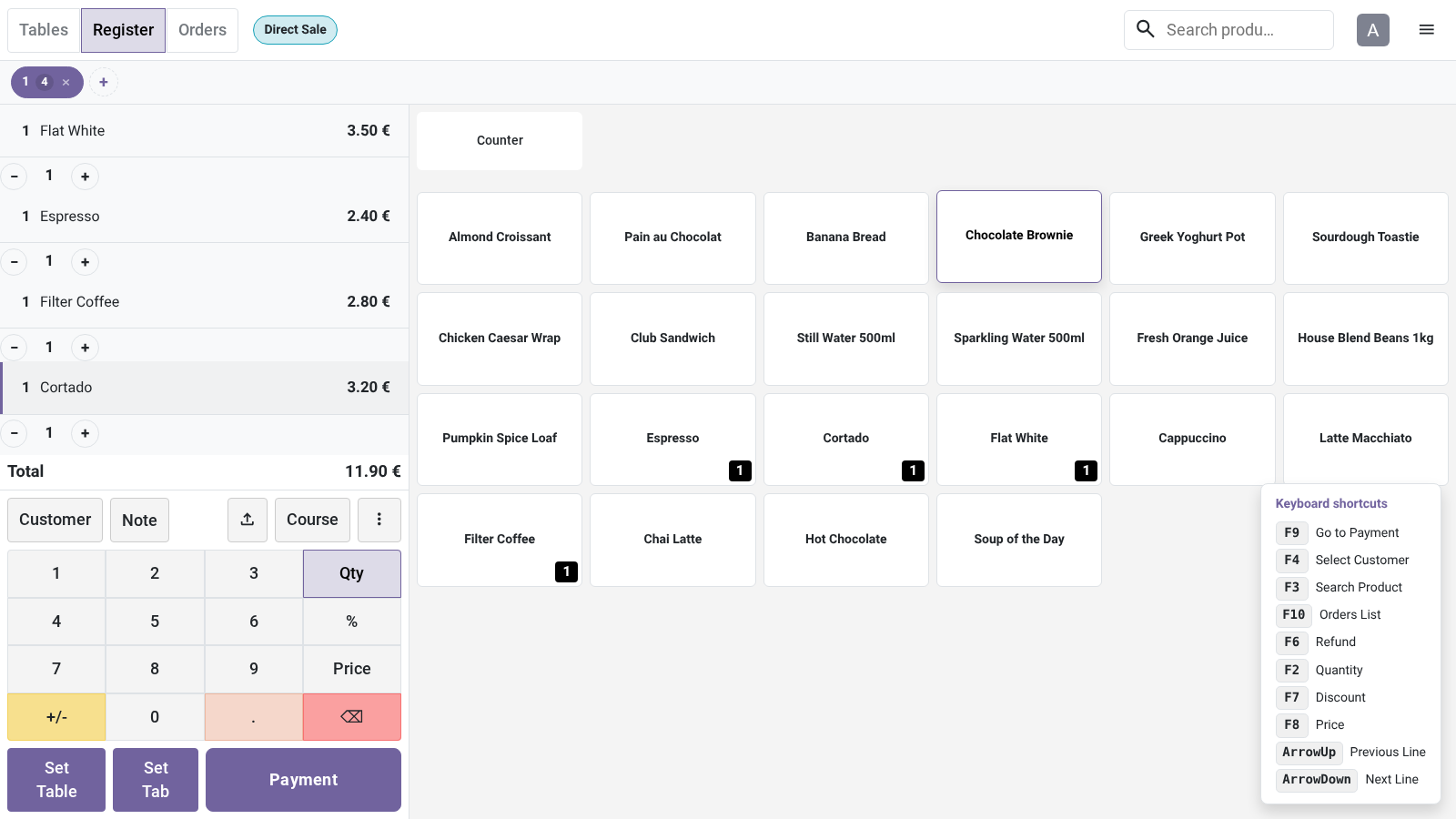
Keys for the Point of Sale, kept in a profile that any number of registers share, with a key on each payment method and the list of keys on screen while Ctrl is held.
Keys for the Point of Sale of Odoo 20, Community or Enterprise. A cashier goes to payment, picks the customer, changes the keypad mode, moves from line to line and chooses the payment method without leaving the keyboard. The keys are kept in a shortcut profile that any number of registers share, each payment method carries a key of its own, and holding Ctrl lists the keys of the screen in front of the cashier.
- Does anything leave my server?
- No. The app calls no outside address: no telemetry, no licence check, no third-party service.
- What happens if I uninstall it?
- The profiles are deleted and the three fields the app added are removed. Registers, payment methods, orders and sessions stay as they are.
- Can several registers share one profile?
- Yes. Choose the same profile in the settings of each register. A change to the profile reaches each of them the next time it is opened.
Other questions we answer
Odoo access control: who can see whatAudit trail for OdooPrint from Odoo without an IoT boxShopify and Odoo in syncWooCommerce and Odoo in syncPrestaShop and Odoo in syncConnect Odoo to n8n, Make and ZapierPeppol e-invoicing in OdooE-invoice checks before an invoice leaves OdooDocument management in OdooKPI dashboards for OdooFinancial statements on Odoo CommunityGDPR and cookie consent for OdooApproval workflows in Odoo CommunityQuality management for ISO 9001 in OdooAI translation for an Odoo website and catalogueOdoo for a dental clinicOdoo for a hotelOdoo for a garage or used-car dealerOdoo for construction: BoQ and job costingSubscriptions and recurring invoicing on Odoo CommunityHelpdesk for Odoo CommunityField sales on a phone with Odoo